

Deleting a Lumen Connect user
If a Lumen Connect user no longer needs access to manage Lumen services, you can delete their user profile. If the user may need access later, you can also deactivate their user profile temporarily and then reactivate it when they need to access Lumen Connect again.
Note: After six months of inactivity, Lumen Connect automatically deactivates a user's account. After an additional six months of inactivity, Lumen Connect deletes the user account.
To delete a Control Center user:
- Using the left menu, click Admin, then click Users.
Lumen Connect lists the users for your organization. For each user, Lumen Connect shows whether the user is a system administrator, whether the user has two-factor authentication (2FA), the method for receiving the authentication code, when the user last signed in, and whether the user is active.
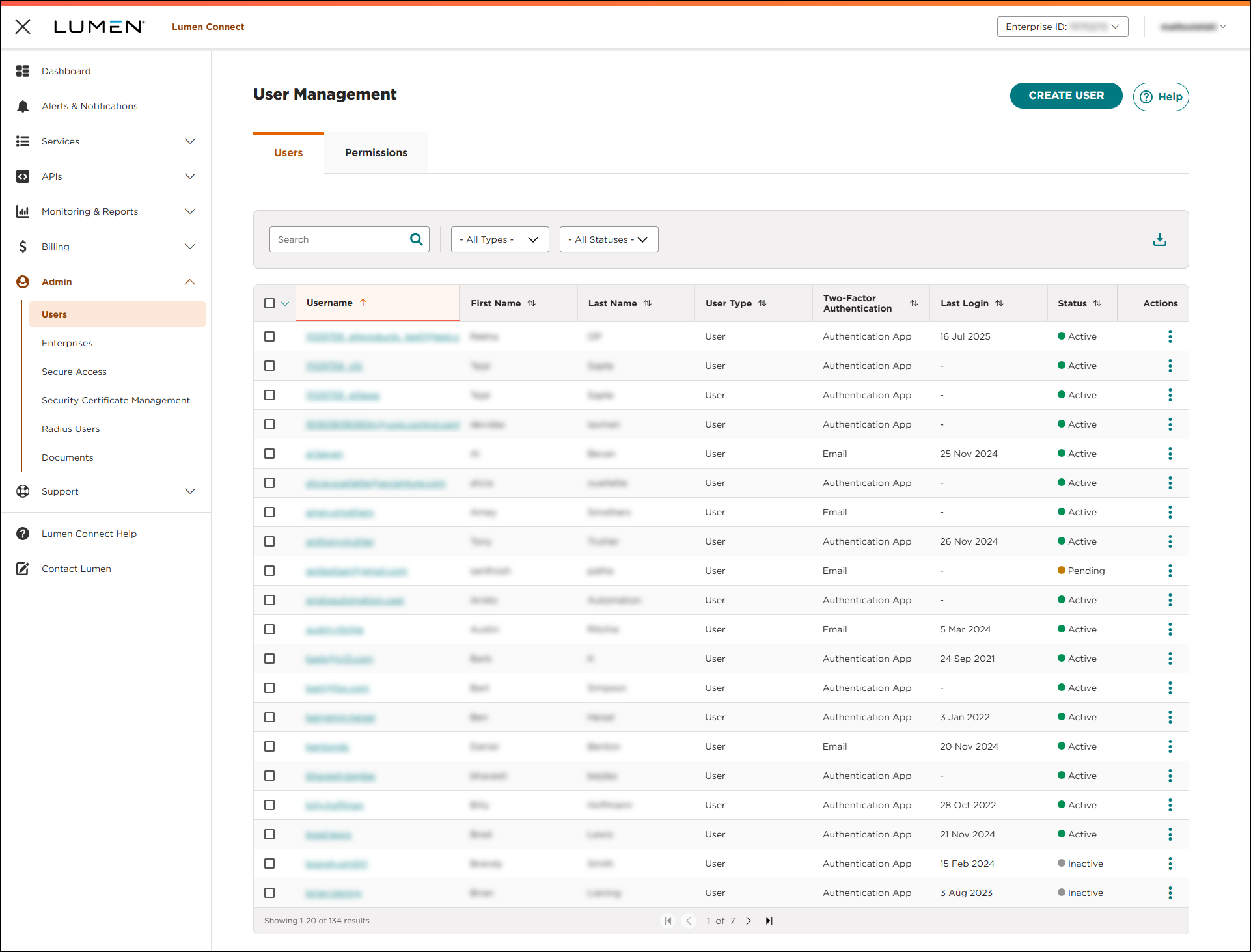
- Search for the user by doing one of the following:
- Scroll through the list of users. If you have more than 20 users, use the arrows at the bottom of the page to navigate between pages.
- Start typing part of the user's first name, last name, or username in the Search field. (Lumen Connect filters the user list as you type.)
- Scroll through the list of users. If you have more than 20 users, use the arrows at the bottom of the page to navigate between pages.
- When you find the user, click the (in the Actions column) icon on the row for the user, then click Delete User.
- In the window that appears, click OK to confirm you want to delete the user.
Lumen Connect deletes the user.



