

Re‑enrolling two‑factor authentication for a user
As a Lumen Connect system administrator, you can re-enroll the two-factor authentication (2FA) for users in your organization who use an authenticator app. Typically, you re-enroll a user's 2FA if they have trouble authenticating, need to reinstall their authentication app, or if they want to change devices used for authentication. Users can also re-enroll 2FA for their own user profile. As a system administrator, you can also change the authentication method for the user (authentication app or email) to receive their six-digit code.
To re-enroll two-factor authentication for a user:
- Using the left menu, click Admin, then click Users.
Lumen Connect lists the users for your organization. For each user, Lumen Connect shows whether the user is a system administrator, whether the user has two-factor authentication (2FA), the method for receiving the authentication code, when the user last signed in, and whether the user is active.
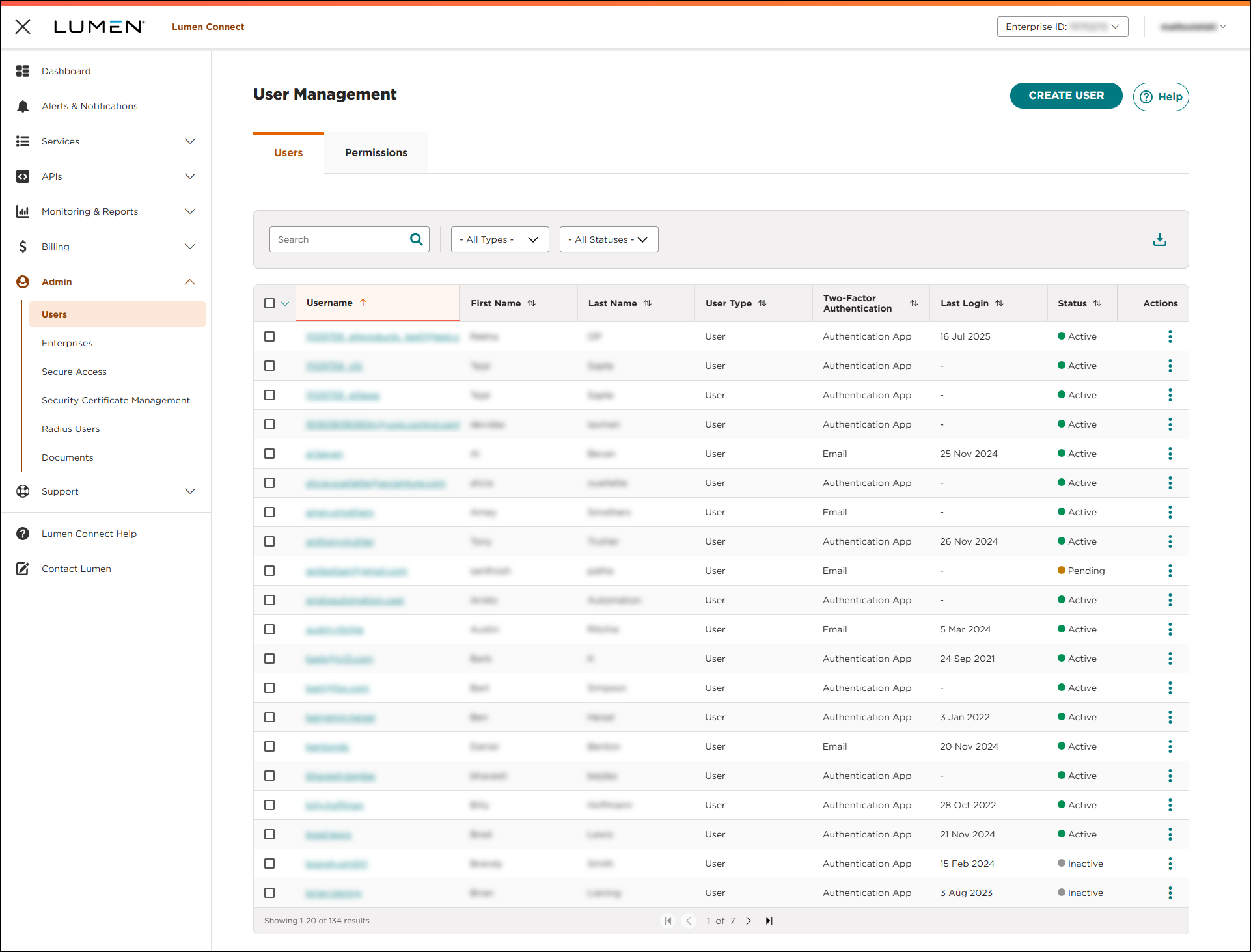
- Search for the user by doing one of the following:
- Scroll through the list of users. If you have more than 20 users, use the arrows at the bottom of the page to navigate between pages.
- Start typing part of the user's first name, last name, or username in the Search field. (Lumen Connect filters the user list as you type.)
- Scroll through the list of users. If you have more than 20 users, use the arrows at the bottom of the page to navigate between pages.
- When you find the user, click the link in the Username column on row for the user. (You can also click the icon (in the Actions column), then click View User Profile.)
Lumen Connect shows profile information for the user.
- At the top of the Security section, click Edit Security.
- Click Re-enroll in 2FA.
Lumen Connect re-enrolls the two-factor authentication for the user. The next time the users signs in, Lumen Connect prompts them to set up their two-factor authentication again.



