Setting up two-factor authentication
If your Lumen Connect user profile is set up to use an authentication app for two-factor authentication (2FA), you'll need to set up the app the first time you sign in to Lumen Connect or after re-enrolling 2FA (e.g., when you change mobile devices).
To set up two-factor authentication:
- Download an authenticator app (such as Microsoft Authenticator) and follow the vendor's instructions to install it on your desktop or mobile device.
- Open a browser and go to connect.lumen.com.
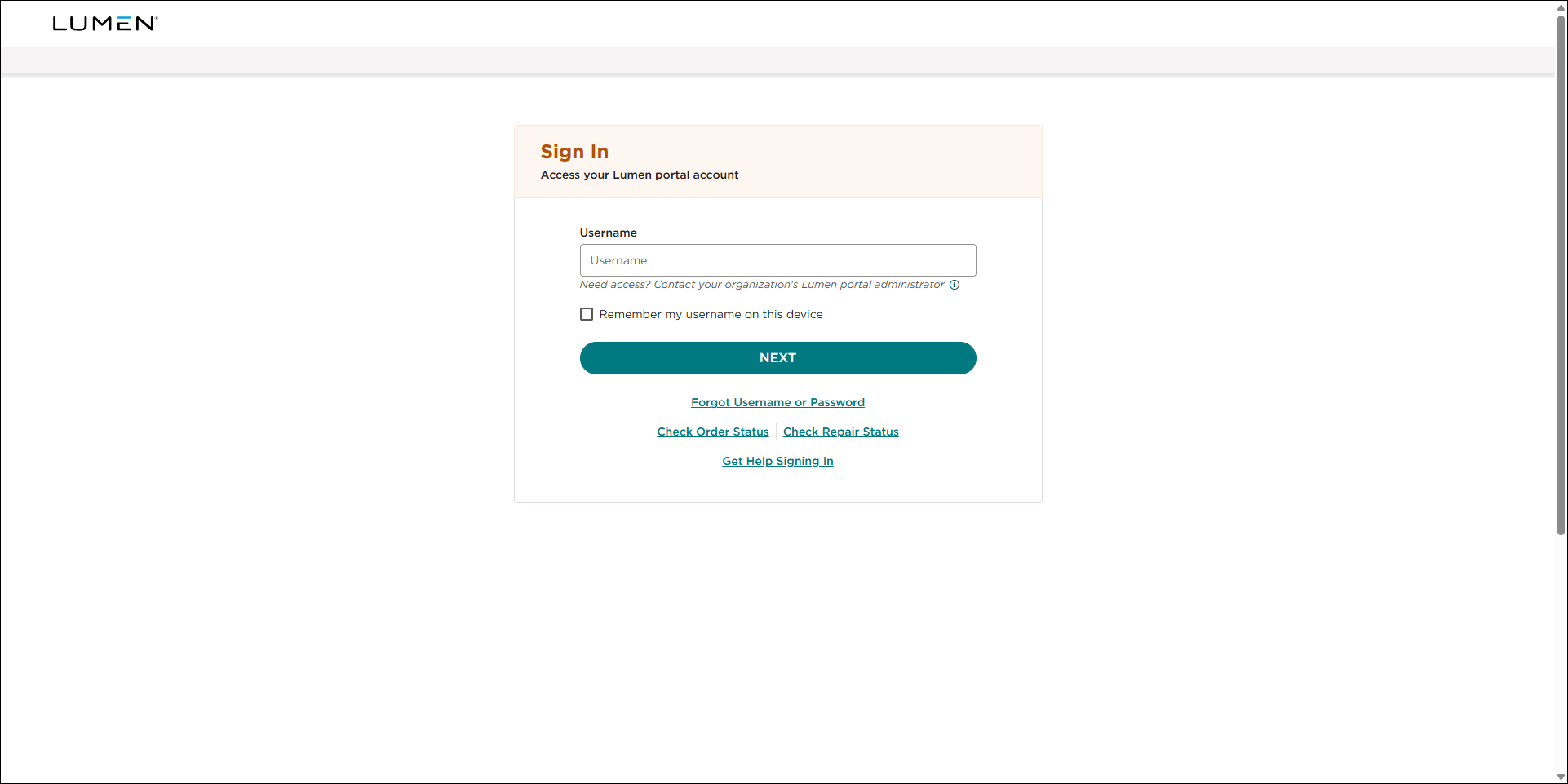
- Type your username, then click NEXT.
- Type your password, then click SIGN IN.
- Do one of the following to set up the authenticator app for Lumen Connect:
- If you installed the authenticator app on your mobile device, open the authenticator app, then scan the QR code using the authenticator app. (Note: If you use an iPhone for the authenticator app, we recommend not using your camera app to scan the code.)
- If you installed the authenticator app on your desktop, click the link below the QR code, copy the secret key, and then paste it in the authenticator app.
- If you installed the authenticator app on your mobile device, open the authenticator app, then scan the QR code using the authenticator app. (Note: If you use an iPhone for the authenticator app, we recommend not using your camera app to scan the code.)
The authenticator app generates a one‑time, six‑digit code every 30 seconds.
- Click CONTINUE.
- Type or copy the one‑time code from the authenticator app into the Verification Code field, then click CONTINUE.
Lumen Connect signs you in and shows the dashboard. Lumen Connect remembers the one-time code for 12 hours, so if you sign out and sign back in again, you will only have to enter your username and password.
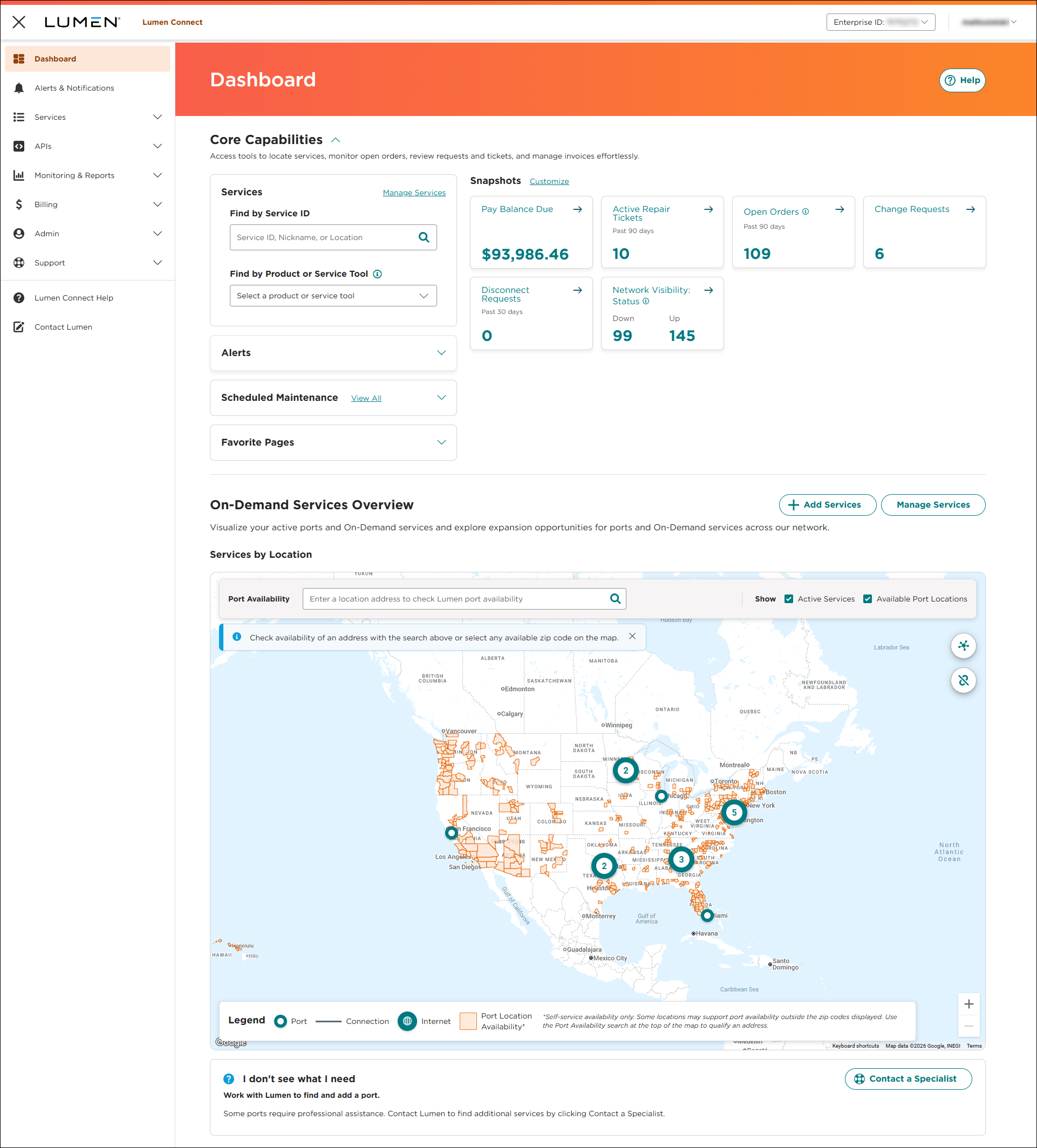
You can now sign in to Lumen Connect.



