

Ordering a standard detail use report
If you want to understand patterns you're seeing in your telecom use, order a standard detail use report in Usage Analyst. You can set the report to run one time, daily, weekly, or monthly. (If you want to see high‑level trends, order a summary use report.)
To order a standard detail use report:
- Using the left menu, click Monitoring, click Voice Reports, then click Usage Analyst.
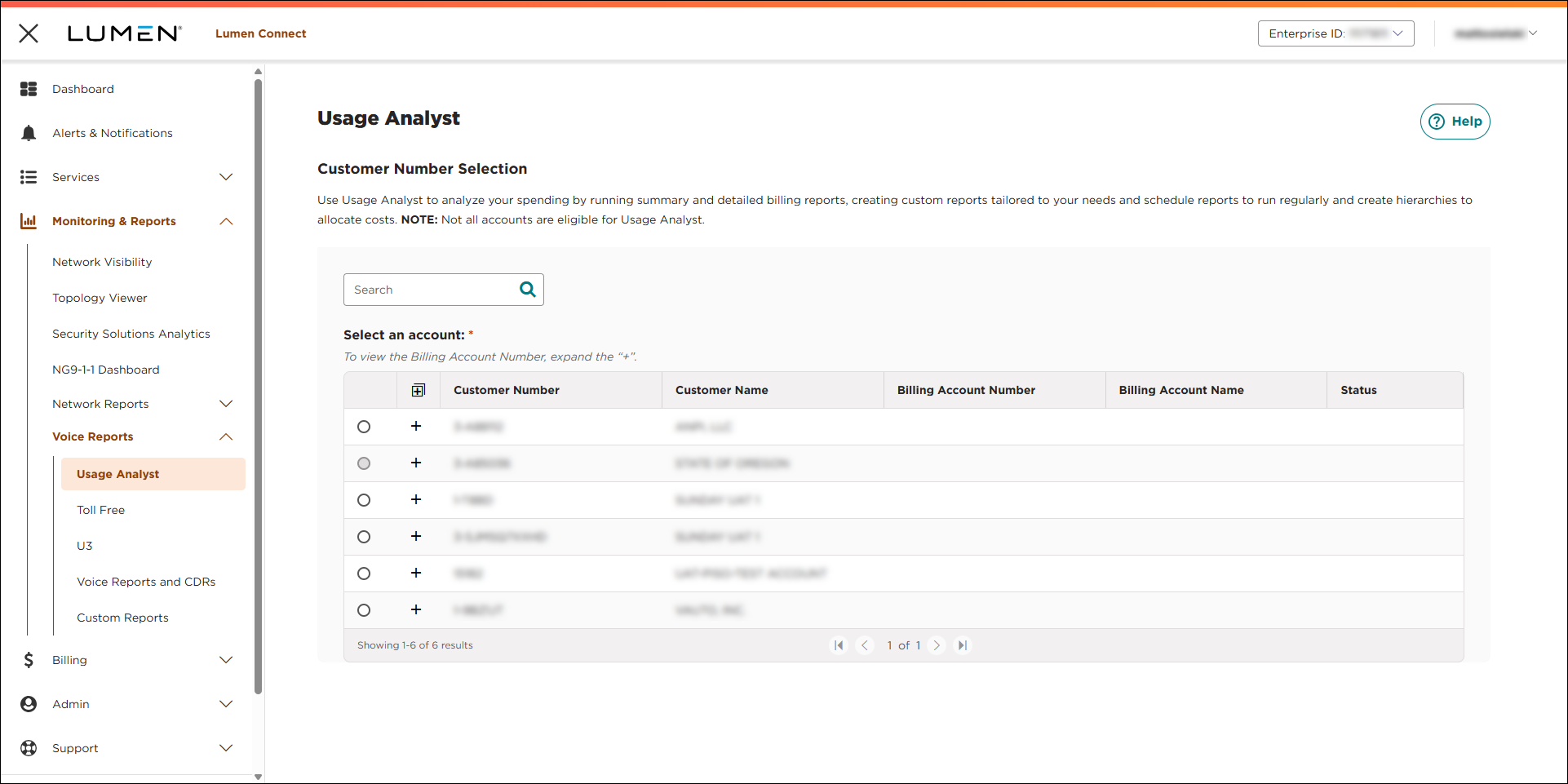
- Select the radio button next to the account you want to view, then click LAUNCH USAGE ANALYST.
Lumen Connect opens Usage Analyst in a new tab.
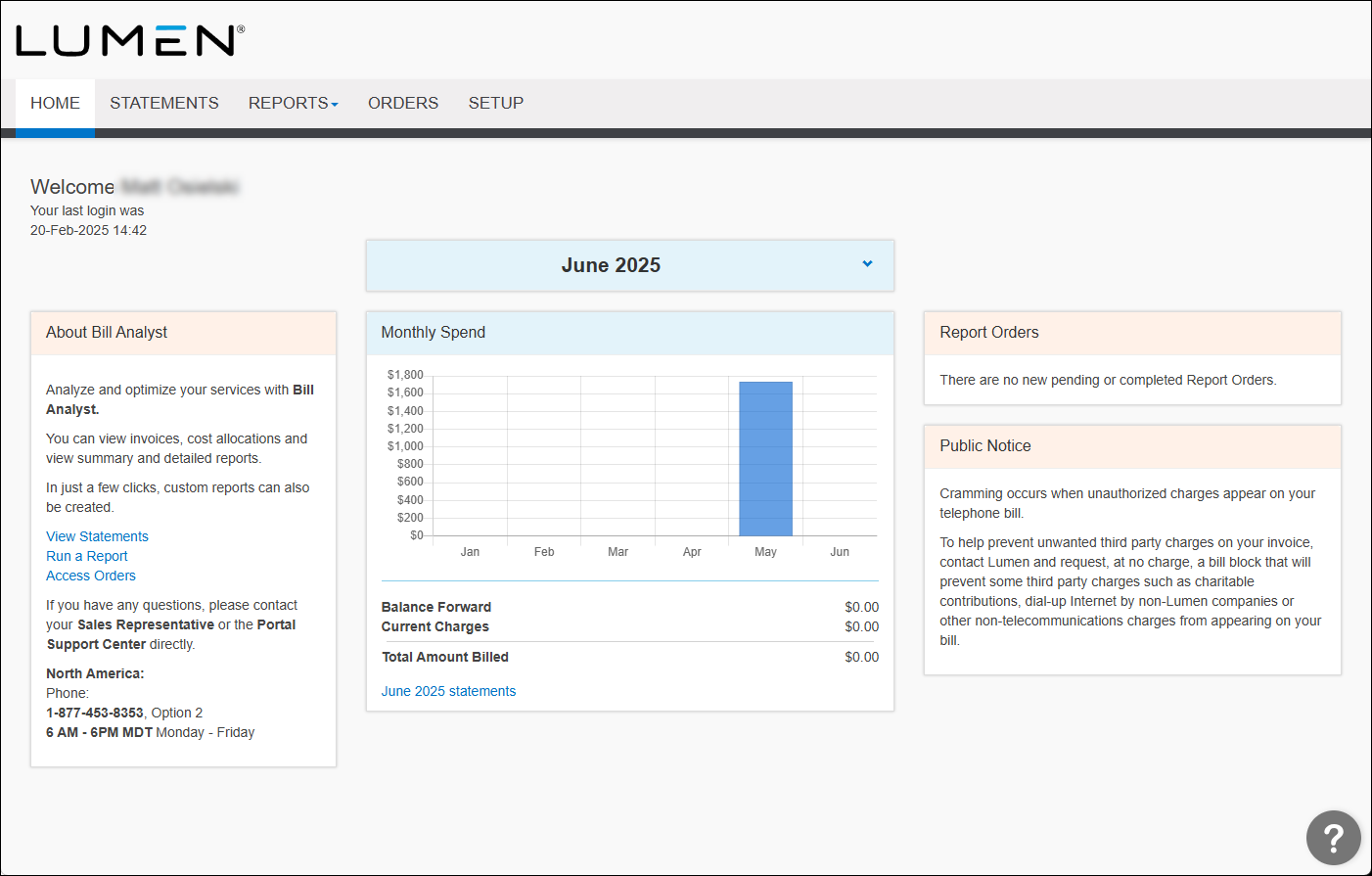
- Click the Reports tab, then click Detail Reports.
- Click the Usage Analyst tab.
Usage Analyst lists the available detail use reports.
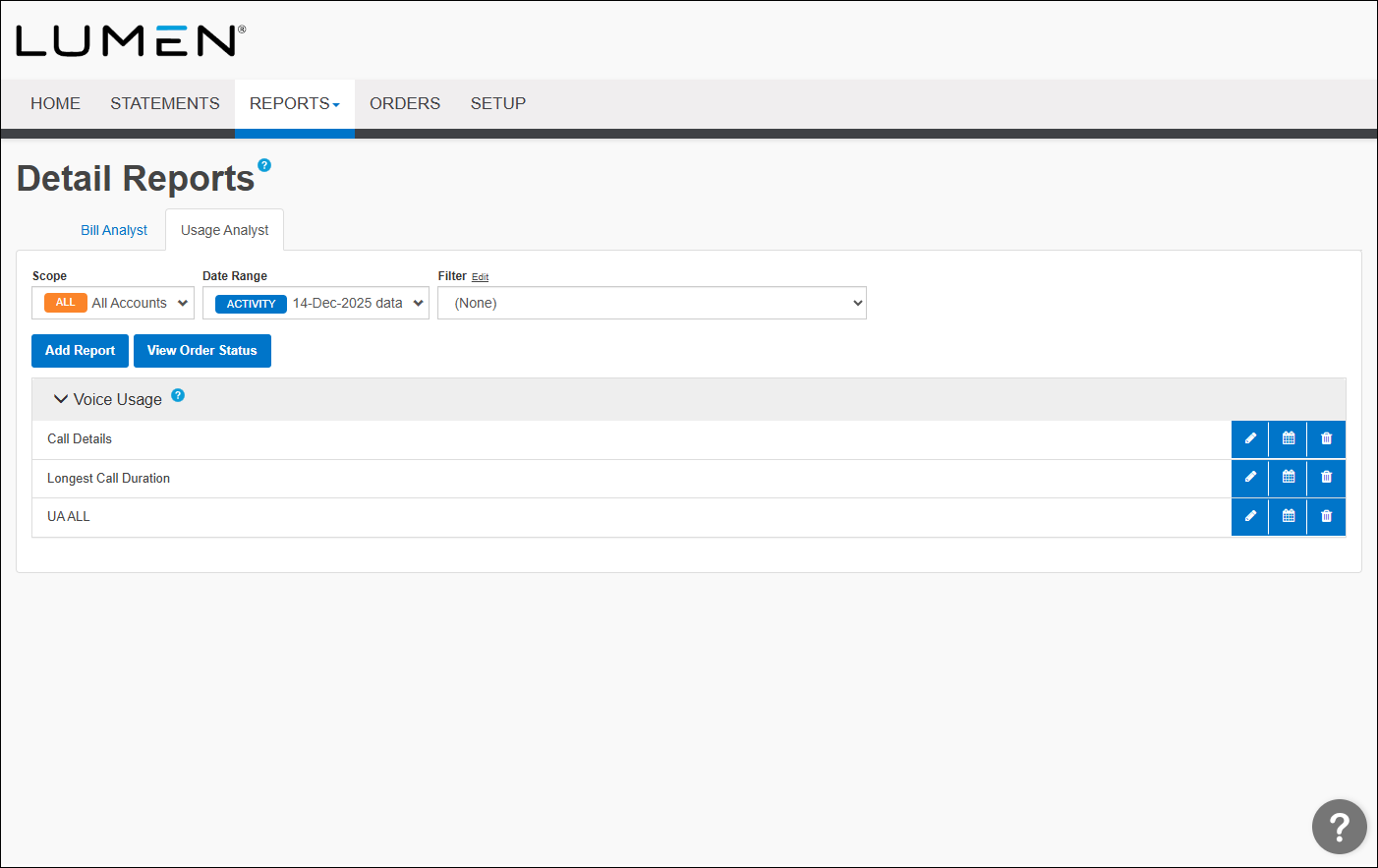
- Click on the Calendar icon next to the report you want to order.
- In the Order section, from the Data list, select Activity Date, then select the time period you want to pull data for.
- In the Order Frequency section, select how often you want the report to be generated.
- In the Order Format section, select the format you'd like to receive your report in by doing one of the following:
- To receive a report in a portable document format, select the PDF radio button.
- To receive a report in an editable Excel spreadsheet, select the CSV radio button.
- To receive a report in Extensible Markup Language, select the XML radio button.
- To receive a report in a portable document format, select the PDF radio button.
- In the Order Delivery section do one of the following:
- For you to receive a notification by email when your order is complete, select the Notify me by e‑mail when my order is complete radio button.
- For you and your colleagues to receive a notification by email, do one of the following:
- To receive a link to download the report without signing in to Usage Analyst, select the Notify me and any additional recipients below by e‑mail, and include a link to download the order without logging into the application radio button.
- To receive the report as an attachment in the email, select the Notify me and any additional recipients below by e‑mail, and attach the completed order. Files exceeding 2MB will not be attached radio button.
- To send the order to your SFTP location, select the Notify me and any additional recipients below by e‑mail, and send the order to the selected SFTP location radio button, then from the SFTP Locations list, select the SFTP destination. Before you can select this option, you first need to add an SFTP location to your account.
- Type the email address of each colleague who needs to know when your order is complete in the Send Additional Notifications To field.
- To receive a link to download the report without signing in to Usage Analyst, select the Notify me and any additional recipients below by e‑mail, and include a link to download the order without logging into the application radio button.
- For you to receive a notification by email when your order is complete, select the Notify me by e‑mail when my order is complete radio button.
- Click Submit Order.
Usage Analyst processes your request. Depending on the delivery option you selected, Usage Analyst notifies you when the report is complete. If you didn't select to receive the file by email, you can retrieve and download your report. If you created a recurring order for a report, you can also edit the order or delete the order later as your reporting needs change.
Note: You can change your preference whether Usage Analyst sends HTML‑ or text‑formatted emails.



