

Using the IP Solutions OLOF
On the IP Solutions OLOF, you will select from Internet Port, Private Port VPN, and Private Port VPLS, as well as domestic vs. international service.
IP Solutions OLOF will have an initial option “Complete this order using attached order form” with Yes/No selection.
“Complete this order using attached order form” defaults to No. All required fields will be need to be completed to activate the Submit Request button.
If Yes is selected on “Complete this order using attached order form”:
- This will reduce the amount of required fields
- You will not need to take the time to populate the order information on the IP Solutions OLOF fields
- In lieu of entering order information into the IP Solutions OLOF fields, it will be detailed in a Sales Engineer approved manual order form that will be attached to the OLOF
- The Submit Request button will not activate until attachment is added
- Contact your sales engineer for more information regarding the approved manual order form
To use the IP Solutions OLOF:
- From the Lumen Connect dashboard, click Manage Orders (in the Frequently Visited widget).
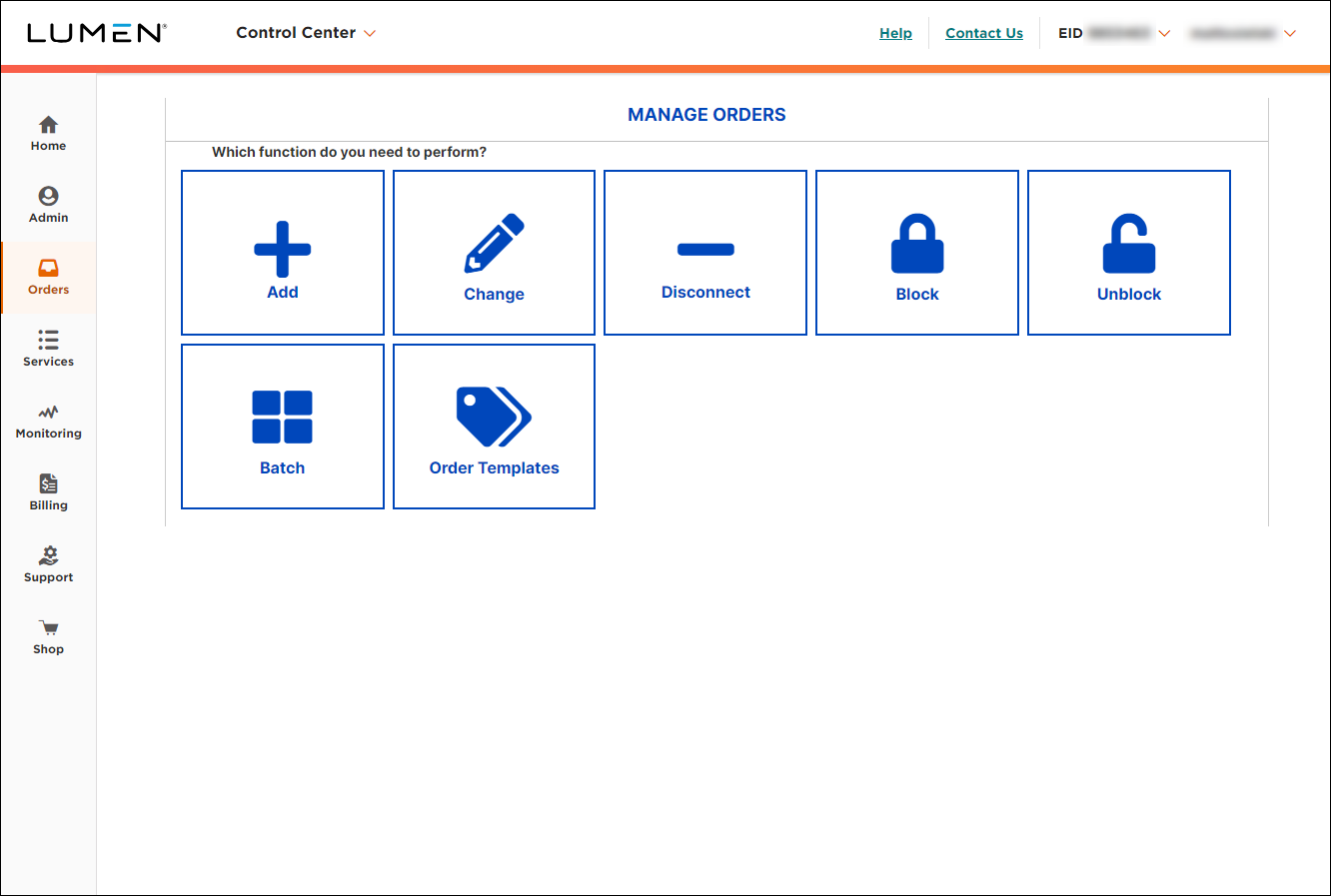
- Select Add, Change, or Disconnect.
- From the Service Type list, select IP Solutions. Learn more about using online order forms (OLOFs)
Lumen Connect builds the online order form based on your selections.
- In the Complete this order using attached order form field, do one of the following:
- To attach an order form, select the Yes radio button.
- To complete the standard order form in Lumen Connect, select the No radio button.
- To attach an order form, select the Yes radio button.
Based on your selection, Lumen Connect labels the sections you need to complete: Contains Required Fields .
- Open each section and fill in the information requested.
- On an OLOF with a Service Address Information section, you need to validate the service address in order to submit the form, even it you have already validated the address when you saved the form earlier.
- Lumen Connect automatically adds the account numbers to the Customer Account Number list.
- By default, Lumen Connect uses your profile information to fill in the primary contact information. If you change the primary contact email address, make sure to sue a valid address. Invalid email addresses will cause the OLOF to change to Failed status.
- Some OLOFs may give you different fields, depending on the action you select. For example, the TDM Voice Toll Free OLOF for a disconnect will have fewer sections, because it only needs a list of toll‑free numbers that are to be disconnected.
- On an OLOF with a Service Address Information section, you need to validate the service address in order to submit the form, even it you have already validated the address when you saved the form earlier.
- When you're done, click Submit Request.
Lumen Connect emails you to confirm your order and includes a copy of your OLOF. The OLOF is also available in Lumen Connect for 90 days; check preliminary order status.
You can contact us for order status. Lumen Connect also offers milestone jobstep order status information; check post‑submission order status.



