

Using the Switched Batch Formatter for a large quantity file
The Switched Batch Formatter supports approximately 1,000 rows of data, when entering data directly into the web browser. If you need to create a larger quantity file, you can build on a smaller one. You can use Switched Batch Formatter for large quantity files to create approximately 10,000 rows of data.
Before you start, review Switched Batch Step by Step Summary and Using Switched Batch Formatter.
To use the Switched Batch Formatter for a large quantity file:
- Using the left menu, click Orders, click Manage Orders, then click Batch.
- In the Ordering Type field, select the Switched radio button.
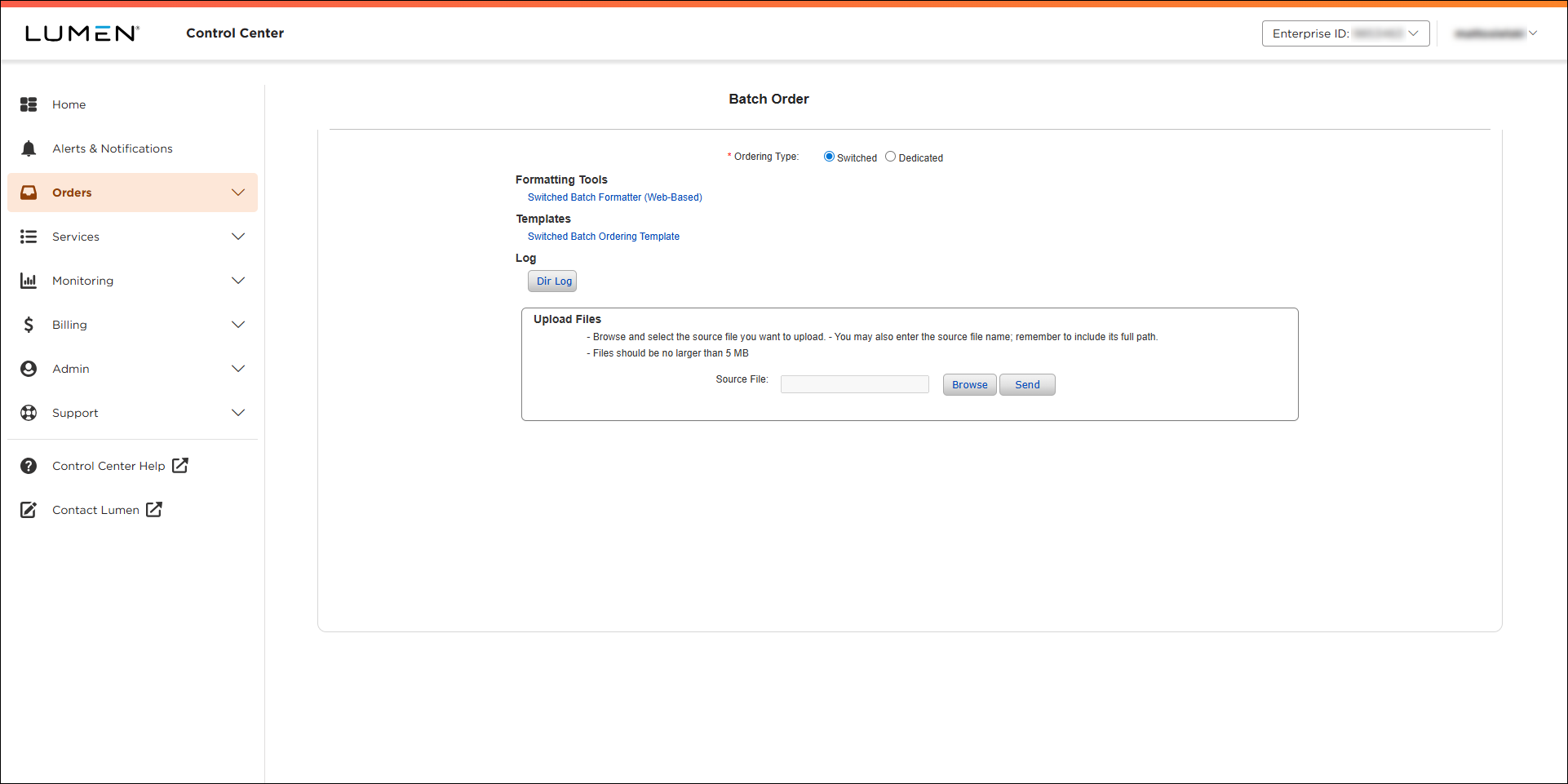
- Use the Switched Batch Formatter tool to validate a single or few rows of data.
- Save the file to get the GBUS formatting (header/trailer records, see GBUS File Format).
- Open saved text file in Excel.
- Change All Excel Files to All Files or Text Files.
- Browse to the file, then click Open.
- Click Next through this Text Import Wizard – Step 1 of 3.
- Click Next through this Text Import Wizard – Step 2 of 3.
- Click Next through this Text Import Wizard – Step 3 of 3.
- Your data loads into Excel; you can insert additional rows and data.
- Change the trailer record “TTTTT REC_CNT=1” to the new number of rows. Here it has been changed to “TTTTT REC_CNT=3”.

- Finished adding your data; save the file as a .txt file.
Your file is ready to upload for processing.
- Upload the file; in Orders > Manage Orders > Batch > Switched > browse to upload file.
- Review your results: go to Orders > Order Status > Preliminary Order Status and locate batch file to review results.



