Viewing the status of a Switched batch file
After a Switched batch file is successfully processed, Lumen Connect shows order status using text files referred to as results files:
- .WHL file extension = total results file (Includes both accepted and rejected services; this is the main results file to check)
- .RF file extension = rejected file service components
- .RFM file extension = rejected file messages for each rejected component. (The combined RF and RFM can be uploaded into the batch formatter for easy rework of rejected services.)
- .AVS file extension = Address Validation File (used only for Calling Cards that require fulfillment)
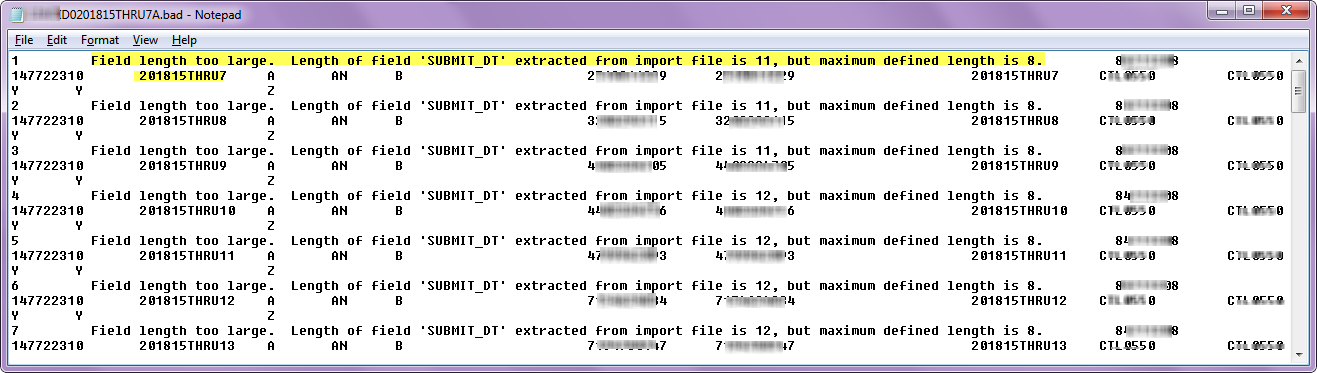
- .BAD file extension = When files uploaded have the incorrect format (e.g.; data row errors, field lengths exceeded) the errors will be generated in this .BAD file for the customer, in the Results Files directory.
A Switched batch file that fails validation will be moved to the "Bad File" directory. The DIR.LOG file will advise the reason the file was rejected and automatically moved to Bad Files.
Follow the below steps to check the Switched batch results files in Order Status on the Preliminary Order Status screen.
To view the status of a Switched batch file:
- Using the left menu, click Orders, click Order Status, then click Preliminary Order Status.
Lumen Connect shows all pending orders and orders completed within the past 90 days submitted using dedicated/switched batch, DTFO, or OLOF (online order forms). Lumen Connect also lists your view/modify call plan changes.
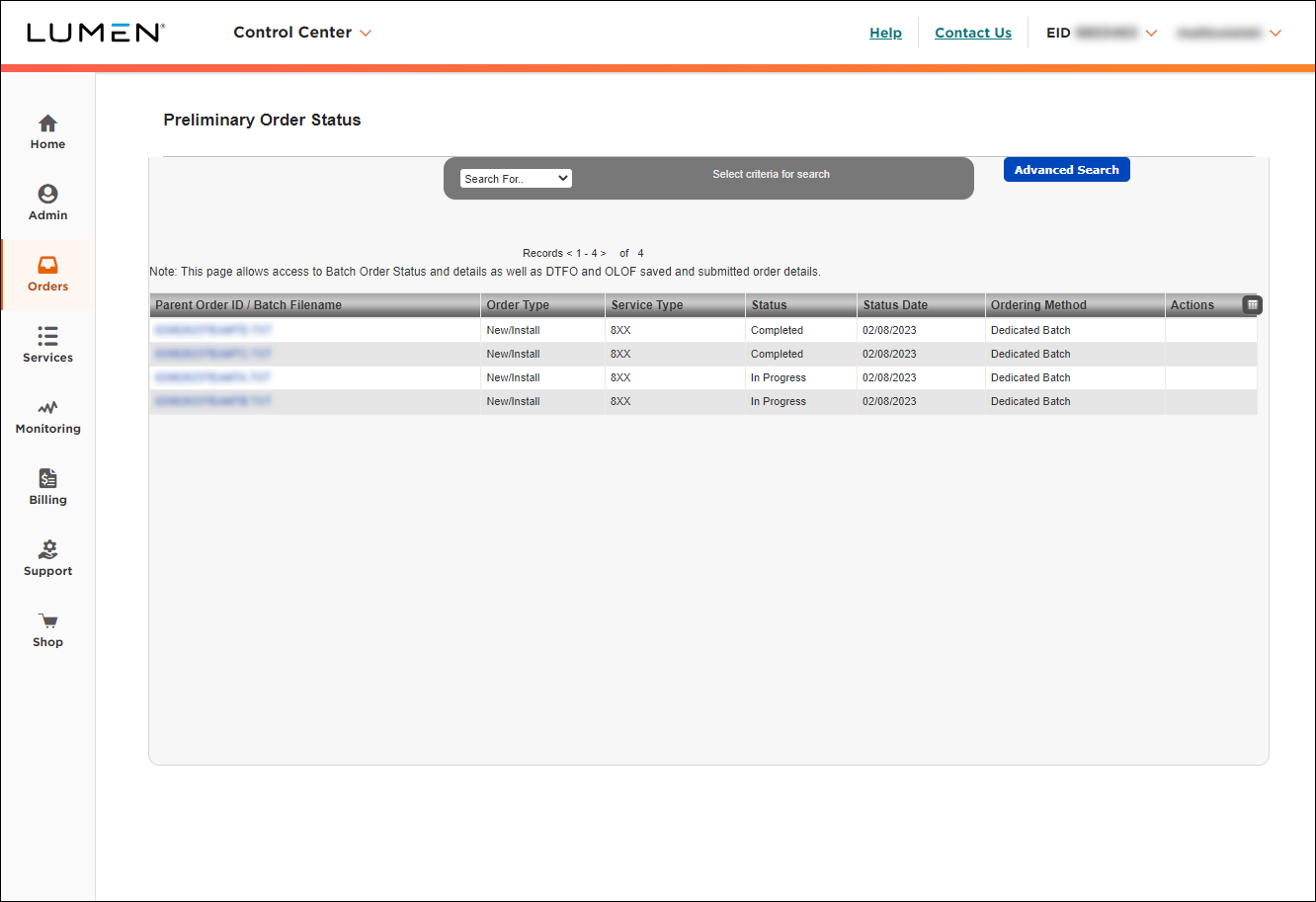
- In the “Search for…” drop down menu, select Ordering Method. The “Search” field will appear, enter Switched Batch (case sensitive). You can use enter key on your keyboard or click the icon to the right of the Search field.
Alternatively, you can search by Parent Order ID (case sensitive): enter the file name of the batch file you uploaded; use asterisk for wildcard search (example searches using an example Switched Batch file name: AN_JanusA5.txt, AN_JanusA5*, AN*, etc).
The Switched Batch files are identified by the switched batch file name under the Parent Order ID / Batch filename column.
For Switched Batch:
- The Order Type is always New/Install, Change, Disconnect
- The Service Type is always 8XX, ANI, Card
- The Ordering Method is always Switched Batch
- On Preliminary Order Status page, locate the batch file using Search as noted above.
- To review status of a Switched Batch, click link in the Parent Order ID / Batch Filename column.
Lumen Connect shows the information for the file you selected. There are two tabs, Order Details and Files. The Files tab contains the results files, bad files, archive file and upload file (with DIR.LOG). Most often, you'll use the .WHL results file to check status of the Switched Batch order.
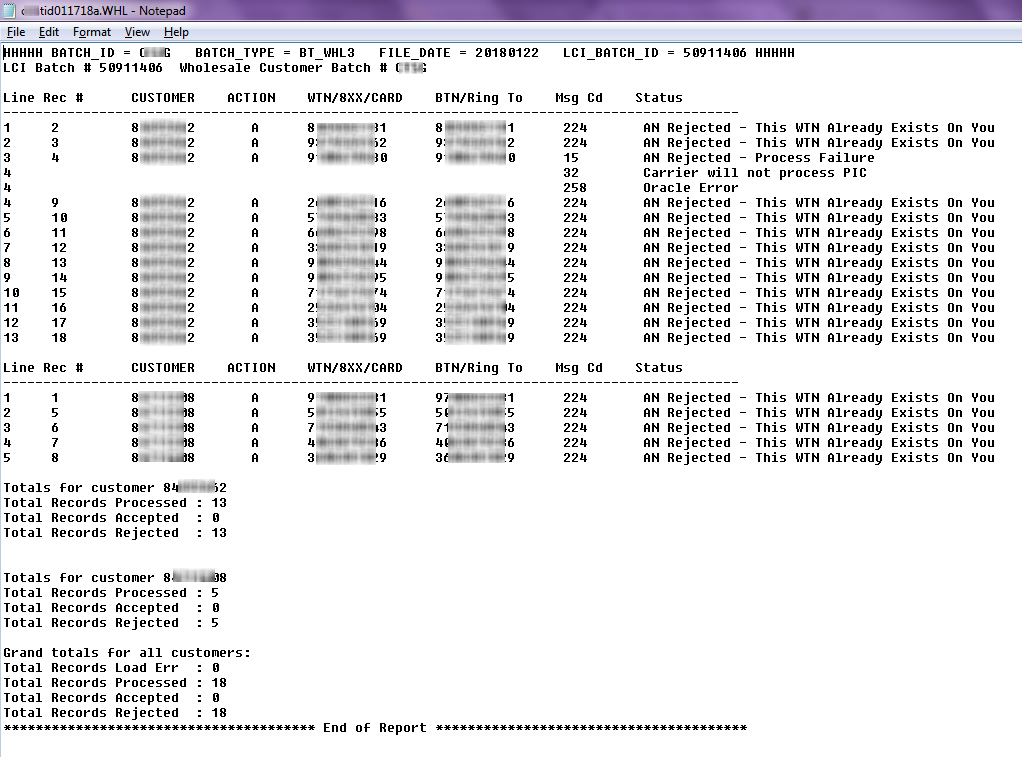
Switched Batch .WHL results file
.WHL file extension = total results file (Includes both accepted and rejected services; this is the main results file to check)
Note: The numbers listed under Msg Cd column can be looked up in the Switched Services Ordering Error Handling list, to view the full message.
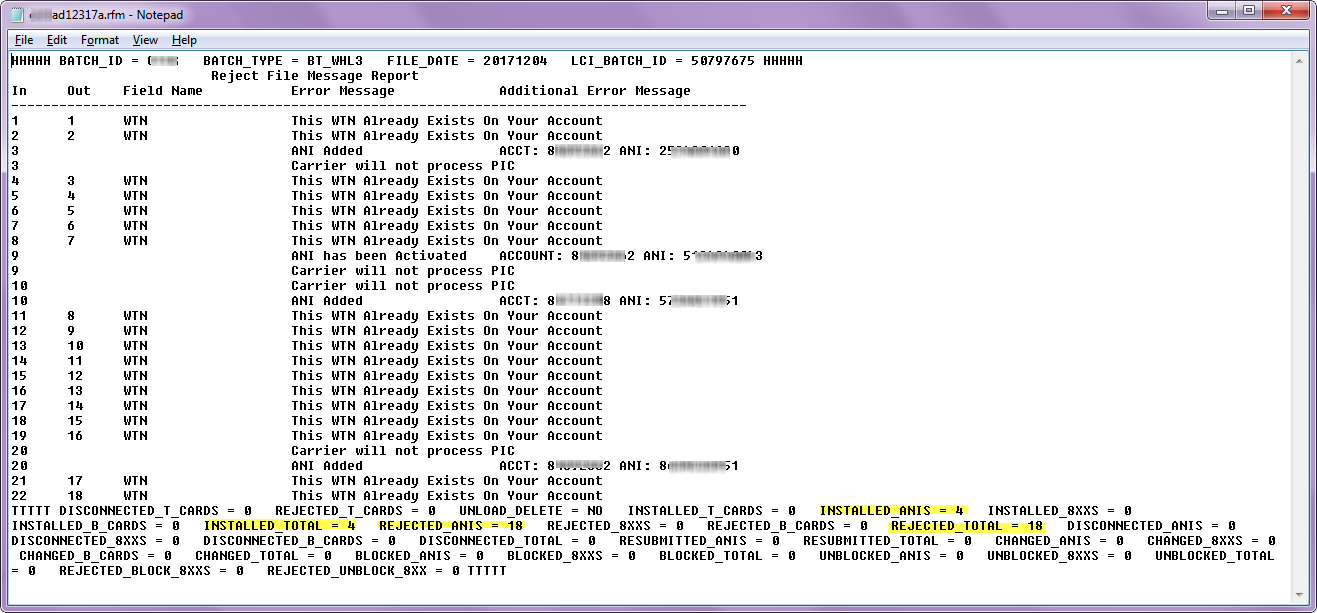
The .RF and .RFM are files specific to reject/error messages on the services. These error files are located in the Results directory in Lumen Connect.
These files could be loaded into the downloadable Switched Batch Formatter tool and corrected for resubmission. That version of the formatter was incompatible with Windows 7 and newer, and was replaced by the Web-Based Switched Batch Formatter tool. The newer web-based formatter tool only supports text tab delimited text files, and does not support the .RF and .RFM files.
These files can still be utilized for manually reviewing services with rejects/errors.
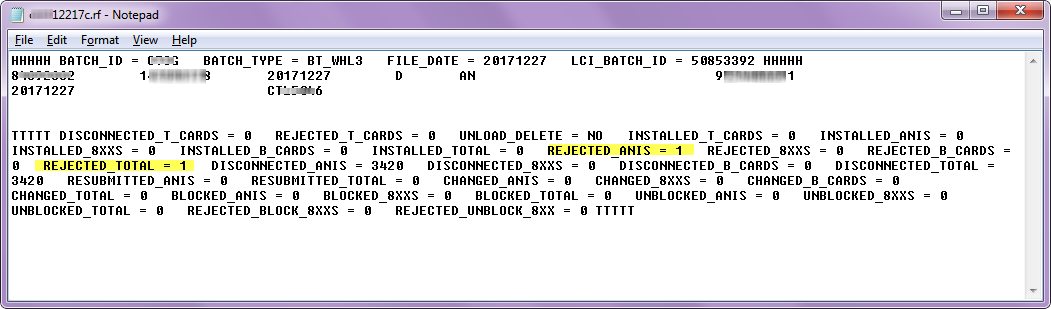
Switched Batch .RF results file
RF files are reject output files from a GBUS file.
Switched Batch .RFM results file
RFM files are the error message files that correspond to the RF files. These files contain error messages that explain and pinpoint the errors in the RF files.
Switched Batch .BAD results file
When files uploaded have data with incorrect formatting (e.g.; data row errors, field lengths exceeded) the errors will be generated in this .BAD file for the customer, in the Results Files directory.
Switched Batch DIR.LOG file
The Switched Batch DIR.LOG file is available in multiple locations (shown in above screenshots):
- Manage Orders > Batch > Switched
- Order Status > Preliminary Order Status, click on Switched Batch File name hyperlink, overlay appears, select the Files tab
The Switched Batch DIR.LOG is a text file that opens in Notepad or a text file reader.
For Switched Batch files, the DIR.LOG lists only issues with processing Switched Batch files.
Scroll to the bottom of the DIR.LOG file for the most recent files.
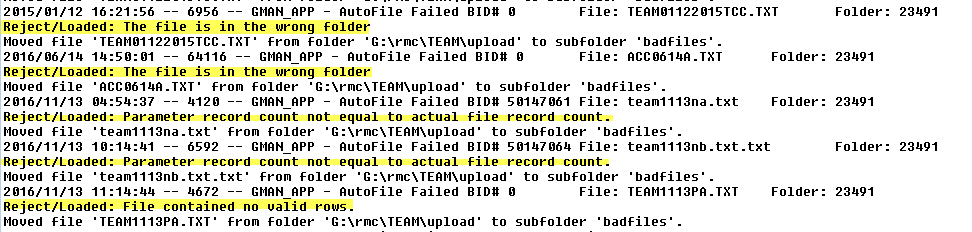
Below are examples of Switched Batch DIR.LOG files:
In this DIR.LOG example, information for three Switched Batch Files is shown. There are three lines for each file; the second row provides the reject information, and the third row shows the automated system action of the Switched Batch file moved to the Bad File directory.
The reject "Filename already exists in archive" indicates a Switched Batch file with that file name has already been processed. Duplicate files cannot be processed.

In this DIR.LOG example, information for five Switched Batch Files is shown. There are three lines for each file; the second row provides the reject information, and the third row shows the automated system action of the Switched Batch file moved to the Bad File directory.
The reject "the file is in the wrong folder" indicates a dedicated batch file was uploaded to the switched batch upload directory, and could not be processed.