

Viewing the status of a billable field tech ticket
You can view status and details of billable field tech tickets in Lumen Connect (along with your open repair tickets, portal support tickets, and activation tickets, etc.). In a hurry or on a mobile device? You can get status on a ticket without having to sign in to Lumen Connect. You just need your billing account number and ticket ID.
To locate a specific repair ticket, you can search for it or sort and filter the list of tickets. Click the column headers to sort all the records in ascending or descending order. Use the All Statuses, All Ticket Types, and All Created Dates fields to filter the list of tickets.
To view the status of a billable field tech ticket:
- Using the left menu, click Support, then Ticketing.
Lumen Connect lists all tickets—repair, potential repair, activation, configuration, billable field tech, maintenance inquiry, portal support, and reason for outage (RFO)—including tickets Lumen created on your behalf. By default, Lumen Connect shows tickets created in the past 90 days and tickets are organized by the date the ticket was created (starting with the newest). The Status column shows the status for each ticket: Active, Canceled, Closed, etc. Potential tickets are marked with a yellow flag (). Tickets needing a reply from you are marked with a green flag ().
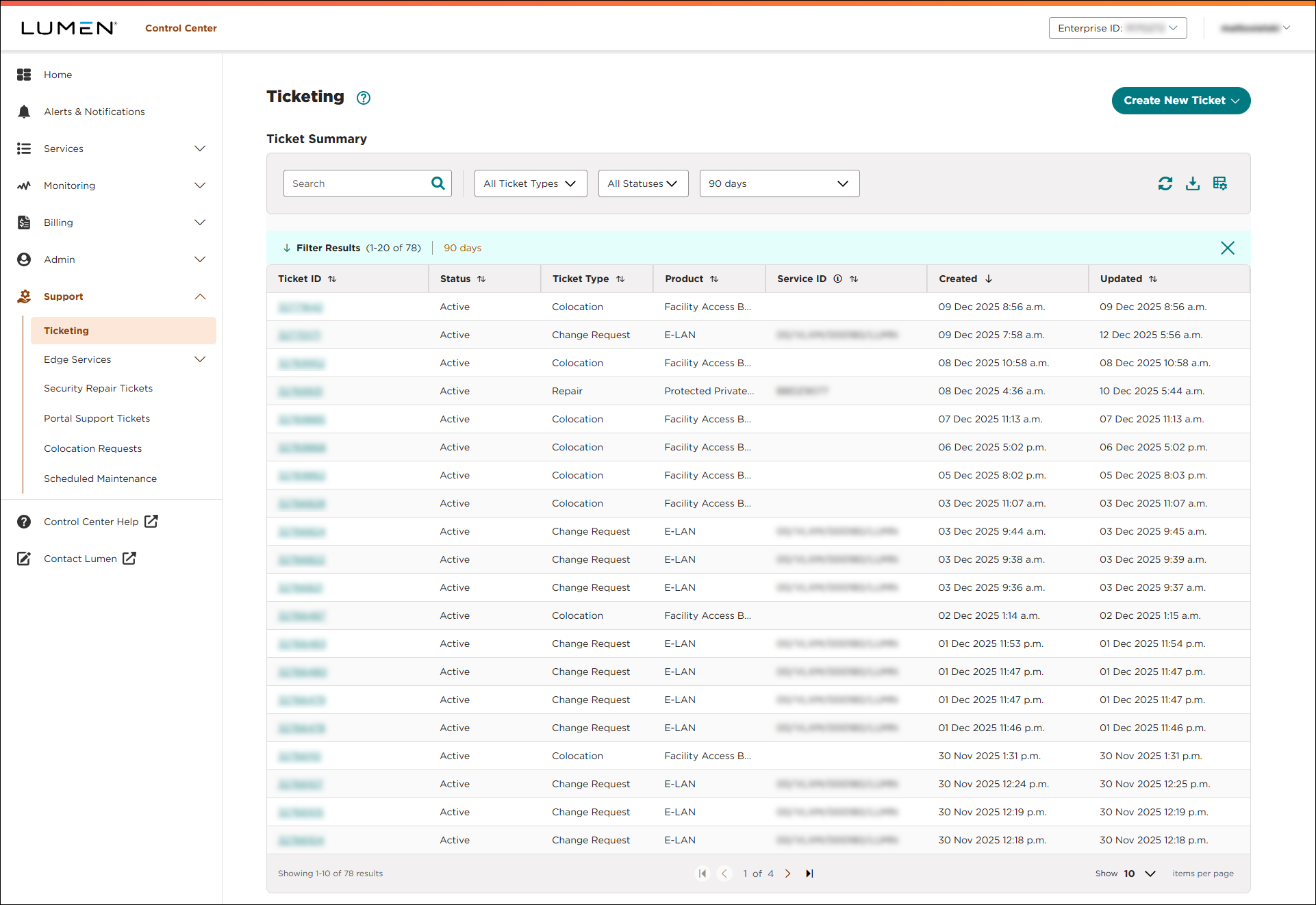
- Do any of the following:
- To view details for a ticket, click anywhere on the row for the ticket.
Lumen Connect shows details for the ticket you selected.
- To filter the list so you see only repair tickets, select Billable Field Tech from the All Ticket Types list.
- To refresh the list, click the icon.
- To download a spreadsheet (.xls) of the tickets, click the icon.
- To view details for a ticket, click anywhere on the row for the ticket.



