Creating a billable field tech ticket
You can submit a billable field tech ticket to ask for a Lumen field technician to work on your behalf at a colocation site. Depending on your contract, we may charge you for dispatching a technician. After you submit your ticket, you can check its status in Lumen Connect.
You’ll want to have the detailed location information, such as building address, suite number, room number, rack ID, and equipment ID ready to complete your request and submit the ticket.
For return material authorization, you also need: RMS number, RMS part number, RMS name, RMA serial number, and the RMA shipping labels and materials are provided.
Need access to a data center? You can submit a colocation request using Lumen Connect.
Note: If you need to update or cancel a billable field tech ticket, call us immediately at 877‑453‑8353 (option 1, then 2, then 3) or 720‑888‑9009. Billable field tech tickets are time‑sensitive and may require extra fees from you, so don't wait.
To create a billable field tech ticket:
- Using the left menu, click Support, then Ticketing.
Lumen Connect lists all tickets—repair, potential repair, activation, configuration, billable field tech, maintenance inquiry, portal support, and reason for outage (RFO)—including tickets Lumen created on your behalf. By default, Lumen Connect shows tickets created in the past 90 days and tickets are organized by the date the ticket was created (starting with the newest). The Status column shows the status for each ticket: Active, Canceled, Closed, etc. Potential tickets are marked with a yellow flag (). Tickets needing a reply from you are marked with a green flag ().
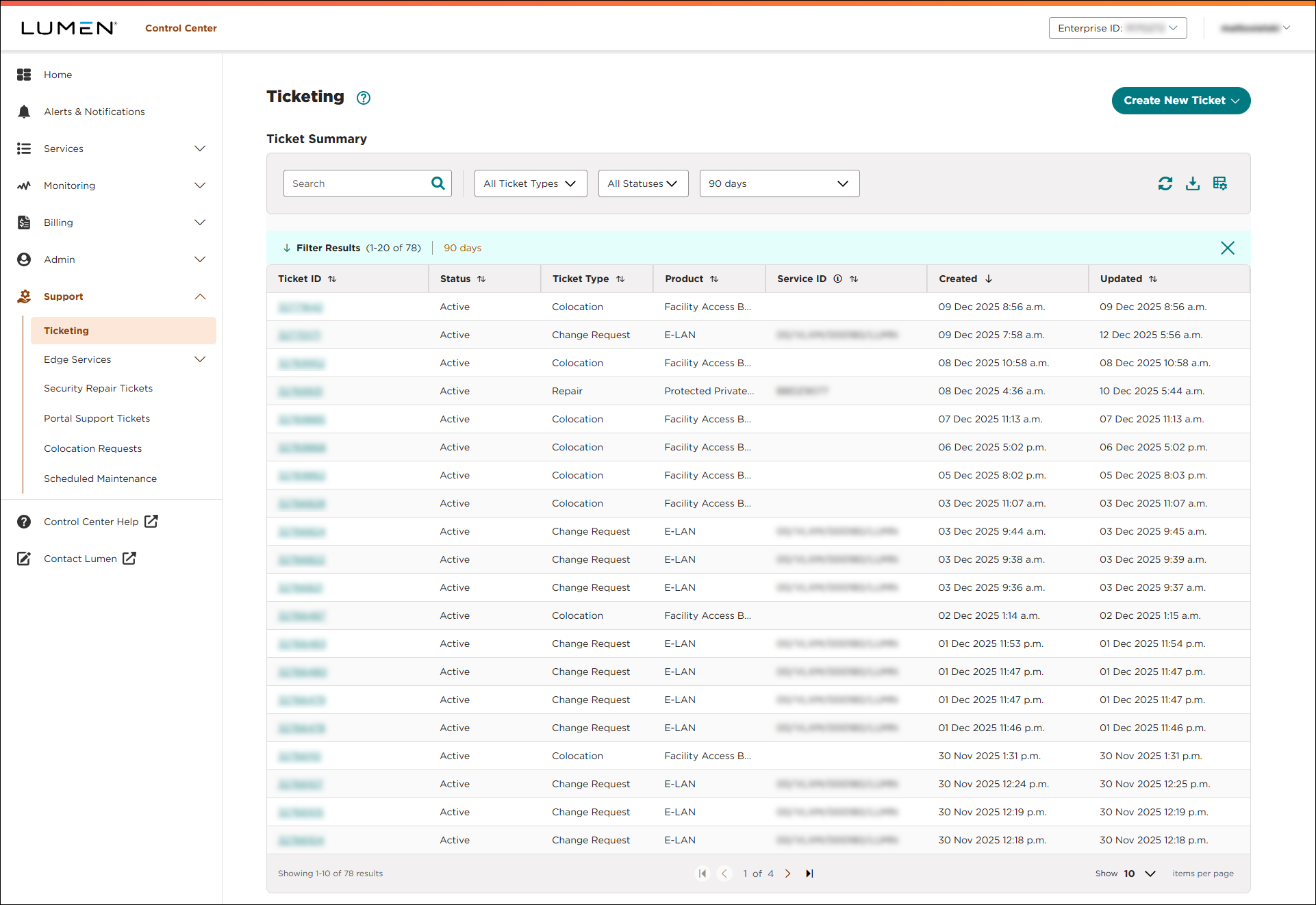
- From the Create New Ticket list, select Billable Field Tech.
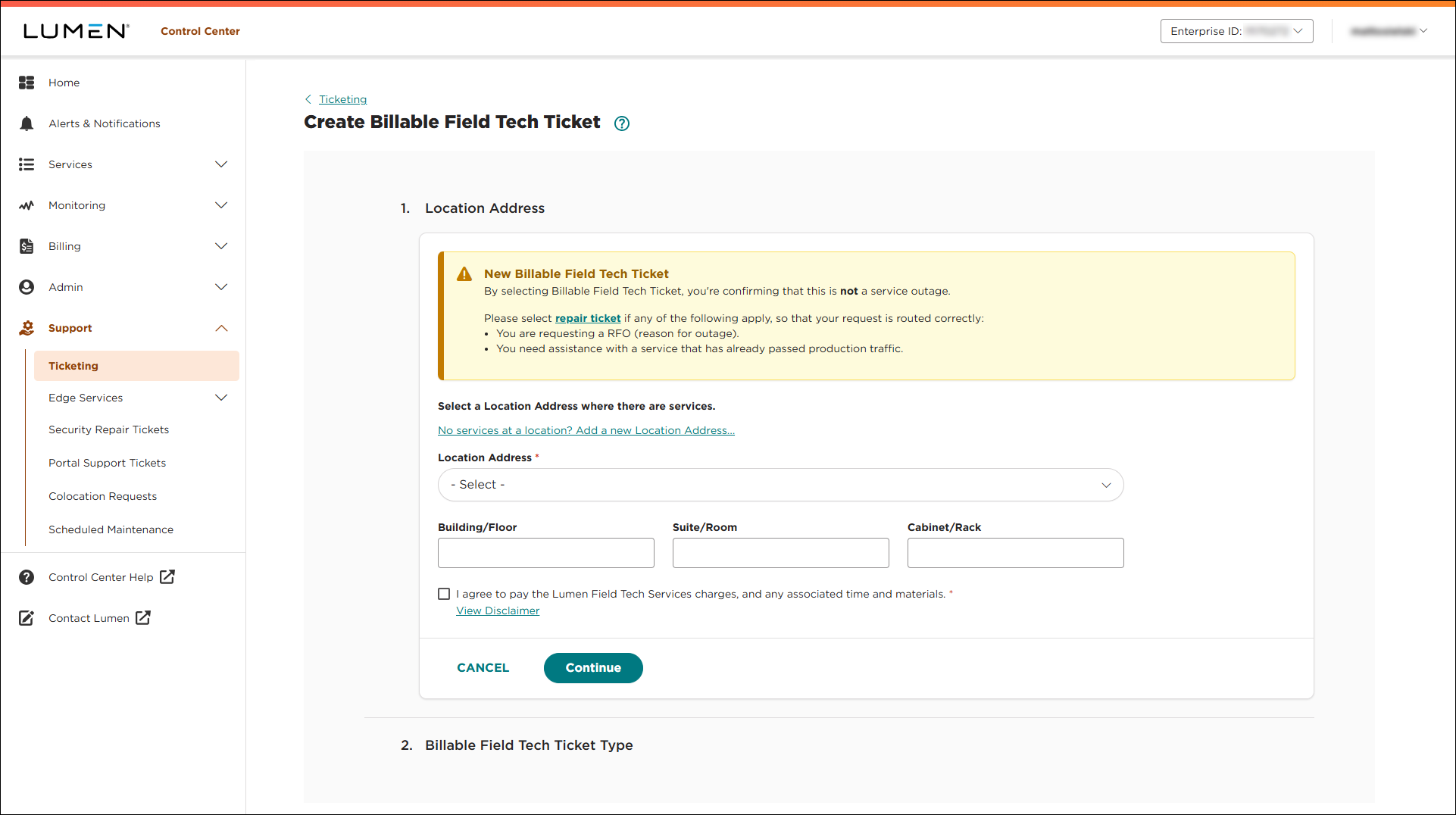
- From the Location Address list, select the location you want a field tech to visit. Add any specifics for the location: building, floor, suite, room, cabinet, or rack. (If you don't see the location in the list, click the link above the Location Address list and fill in the information for the location.)
- Click to acknowledge that you understand the terms and approve any additional fees that may apply, then click CONTINUE.
- From the list, select the type of ticket you want to open, then click CONTINUE.
Based on the type of ticket, Lumen Connect builds the form for you to fill out. The sections vary based on the information Lumen needs to complete your request.
- Fill in the details for each section, then click CONTINUE to move to the next section.
- When you’re done, click SUBMIT TICKET.
Lumen Connect submits your ticket and gives you a ticket ID. You can track the status of this ticket in Lumen Connect.



