

Updating information in a billing request
You can update open billing requests to do things such as adding notes, attaching files to help Lumen process your request, adding an internal tracking ID, and updating contact information. If you no longer need the request open, you can close it.
To update information in a billing request:
- Sign in to Media portal. (Get help resetting your password)
- From the main menu, select Billing > Billing Requests.
Media portal shows all open billing requests and request closed in the past 30 days with a status for each request.
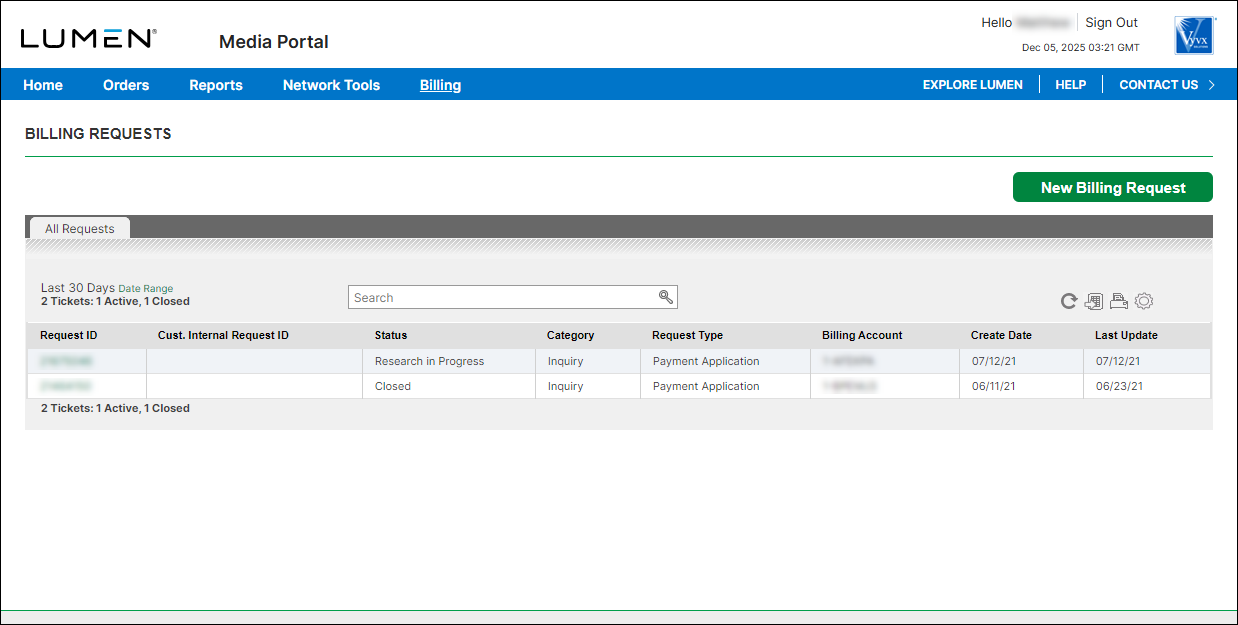
- Search for the billing request you want to work with by doing one of the following:
- Scroll through the billing requests on the screen. If you have more than 20 billing requests, you can view the rest of your requests by using the arrows at the bottom of the list to view more.
- Search for the billing request by typing search criteria in the Search field.
- Scroll through the billing requests on the screen. If you have more than 20 billing requests, you can view the rest of your requests by using the arrows at the bottom of the list to view more.
- When you find the billing request you want to work with, click the link in the Request ID column.
Media portal shows details for the billing request you selected.
- Update the billing request as needed. You can add notes, attachments, and new contact information.
- When you're done updating the request, click Save Changes.
Media porta updates the billing request.



