

Creating a new role
In addition to the standard set of roles in Media portal, you can create additional roles to assign sets of permissions to users. If you need to change permissions for the role later, you can edit the role and the changes affect all users assigned to that role. You can also delete roles you no longer neeed.
To create a new role:
- Sign in to Media portal. (Get help resetting your password)
- From the main menu, select Portal Admin > Role Management.
Media portal lists the roles for your domain.
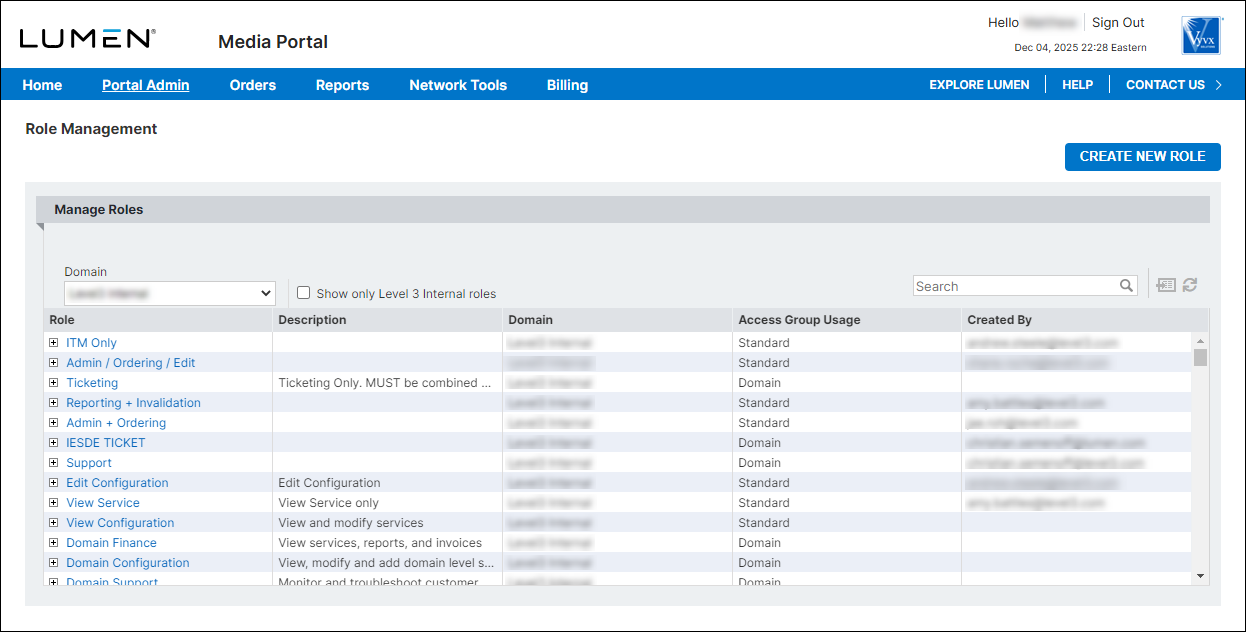
- Click Create New Role.
- In the window that appears, fill in the details for the role:
- Type a name for the role.
- Type a description for the role (to help users understand what permissions this role assigns).
- Select whether the role applies to the domain access group (Domain) or to any access group (Standard).
- Select the checkbox(es) for the permissions you want to apply when you assign this role to a user.
- Type a name for the role.
- When you're done, click Save.
Media portal creates the role.



