

Editing a role
If you need to change permissions for a role in Media portal, you can edit the role and the changes affect all users assigned to that role rather than deleting the role and creating a new one.
Note: It's a good idea to plan role changes for low‑usage times. Roles can apply to many users across access groups within your domain. Removing permissions changes the portal experience for users—which may confuse users during their work day.
To edit a role:
- Sign in to Media portal. (Get help resetting your password)
- From the main menu, select Portal Admin > Role Management.
Media portal lists the roles for your domain.
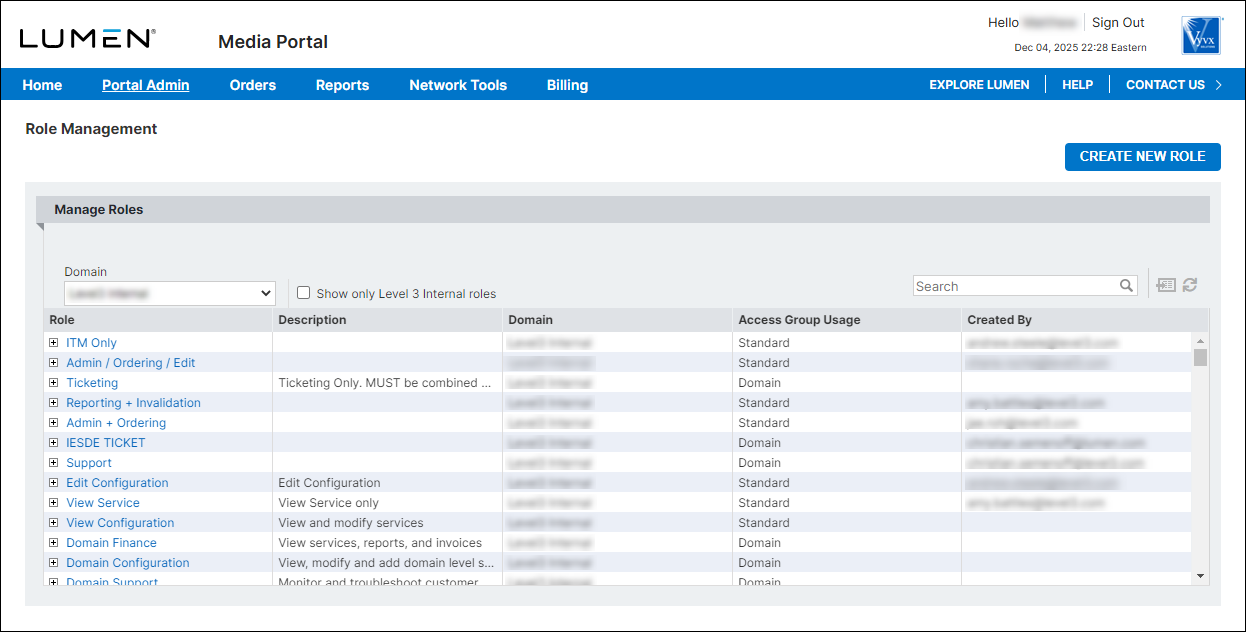
- On the row for the role you want to edit, click the linked role name.
Media portal shows details for the role you selected.
- Click Edit Role.
- Make your changes to the role:
- To change the name or description for the role, make your changes in the Role or Description fields.
- To adjust the permissions assigned to the role select (or clear) the checkboxes in the Permissions section.
- To change the name or description for the role, make your changes in the Role or Description fields.
- When you're done, click Save.
Media portal saves your changes. If you adjusted permissions for the role, it adjusts the permissions for users assigned to the role.



