

Creating a bulk order for 1+ Switched ANIs
If you need to order more than one ANI for a Lumen® 1+ Switched and Toll Free service, you can use Lumen Connect to create a bulk order and add the information using a spreadsheet rather than creating many single orders.
To create a bulk order for 1+ Switched ANIs:
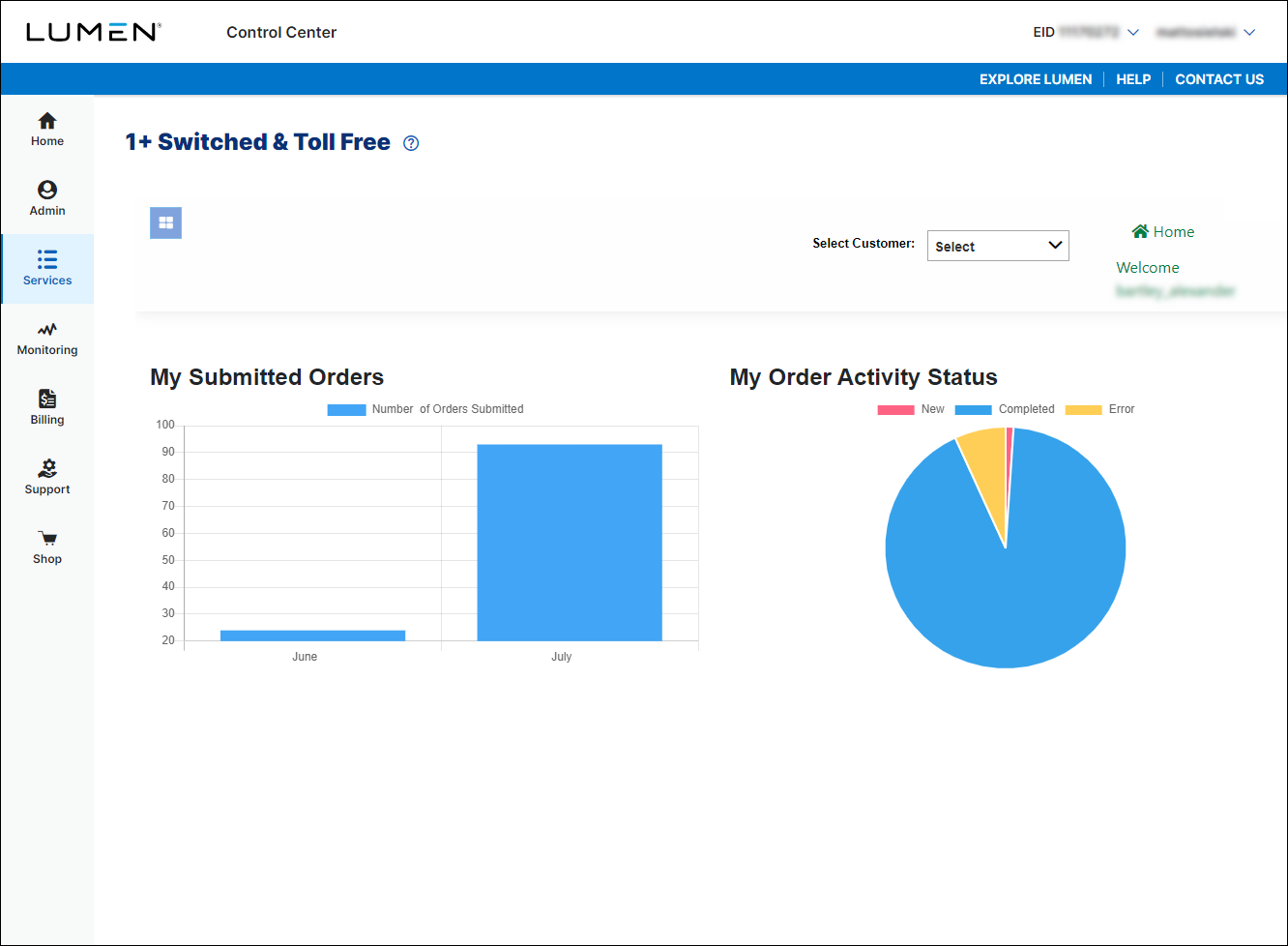
- Using the left menu, click Services, click Service Tools, then click 1+ Switched & Toll Free.
- In the Svc Loc/Bill Acct field, select the billing account number you want to place the order under. (If you only have one billing account number, Lumen Connect automatically selects that billing account number for you.)
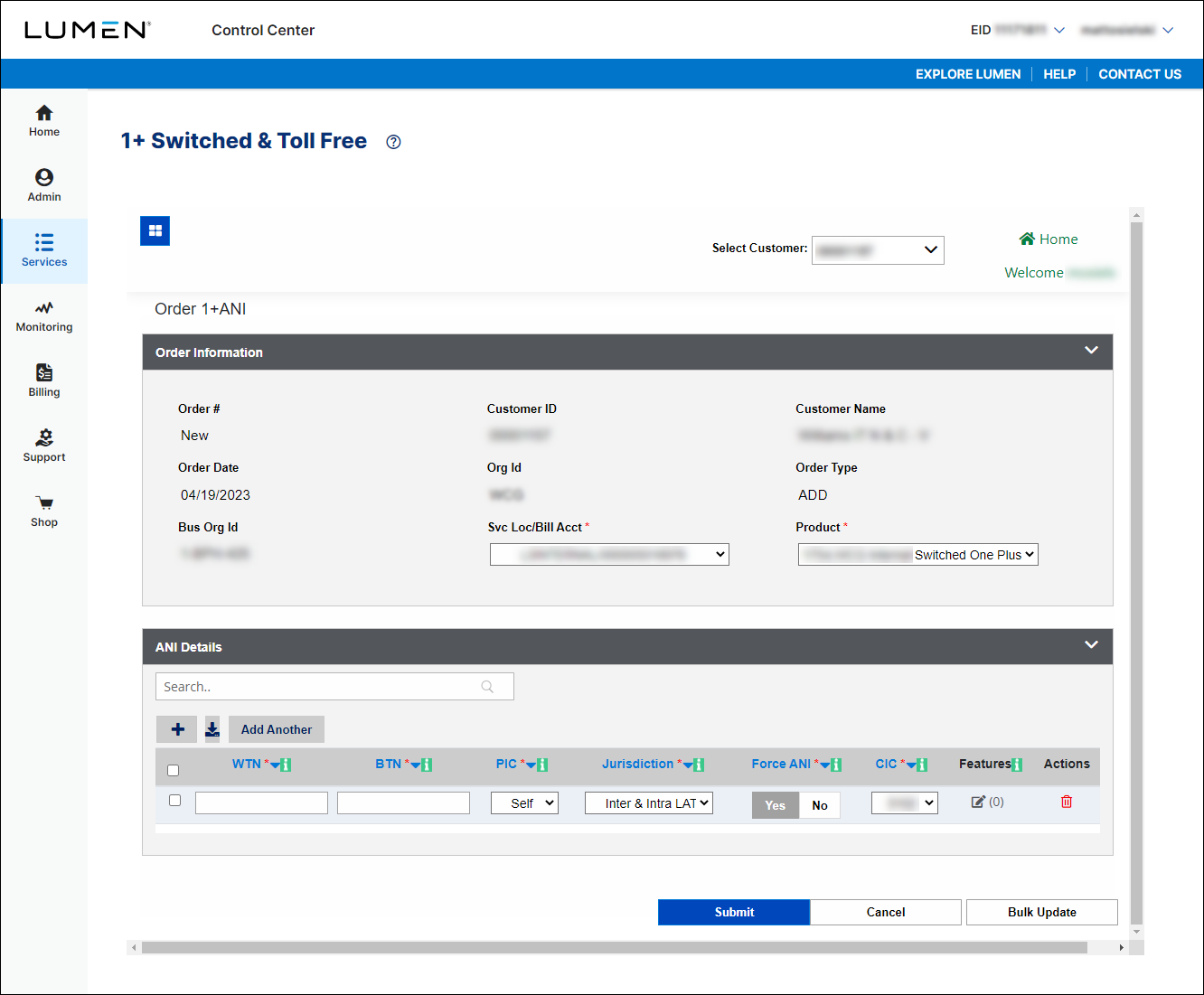
- Click the icon (below the search box).
- When the template downloads, double-click the file to open it.
- Click Enable Editing.
- Click Enable Content.
- Fill in the details for the ANIs using one row for each ANI:
- In the WTN column, type the working telephone number.
- In the BTN column, type the billing telephone number.
- In the PIC column, select the interexchange carrier you want calls to be routed to.
- In the Jurisdiction column, select whether you want both Inter- and IntraLATA calls routed or only InterLATA calls.
- In the Force ANI column, select whether you want the ANI provisioned on the network (DMS) no matter what PIC you selected.
- In the CIC column, type the carrier identification code.
- In the Features column, select a feature to add to the ANI. Depending on the feature you select, you may also need to fill in the Code Digits, Code Table , and IS MANDATORY columns.
- In the WTN column, type the working telephone number.
- When you're done, save the spreadsheet.
- In Lumen Connect, click the button to the left of the button.
- Navigate to the file you saved, click the file, then click Open.
Lumen Connect uploads the data from the spreadsheet.
- When you're done, click Submit.
Lumen Connect submits the order for the ANI. You can now track the status of your order online.



