

Creating an order for a toll-free number
Using Lumen Connect, you can place an order for toll‑free numbers to terminate to a unique phone number (termination) or to a trunk group on a Lumen® 1+ Switched and Toll Free service.
To create an order for a toll-free number:
- Using the left menu, click Services, click Service Tools, then click 1+ Switched & Toll Free.
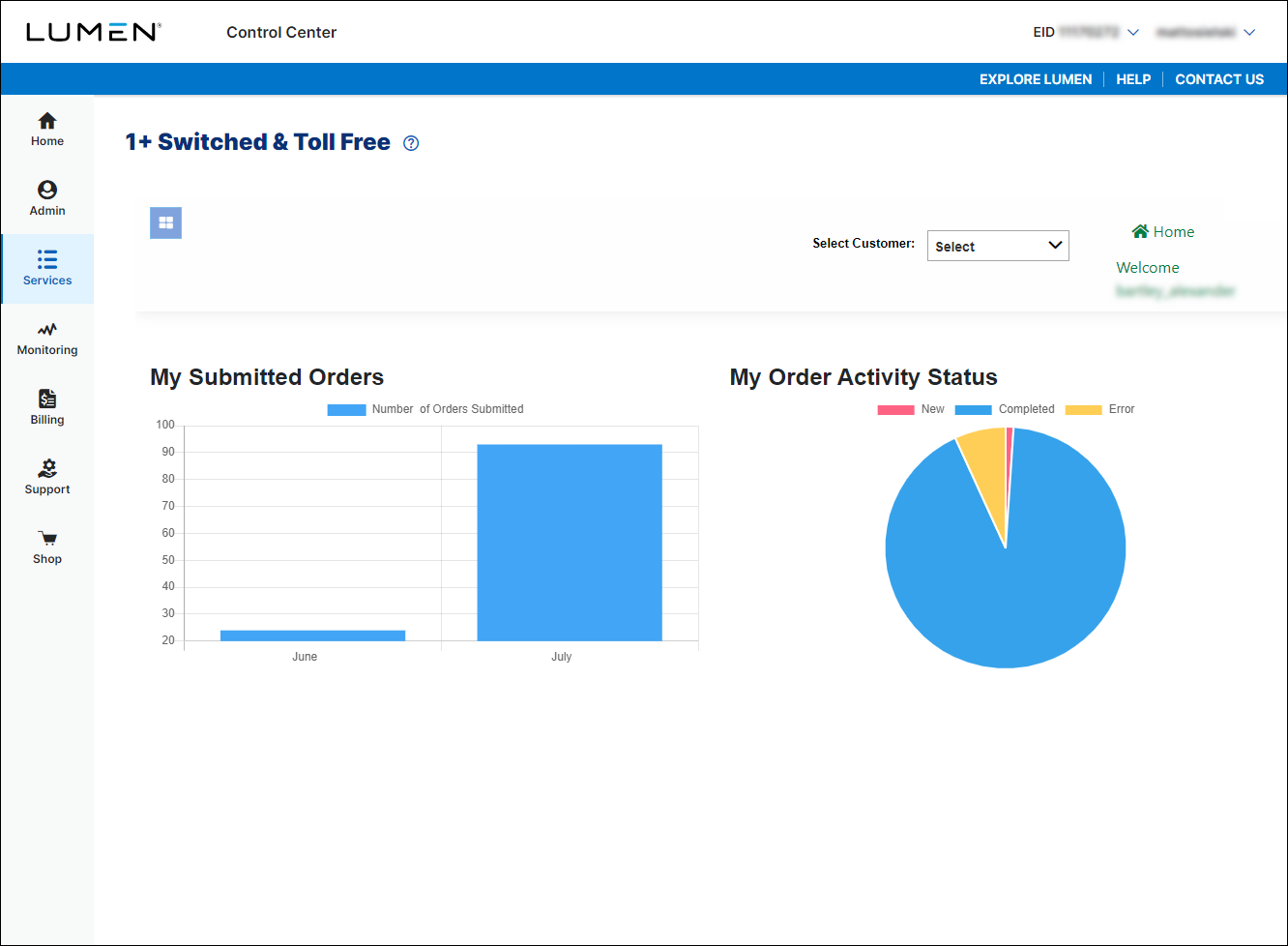
- If you have more than one customer number, use the Select Customer list to select the customer ID you want to work with.
- Click the menu icon (), click Toll Free, then click Order TFN.
- In the Svc Loc/Bill Acct field, select the billing account number you want to place the order under. (If you only have one billing account number, Lumen Connect automatically selects that billing account number for you.)
- In the Activation Date field, do one of the following:
- To activate the toll-free number immediately, leave the date and time listed.
- To schedule a different day and time to activate the toll-free number, click the icon, select the date and time, then click Save.
- To activate the toll-free number immediately, leave the date and time listed.
- Click Get New TFNs.
- Use the window that appears to search for toll-free numbers to add to your order. Select how many numbers you need, whether you need them consecutive, when you want a specific area code (NPA), word included, or a specific number.
- Click Search.
Lumen Connect lists numbers matching your search criteria in the pane on the right.
- Select the checkbox next to the number(s) you want to order, then click Add to Order.
Lumen Connect adds the number(s) to the order form.
- To search for additional numbers to add the order, repeat steps 8–11.
- For each number on the form, do the following:
- In the Area of Service column, select area you want the number to accept calls from (e.g., US - 50 states).
- In the Route Name column, click the checkbox below the field to select or create routing for the toll-free number.
- If you want to add a description for the route, type it in the Route Description field.
- Set up the route by doing one of the following:
- To use an existing trunk group, select the trunk group from the Primary TG list.
- To create a new trunk group, click the checkbox next to the Primary TG list, then select the switch and trunk group from the lists. (To add a DNIS, select the DNIS radio button and type the number in the field that appears.)
- To use an existing trunk group, select the trunk group from the Primary TG list.
- Click Save.
Lumen Connect adds the route for the toll-free number.
- In the BTN column, type the phone number you want to bill to.
- To add international toll-free service to the number, click the first icon, select the country and answer type from the lists, then click Save. (Repeat this step to add additional countries.)
- In the Area of Service column, select area you want the number to accept calls from (e.g., US - 50 states).
- When you're done, click Submit.
Lumen Connect submits the order for the toll‑free number. You can now track the status of your order online.



