

Making changes to multiple SIP Trunking phone numbers
Instead of making changes to phone numbers one at a time on a Lumen® SIP Trunking service, you can use Lumen Connect to make changes to many phone numbers at one time—referred to as making bulk changes. You can also add, assign, or disconnect phone numbers as your organization's needs change.
To make changes to multiple SIP Trunking phone numbers:
- In the Services widget on the dashboard, select IQ Networking from the Find by Product or Service Tool list.
Lumen Connect shows all IQ Networking services on the enterprise ID. SIP Trunking services have a service ID starting with VO-.
- Search for the service you want to work with. When you find the service you want to work with, click the hyperlinked service ID or click the icon (in the Actions column), then click View Details.
Lumen Connect shows details for the SIP Trunking service you selected.
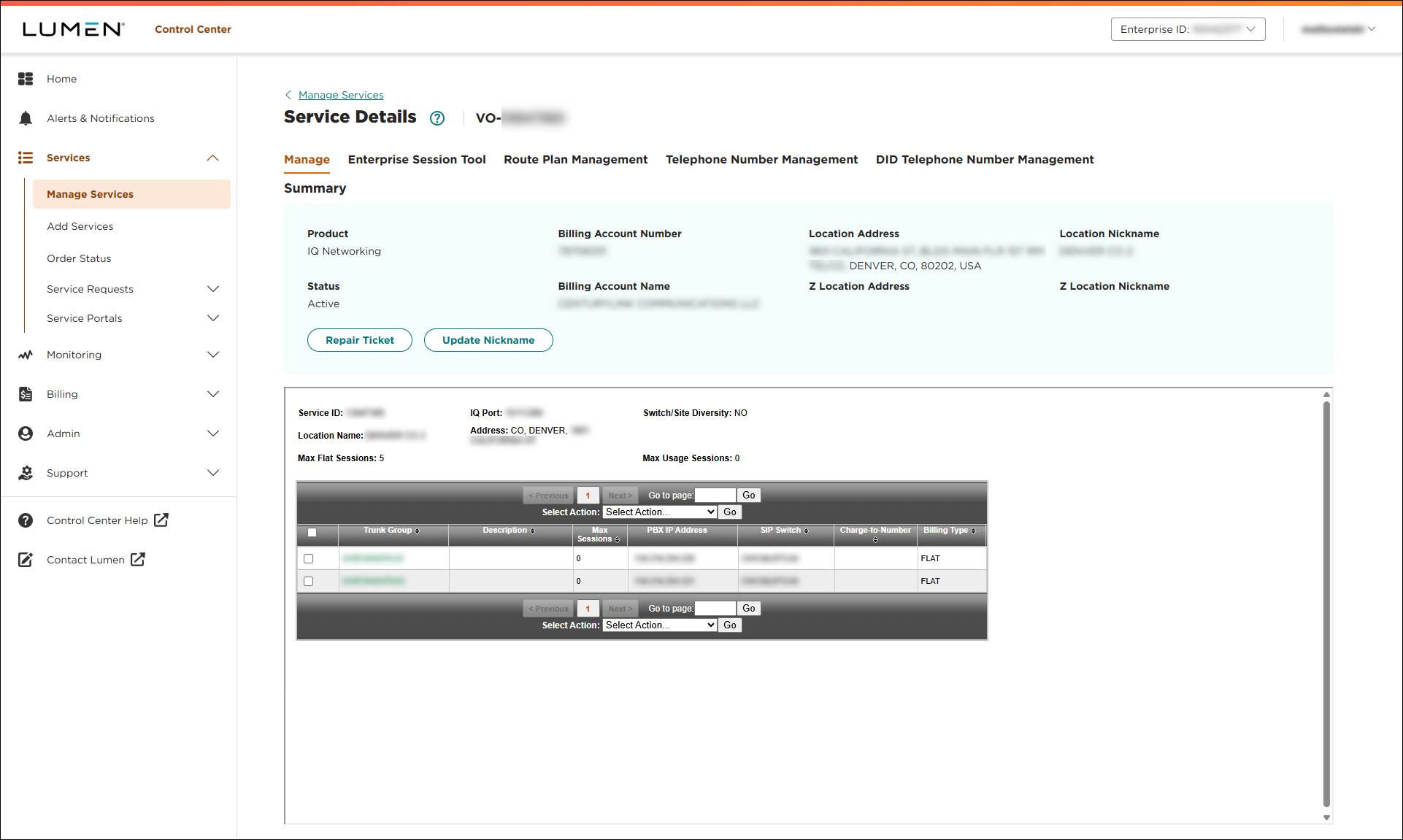
- Click the Telephone Number Management tab.
Lumen Connect shows the telephone number(s) for the service.
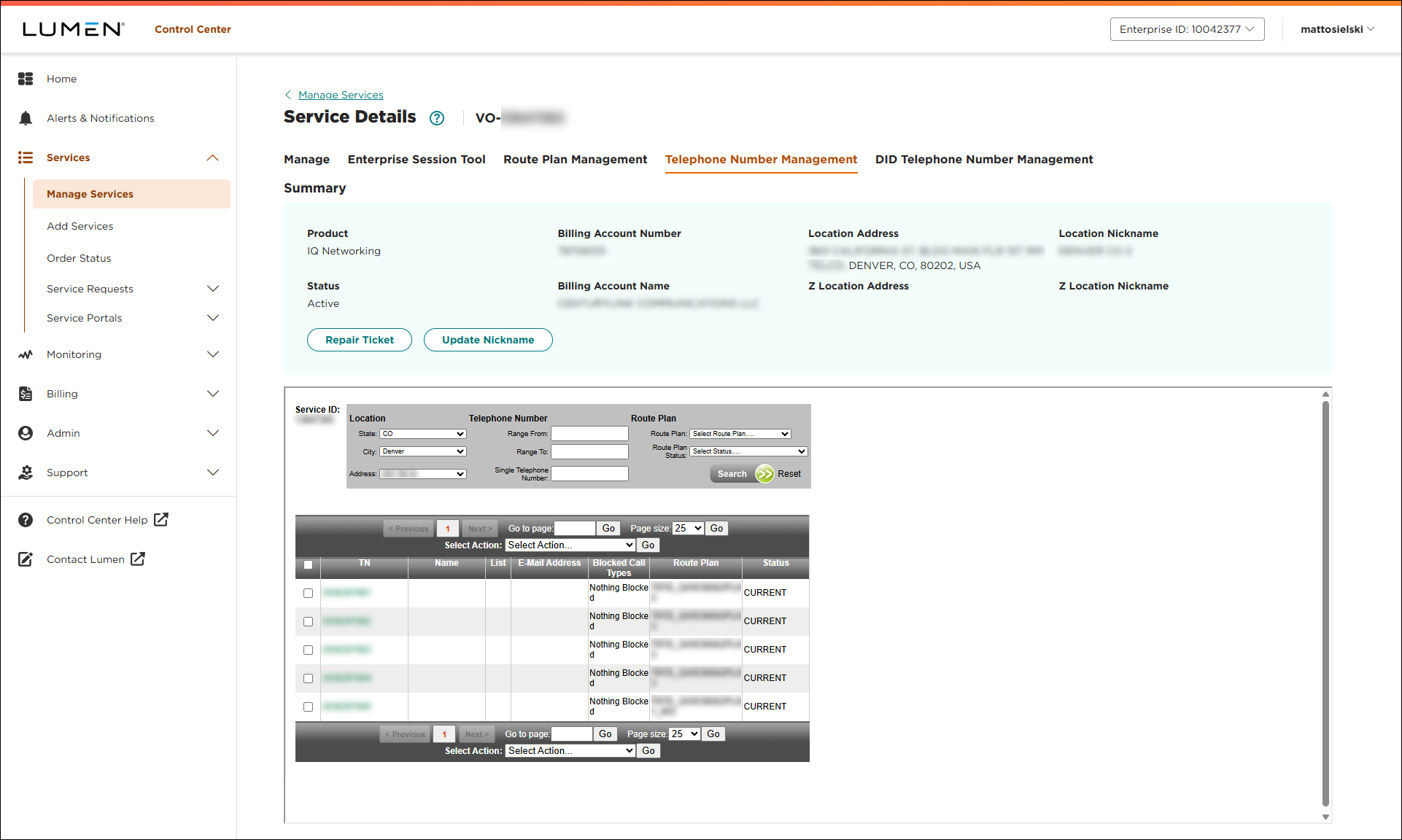
- Select the checkboxes next to the phone numbers you want to modify.
- From the Select Action list, select Download to Bulk Load.xls, then click Go.
Lumen Connect emails you a link to OPEN/SAVE an Excel spreadsheet. The second tab of the spreadsheet includes instructions for how to complete your bulk upload. (You can assign users, modify allowed call types, or reassign routes on all selected numbers—which is intended to make management easier.) Be sure to save a copy of your work to your computer before you upload the document.
- When you're done editing the Excel spreadsheet, select Bulk Load (from the Select Action list), then click Go.
- Select the file you want to upload.
Lumen Connect validates the file, starts processing your changes, and emails you a confirmation.



