

Viewing a number inventory report for Voice Complete
You can see a list of phone numbers associated with a Lumen® Voice Complete® service by viewing a number inventory report in Lumen Connect. You can also view call success reports and call detail records for Voice Complete.
To view a number inventory report for Voice Complete:
- Using the left menu, click Monitoring, click Voice Reports, then click Voice Complete.
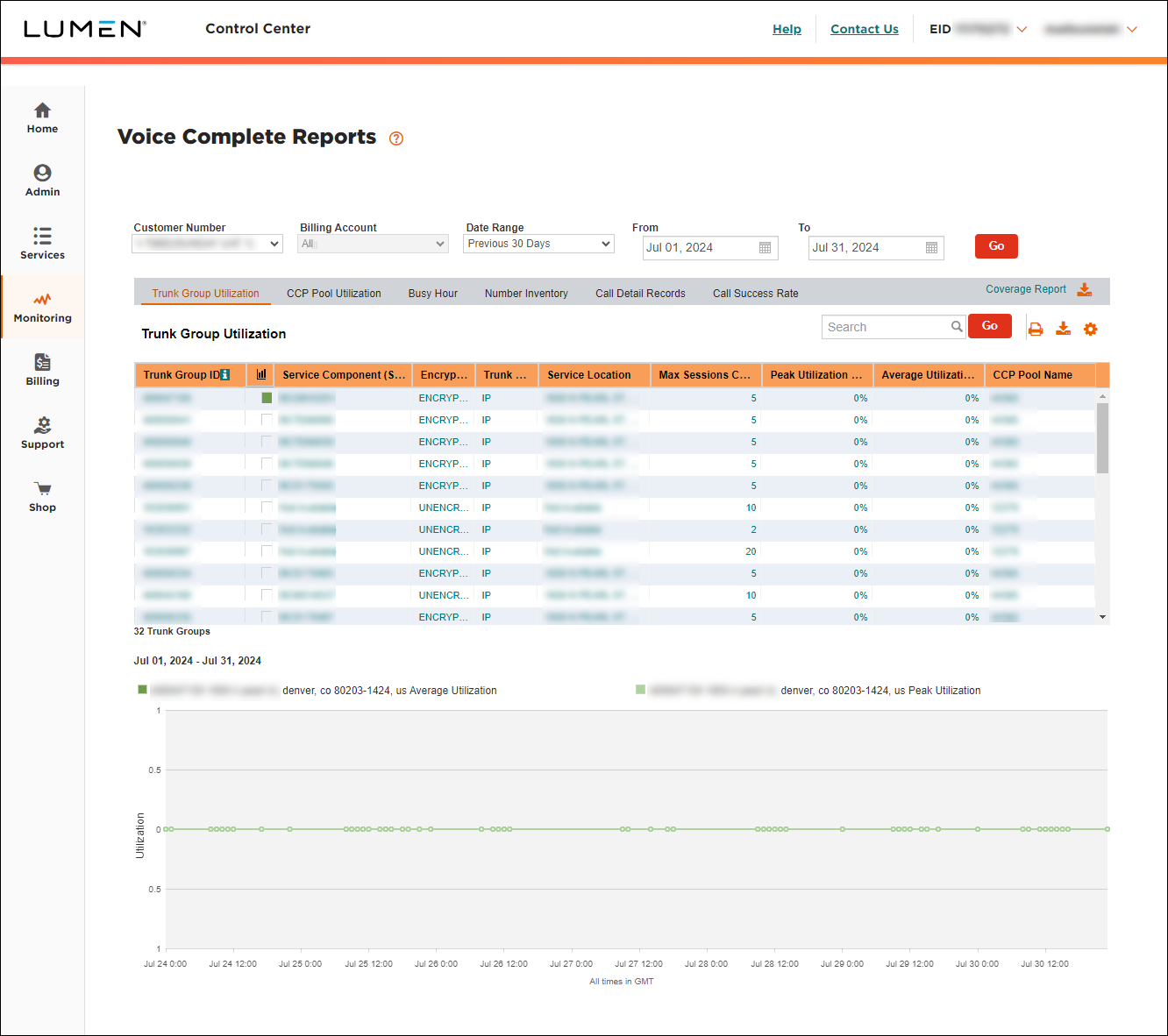
- Select the customer number and billing account with the Voice Complete service(s) you want to a number inventory for.
Note: The number inventory reflects the current inventory for the service, so you cannot select a date range for the inventory.
- Click Go.
- Click the Number Inventory tab.
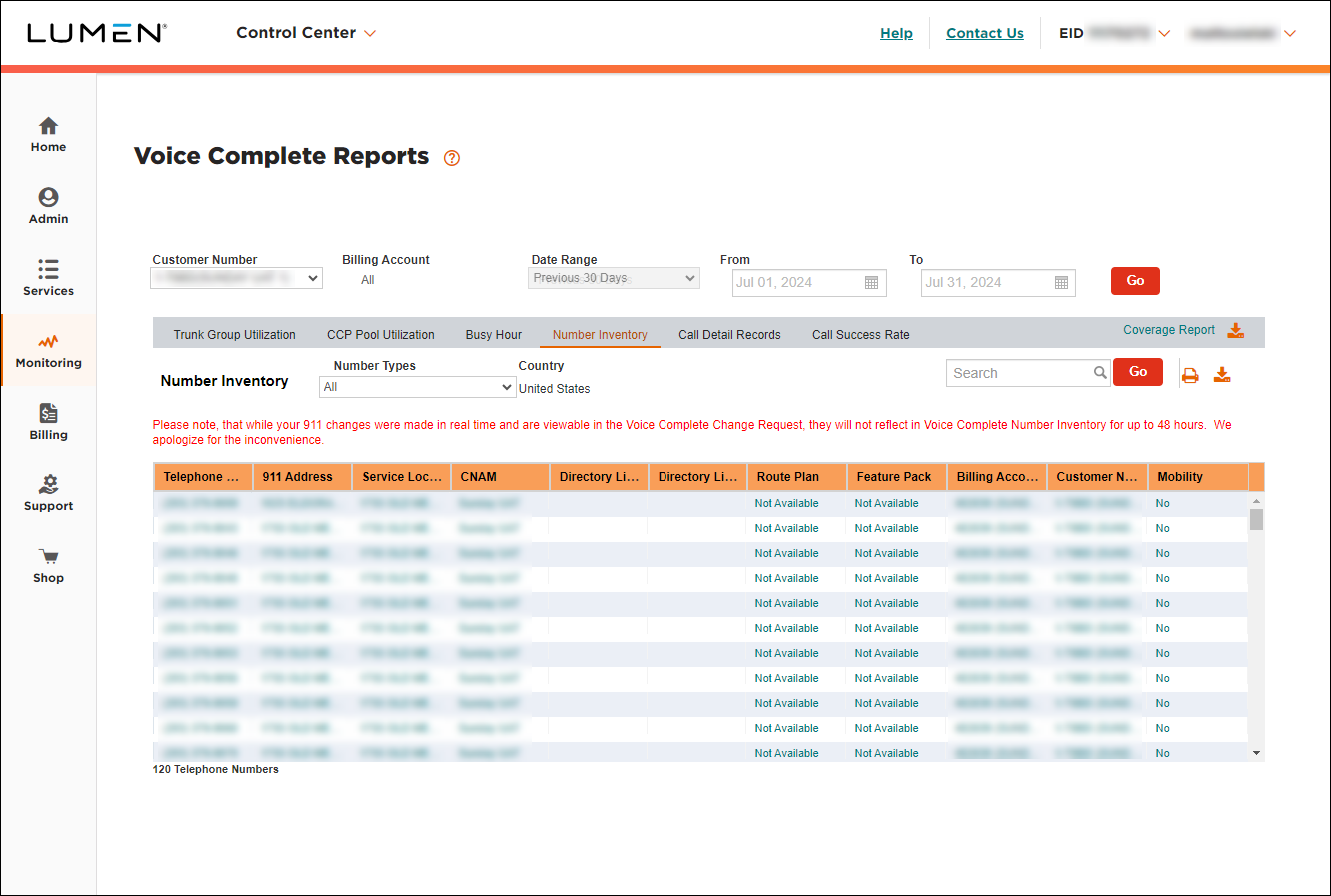
Lumen Connect shows the phone numbers for the Voice Complete service on the customer number and billing account you selected.
- Telephone Number: the number assigned to a telephone line.
- Service Location: the service location assigned to the phone number.
- Route Plan: the route plan assigned to the phone number.
- Feature Pack: the feature pack assigned to the phone number. Learn more about Voice Complete calling features.
- Billing Account: the billing account number for the service the number is assigned to. Lumen provides an invoice for each billing account.
- Customer Number: the customer account number for the service the trunk group is assigned to.
- Mobility: indicates whether or not the Mobility feature pack is assigned to the phone number.
- Telephone Number: the number assigned to a telephone line.
- Do any of the following:
- To filter the list by type of number (e.g., toll free, DID, etc.), select an option from the Number Types list.
- To filter the list by country, select an option from the Country list.
- To print the report, click the icon.
- To download the report, click the icon.
- To filter the list by type of number (e.g., toll free, DID, etc.), select an option from the Number Types list.



