Toggle Navigation Toggle Navigation
  • Lumen Connect overview
  • Getting started/General
  • Services
  • APIs
  • Monitoring & Reports
  • Billing
  • Admin
  • Support
  • Orders (Wholesale)
  • Other portals overview
  • Media portal
  • DDoS Mitigation & Reporting
  • Security Solutions portal
  • VoIP portal
  • View all product support
  • Infrastructure
  • Connectivity
  • Security
  • Communication
  • Media & Entertainment
  • LSR portal
  • Port Out Request tool
  • Virtual Front Office
  • Readiness overview
  • Product-specific readiness
  • Handbooks
  • All infrastructure services
  • Edge Bare Metal
  • Edge Gateway
  • Edge Private Cloud
  • Encrypted Wavelength Service
  • Network Storage
  • All connectivity services
  • Ethernet On-Demand
  • Fiber+ Internet
  • Internet On-Demand
  • IP VPN On-Demand
  • NaaS Port
  • On-Demand services
  • Troubleshooting tools
  • All security services
  • Adaptive Network Security
  • Adaptive Threat Intelligence
  • Application Delivery Solutions
  • DDoS Hyper
  • DDoS Mitigation Service
  • Lumen Defender Powered by Black Lotus Labs
  • Lumen SASE with Fortinet
  • Lumen SASE with Versa
  • Lumen SASE with VMware
  • Network-based Security
  • SD-WAN with Cisco Meraki
  • SD-WAN with Versa Networks
  • Security Log Monitoring
  • All communication services
  • Cloud Voice
  • Hosted VoIP
  • Local Inbound (LI)
  • Lumen Solutions for Microsoft Teams
  • Lumen Solutions for Webex
  • Lumen Solutions for Zoom
  • Lumen Solutions for Zoom for Government
  • SIP Trunking
  • Unified Communications and Collaboration
  • Voice Complete
  • VoIP Enhanced Local (ELS)
  • VoIP services
  • Vyvx® Broadcast Solutions
  • North America
  • Asia Pacific (APAC)

Viewing and using the agents directory

To view and use the agents directory:

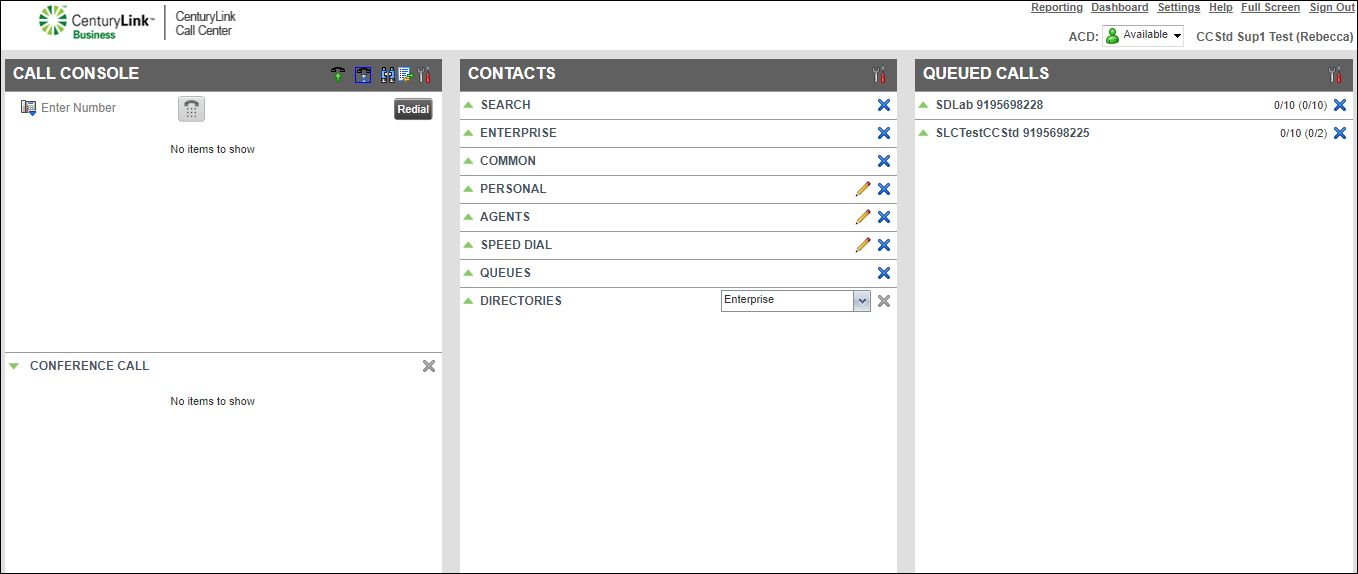
    1. In the Contacts pane next to AGENTS, click the icon.

      The Contact Center Client lists the agents you're monitoring with a status for each: Available (
      ), Unavailable (), Wrap-Up (), Sign-Out ().
    1. Do any of the following:

      • To view the queue(s) the agent is a member of, click the agent's name.

      • To call the agent from the directory, click CALL.

        The Contact Center Client initiates the call and your desk phone rings.

      • To talk with the agent, pick up your desk phone handset (or use your headset or speakerphone).

      • To join or unjoin an agent from a queue, click QUEUE.

      • To change an agent’s ACD status, click ACD.