

Managing Force Laser settings for a wavelength service
For applicable Lumen® Wavelength Solutions, use the Force Laser feature (within Lumen Connect) to override standard operational controls so you can troubleshoot the service. When you're done troubleshooting, use the Release Force Laser feature to return the laser to standard operational controls. Learn more about the Force Laser and Release Force Laser features
Turning on Force Laser
To turn on Force Laser:
- Using the left menu, click Support, then Ticketing.
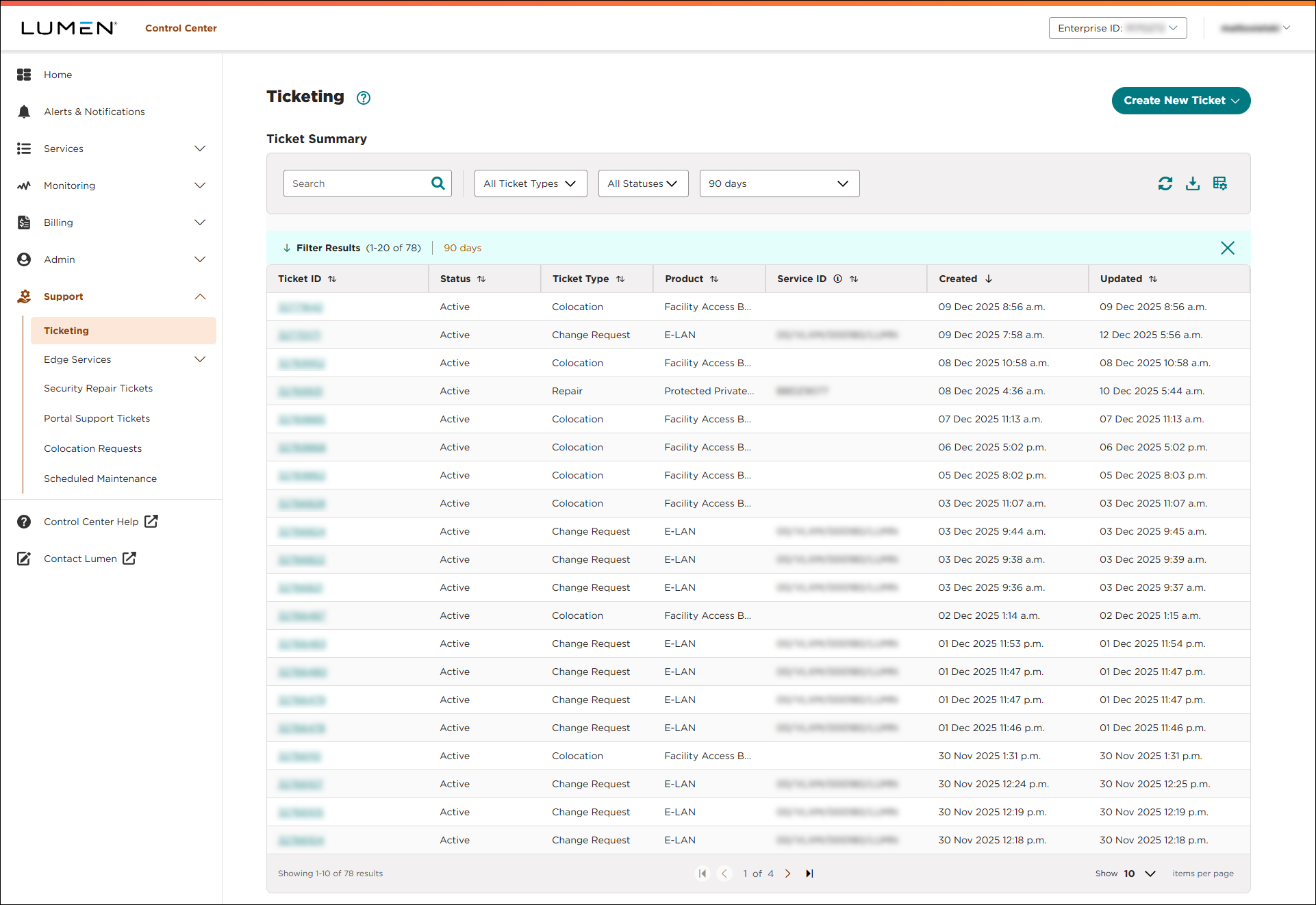
Lumen Connect lists all tickets—repair, potential repair, activation, configuration, billable field tech, maintenance inquiry, portal support, and reason for outage (RFO)—including tickets Lumen created on your behalf. By default, Lumen Connect shows tickets created in the past 90 days and tickets are organized by the date the ticket was created (starting with the newest). The Status column shows the status for each ticket: Active, Canceled, Closed, etc. Potential tickets are marked with a yellow flag (). Tickets needing a reply from you are marked with a green flag ().
- From the Create New Ticket list, select Repair.
- Do one of the following to locate the service:
- If you know all or part of the product or service ID, type it into the Search field. (Lumen Connect filters the list of services as you type.)
- If you don't know the product or service ID, scroll through the list to look for the service.
- If you know all or part of the product or service ID, type it into the Search field. (Lumen Connect filters the list of services as you type.)
- When you find the service, click the link in the Service ID column.
Lumen Connect opens a form to start a repair ticket and starts running diagnostic tests to check service performance.
- Scroll down to the Topology Information section.
- In the Advanced Options box, click Force Laser On.
- In the window that appears, click FORCE LASER ON.
Lumen Connect overrides standard operational controls and forces the laser on for approximately then next 24 hours. If you resolve your issue before then, you can turn the laser back off.
Turning off Force Laser
To turn off Force Laser:
- Using the left menu, click Support, then Ticketing.
Lumen Connect lists all tickets—repair, potential repair, activation, configuration, billable field tech, maintenance inquiry, portal support, and reason for outage (RFO)—including tickets Lumen created on your behalf. By default, Lumen Connect shows tickets created in the past 90 days and tickets are organized by the date the ticket was created (starting with the newest). The Status column shows the status for each ticket: Active, Canceled, Closed, etc. Potential tickets are marked with a yellow flag (). Tickets needing a reply from you are marked with a green flag ().
- From the Create New Ticket list, select Repair.
- Do one of the following to locate the service:
- If you know all or part of the product or service ID, type it into the Search field. (Lumen Connect filters the list of services as you type.)
- If you don't know the product or service ID, scroll through the list to look for the service.
- If you know all or part of the product or service ID, type it into the Search field. (Lumen Connect filters the list of services as you type.)
- When you find the service, click the link in the Service ID column.
Lumen Connect opens a form to start a repair ticket and starts running diagnostic tests to check service performance.
- Scroll down to the Topology Information section.
- In the Advanced Options box, click Release Force Laser.
- In the window that appears, click RELEASE FORCE LASER.
Lumen Connect returns the laser to standard operational controls.



