

Editing tags assigned to a bare metal server
For Lumen® Edge Bare Metal servers, you can edit tags assigned to the server using Lumen Connect. Tags are used to group and organize the servers in your organization. You can add or remove tags assigned to a bare metal server. Tags can be added while provisioning a bare metal server. You can edit the tags while viewing details for the bare metal server. You can stop, start, or restart the bare metal server or delete it, if you no longer need it.
To edit tags assigned to a bare metal server:
- Click the Servers tab.
Lumen Connect shows the servers created for your organization with a status and brief summary for each server (name, location, IP address, server ID, and tags assigned to the server).
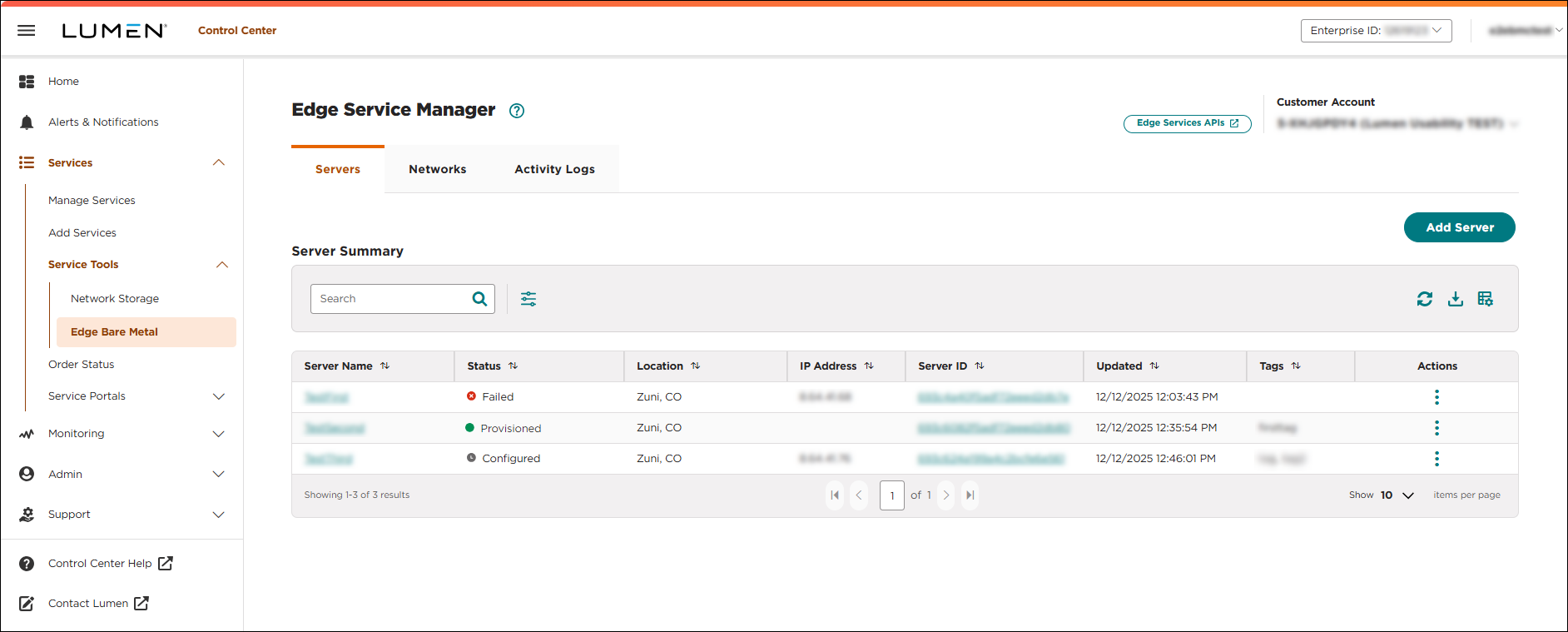
- Click the server name you want to work with to view details for that server.
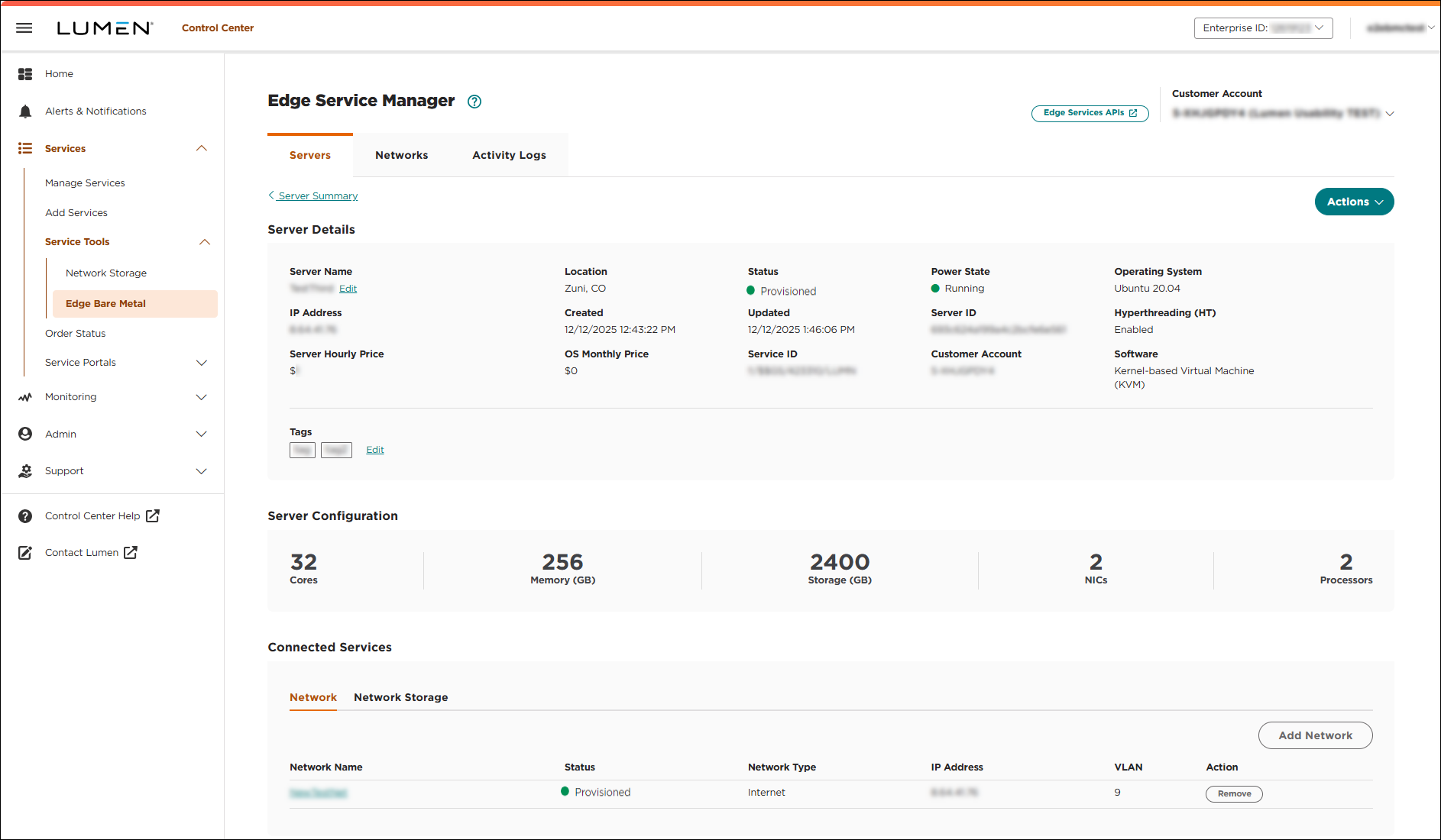
- To edit tags assigned to a server, do either of the following:
- Click Actions, then click Edit Tags.
- Click Edit next to the tags in the Tags section.
- Click Actions, then click Edit Tags.
Lumen Connect lists the tags assigned to the bare metal server.
- Add or remove tags, as needed, on bare metal servers:
- Type the name for the tag you want to associate with the server, then press Enter.
- Add more tags by repeating the step above.
- When you are done, click Save to assign them to the server.
A success message shows that the tags are saved and assigned to the server.
- Click the icon next to each tag you want to remove.
- When you are finished removing tags, click Save.
A success message shows that the removed tags are no longer assigned to the server.



