

Viewing details for a bare metal server
Use Lumen Connect to view details for Lumen® Edge Bare Metal servers provisioned for your organization. To make configuration changes, you can edit the details for the bare metal server. If you no longer need a bare metal server, delete it.
To view details for a bare metal server:
- Click the Servers tab.
Lumen Connect shows the servers created for your organization with a status and brief summary for each server (name, location, IP address, server ID, and tags assigned to the server).
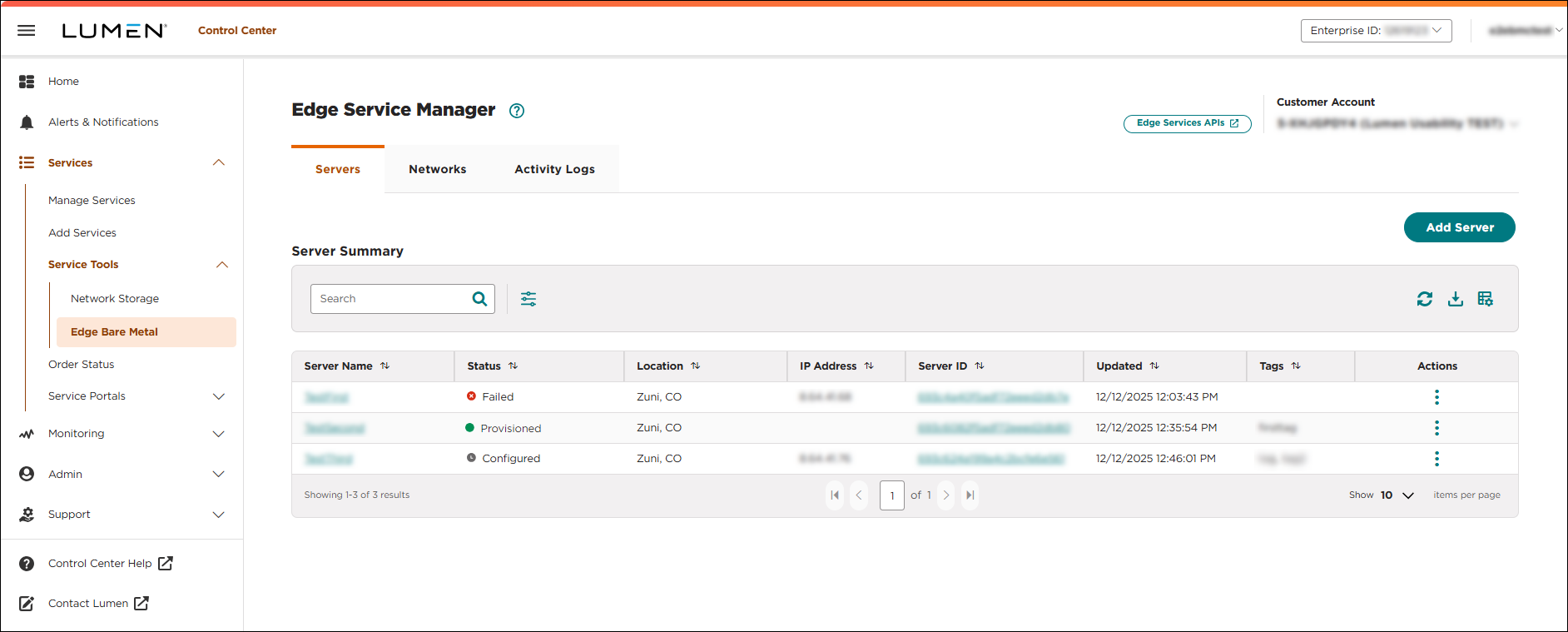
- Click the server name you want to work with to view details for that server.
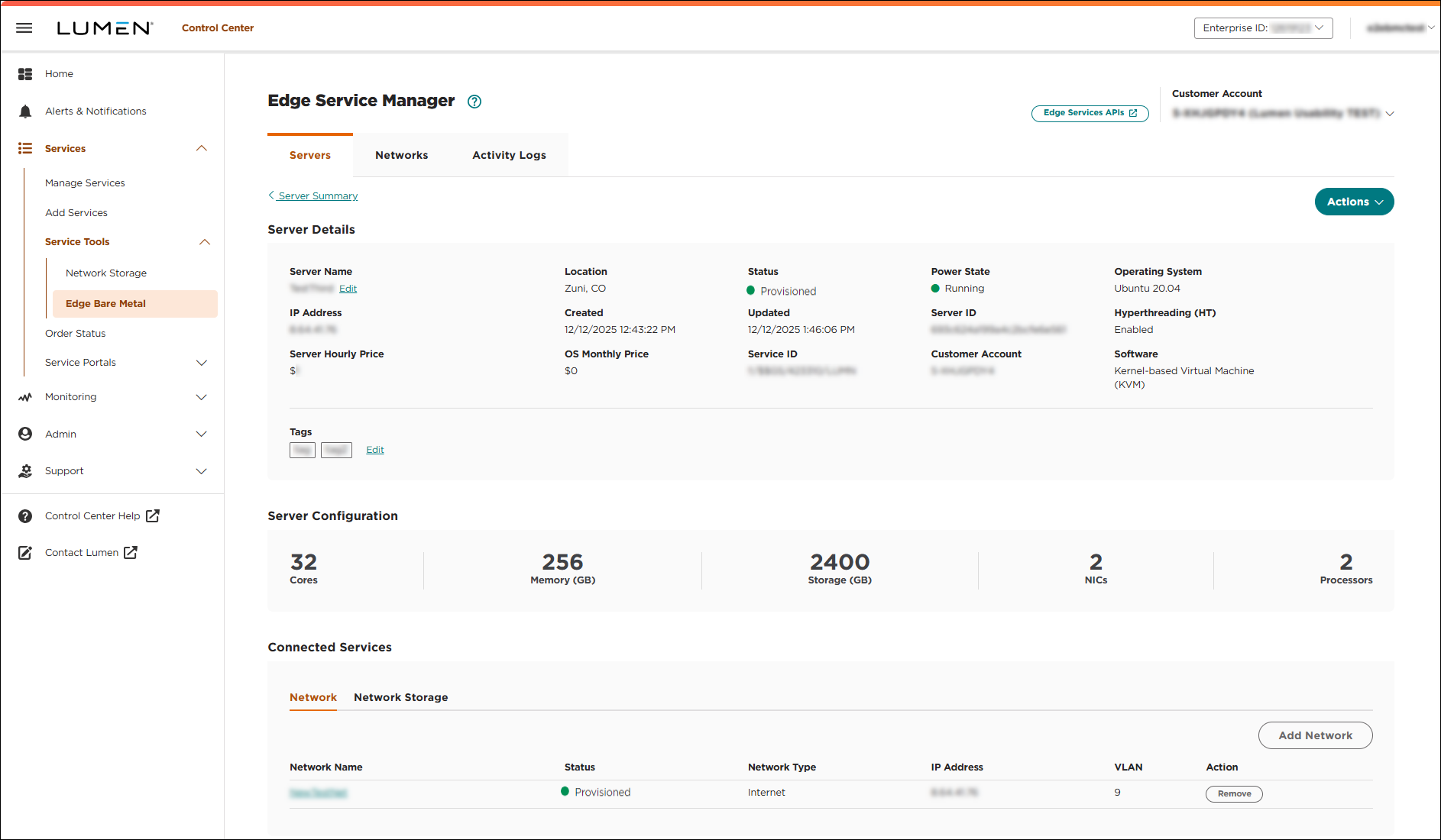
The details page provides the following information about the configuration of your bare metal server:
- The Server Details section provides metrics, power state, and running status. This section also shows the customer account associated with the bare metal server, the environment, operating system, the selected plan, and Intel® Hyper-Threading Technology enablement. If you selected to have software installed during provisioning, the software is listed. You can take the following actions:
- To edit the name for your bare metal server, do one of the following:
- Click Edit next to the server name in the Server Details section.
- Click Actions, then click Edit Name.
- Click Edit next to the server name in the Server Details section.
- To stop, start, or restart the bare metal server, click Actions, then click Stop, Start, or Restart.
- To delete the bare metal server, click Actions, then click Delete.
- To edit tags assigned to the server, do one of the following:
- Click Edit next to the tags in the Tags section.
- Click Actions, then click Edit Tags.
- Click Edit next to the tags in the Tags section.
- To edit the name for your bare metal server, do one of the following:
- The Server Configuration section shows details selected during provisioning including the memory, number of processors, and storage.
- The Connected Services section shows the network details specific to the bare metal server including the network name, network type, associated IP block (IPv4, IPv4/IPv6 dual-stack, or private), and VLAN or VRF on the Network tab. The Network Storage tab shows the external storage attached to the bare metal server and includes details such as the bare metal hostname and the location of the storage.
- To add networks to an existing server, click Network, click ADD NETWORK, select a provisioned network, then click CONFIRM.
- To add networks to an existing server, click Network, click ADD NETWORK, select a provisioned network, then click CONFIRM.



