

Canceling an order for Local Inbound
If you no longer want to continue with an order for Lumen® Local Inbound service, you can cancel the order using Lumen Connect. The process to cancel the order depends on the date you requested Lumen to complete the order.
Canceling a future order
To cancel a future order for Local Inbound:
- Using the left menu, click Services, click Service Tools, then click ELS & LI Management.
- If you have more than one customer number on your enterprise ID, select the customer number you want to work with, then click PROCEED.
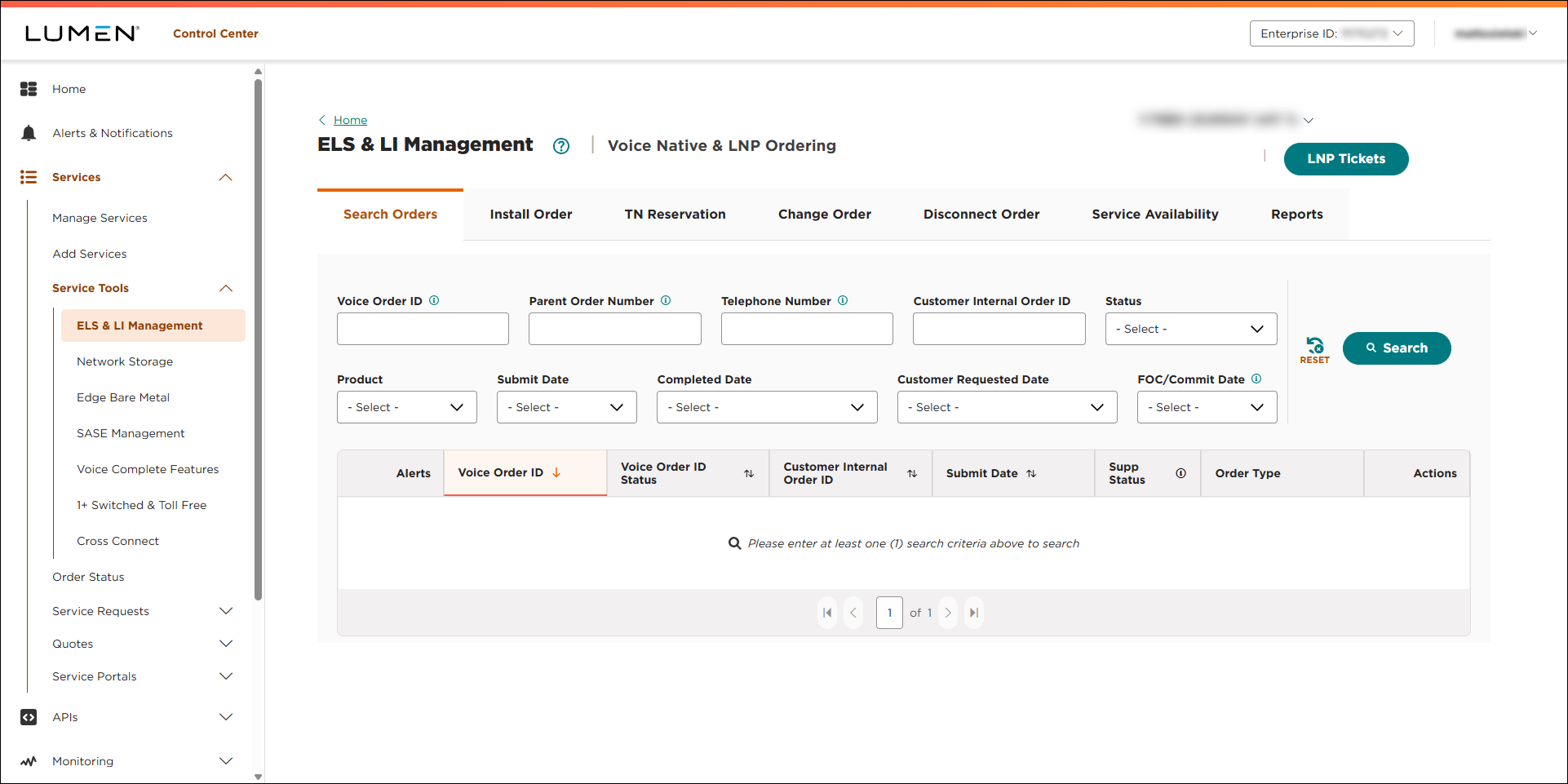
- From the Product list, select LI, then use the other fields to search for the order:
- To search by order number, type the order number in the Voice Order ID field, then click SEARCH.
- To search by the parent order number, type the parent order number in the Parent Order Number field, then click SEARCH.
- To search by a phone number associated with the order, type the number in the Telephone Number field, then click SEARCH.
- To search by your internal order ID associated with the order, type the number in the Customer Internal Order ID field, then click SEARCH.
- To see all of your orders in a certain status, select an option from the Status list.
- To see all orders submitted within the past 30 days, select Past 30 Days from the Submit Date list. (To see orders submitted in a specifc date range, select Custom Date Range, select a start and end date, then click APPLY.)
- To see all orders with requested due dates within the past 30 days, select Past 30 Days from the Customer Requested Date list. (To see orders with requested due dates in a specifc date range, select Custom Date Range, select a start and end date, then click APPLY.)
- To see all orders with a commit (firm order confirmation) date within the past 30 days, select Past 30 Days from the Submit Date list. (To see orders with a commit (firm order confirmation) date in a specifc date range, select Custom Date Range, select a start and end date, then click APPLY.)
Lumen Connect shows all orders matching your search criteria.
- To search by order number, type the order number in the Voice Order ID field, then click SEARCH.
- When you find the order, click the icon (in the Actions column), then click Order Details.
Lumen Connect shows details for the order you selected.
- In the Parent Order Number (PON) List section, click the icon (in the Actions column) on the row for the parent order number, then click Cancel Order.
- In the window that appears, do the following:
- Select the checkbox to acknowledge the terms.
- If necessary, use the Comment field to add notes for why you are canceling the order.
- Click CONFIRM CANCEL.
- Select the checkbox to acknowledge the terms.
Lumen Connect cancels the order.
Canceling an order scheduled for today
To cancel an order for Local Inbound scheduled for today:
- Using the left menu, click Services, click Service Tools, then click ELS & LI Management.
- If you have more than one customer number on your enterprise ID, select the customer number you want to work with, then click PROCEED.
- Click LNP Tickets.
Lumen Connect lists all open LNP tickets for your organization and tickets closed within the past 30 days.
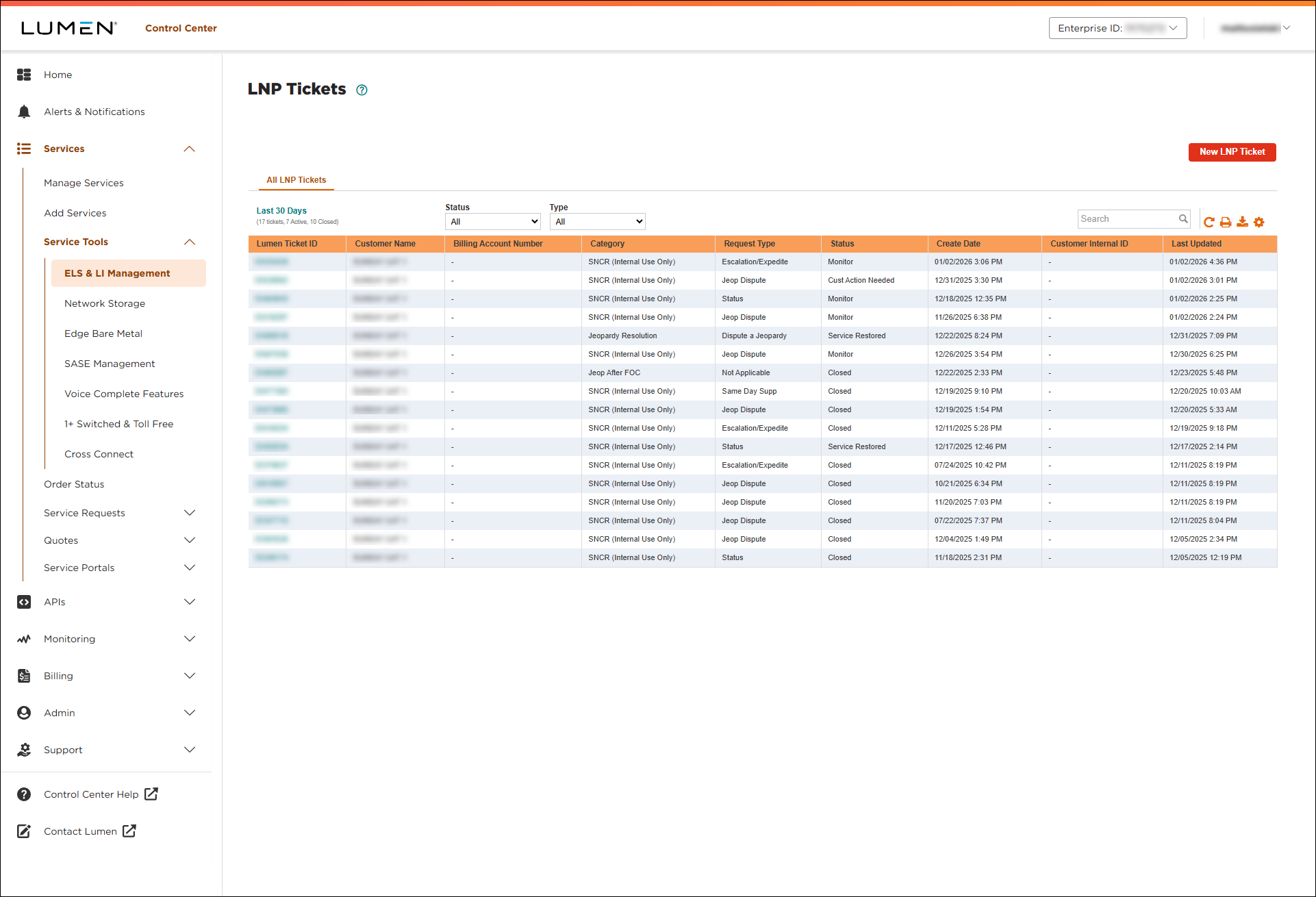
- Click New LNP Ticket.
- From the Select Category list, select Supps and Cancels.
Lumen Connect builds the form for your ticket.
- Use the Customer Number and Billing Account lists to select the account related to your request. If your issue isn't related to a specific account, select any billing account.
- In the LNP Ticket Information section, do the following:
- In the Request Type list, select Same Day Cancel.
- Type and additional information to help Lumen process your request.
- Type the Lumen parent order ID you want to cancel.
- If you're tracking the ticket in another system within your organization, you can type it in the Customer Internal ID field.
- In the Request Type list, select Same Day Cancel.
- In the Attachments section, you can attach any documents (such as additional details pertaining to your request), you can upload up to five documents (up to 2MB each). To attach a document, click Add Attachment, browse to locate the file, then click Open.
- In the Contact Information section, select how you want to be notified of status updates for this ticket and verify your contact information (or update the information for the person you'd like to be contacted with updates).
- If you need to add a secondary contact for this ticket, click Add Secondary Contact, then type their name, phone number, and email address.
- When you're done, click Submit LNP Ticket.
Lumen Connect creates the LNP ticket. You can now track its status online. You can also update your ticket or close the ticket later as needed.



