

Creating an LNP ticket
Use Lumen Connect to create and manage LNP tickets to communicate with the Lumen Local Number Portability team. For example, you can dispute a jeopardy, report a service outage, or request a project port. After you create an LNP ticket, you can update it (to add attachments, adjust contact information, or add notes), or close it.
To create an LNP ticket:
- Using the left menu, click Services, click Service Tools, then click ELS & LI Management.
- If you have more than one customer number on your enterprise ID, select the customer number you want to work with, then click PROCEED.
- Click LNP Tickets.
Lumen Connect lists all open LNP tickets for your organization and tickets closed within the past 30 days.
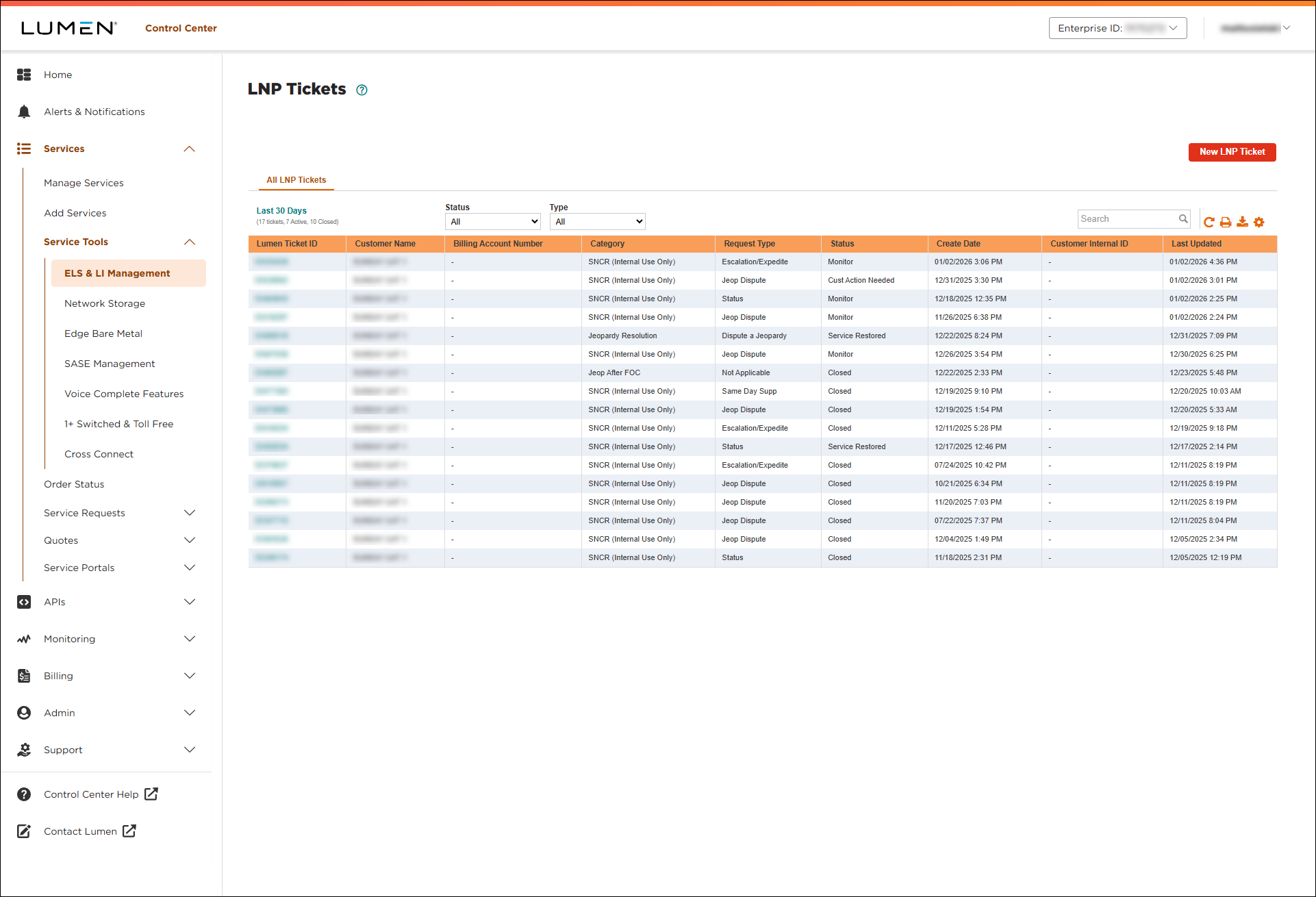
- Click New LNP Ticket.
- From the Select Category list, select the type of issue or question you're opening the ticket for.
Lumen Connect builds the form based on the category you selected.
- Use the Customer Number and Billing Account lists to select the account related to your request. If your issue isn't related to a specific account, select any billing account.
- In the LNP Ticket Information section, do the following:
- In the Request Type list, select the type of request.
- Type and additional information to help Lumen process your request.
- Type the Lumen parent order ID.
- If you're tracking the ticket in another system within your organization, you can type it in the Customer Internal ID field.
- In the Request Type list, select the type of request.
- Fill in the remaining fields for the request. Depending on the category and request type you selected, you may see fields for an authorization contact name or for uploading a copy of your letter of authorization (LOA).
- In the Attachments section, you can attach any documents (such as a more detailed explanation of the problem or additional details pertaining to your request), you can upload up to five documents (up to 2MB each). To attach a document, click Add Attachment, browse to locate the file, then click Open.
- In the Contact Information section, select how you want to be notified of status updates for this ticket and verify your contact information (or update the information for the person you'd like to be contacted with updates).
- If you need to add a secondary contact for this ticket, click Add Secondary Contact, then type their name, phone number, and email address.
- When you're done, click Submit LNP Ticket.
Lumen Connect creates your LNP ticket. You can now track its status online. You can also update your ticket or close the ticket later as needed.
SLAs for LNP tickets
| Priority | First update target | Service restoral target |
| Outage | 1 hour* | 4 hours* |
| Impaired | 1 hour* | 12 hours* |
| Escalation | 1 hour* | 24 hours* |
| General inquiry | 4 hours* | 48 hours* |
* In business hours based on Monday–Friday, 6:00am–5:00pm MT (excluding Lumen holidays).



