

Adding Internet On-Demand to an Equinix data center
Using Lumen Connect℠, you can add a Lumen® Internet On‑Demand connection to your Equinix Fabric port. The connection is available within minutes and billed hourly.
Once you add the connection, use the Equinix service token to set up the virtual cross‑connect (completing your connection) in the Equinix fabric portal.
Note: You’ll need a data center fabric port attached to your data center equipment before adding a connection.
To add Internet On‑Demand and complete the virtual cross connect in the Equinix Fabric portal:
Step 1: Add the Internet On-Demand connection
To add the Internet On-Demand connection:
- Using the left menu, click Services, then click Add Services.
Lumen Connect shows services you can add with the Lumen digital experience.
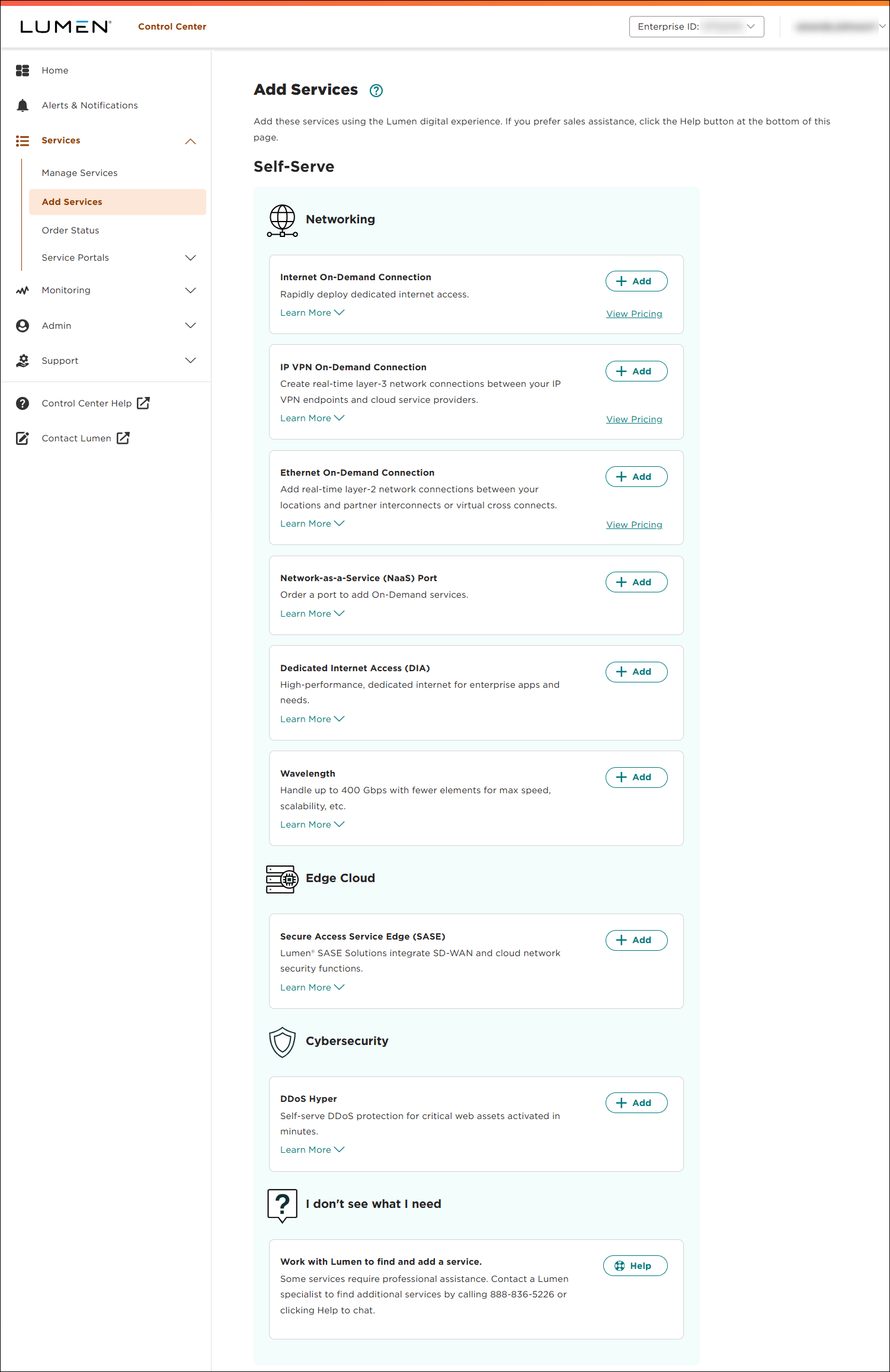
- Click + Add for Internet On-Demand.
Lumen Connect shows location options.
Note: If you can’t click on anything, you’ll need to contact your Lumen Connect system administrator to get NaaS permissions.
- Click Data Center Virtual Port, start typing the location in the search field, select it from the list, then click Continue.
- Select the connection bandwidth, then click Continue.
- Select the IP Address Family and Routing Option.
Note: DDoS Essentials and Lumen Defender are not available for IPv6 and dual stack connections.
- Select IPv4 for the IP Address Family.
- Select an IPv4 WAN IP Block.
- Select a routing option.
Select Static routing if you have a small and simple network that is unlikely to change.
BGP routing requires more configuration and an extensive understanding of routing protocols and policies.
Select Directly Connected if your router will access the destination network through one of its interfaces. The next two steps do not display if you select Directly Connected.
- Select an IPv4 LAN IP Block.
- Enter the IPv4 WAN Next Hop Sequence.
- Click Continue.
- Select IPv6 for the IP Address Family.
- Select an IPv6 WAN IP Block.
- Select a routing option.
Select Static routing if you have a small and simple network that is unlikely to change.
BGP routing requires more configuration and an extensive understanding of routing protocols and policies.
Select Directly Connected if your router will access the destination network through one of its interfaces. The next two steps do not appear if you select Directly Connected.
- Select an IPv6 LAN IP Block.
- Enter the IPv6 WAN Next Hop Sequence.
- Click Continue.
- Select Dual Stack IPv4 & IPv6 for the IP Address Family.
- Select an IPv4 WAN IP Block.
- Select an IPv6 WAN IP Block.
- Select a routing option.
Select Static routing if you have a small and simple network that is unlikely to change.
BGP routing requires more configuration and an extensive understanding of routing protocols and policies.
Select Directly Connected if your router will access the destination network through one of its interfaces. The next four steps do not display if you select Directly Connected.
- Select an IPv4 LAN IP Block.
- Enter the IPv4 WAN Next Hop Sequence.
- Select an IPv6 LAN IP Block
- Enter the IPv6 WAN Next Hop Sequence.
- Click Continue.
- Select whether to add DDoS Essentials, then click Continue.
- If Lumen Defender℠ powered by Black Lotus Labs® is available at your location, select whether to add it, then click Continue.
- In the Service Nickname field, type a name for the connection you're creating, then click Continue. (Be sure to use something memorable. This name will appear on your invoice.)
- Select a customer and billing account, then click Continue.
Not sure which billing account number to select? Consult your accounting department for help selecting a billing account number.
- Review the order information, then click Submit Order.
- Once the order is complete, your order information shows the Equinix service token.
Use the Equinix service token to complete the virtual cross connect in the next section.
Step 2: Create the virtual cross connect in the Equinix Fabric
To complete the virtual cross connect in Equinix:
- Sign in to the Equinix Fabric portal. (If you don't have access the portal, you can register for an account.)
- Create the connection in Equinix Fabric portal using the token Equinix emailed when you created the Internet On-Demand connection.
- Verify the Equinix Staus shows Provisioned and the Provider Staus shows Accepted.



