Adding Internet On‑Demand with BGP routing
Using Lumen Connect℠, you can add a Lumen® Internet On‑Demand connection with BGP routing.
Once your connection is ready, configure your equipment using the VLAN and IP addresses provided.
Before you create a connection, gather and verify all of your BGP configurations. Once the connection is complete, BGP configurations cannot be modified. To update configurations, you must disconnect the existing connection and create a new one.
Important: Configuring BGP routing requires advanced routing knowledge. If any of the configuration options are unclear, consult a routing specialist for assistance. You may need your existing route registry information to complete BGP configuration.
If you need to change BGP configurations or no longer need the connection, you can disconnect it. Be aware that clearing configurations can take a while, so you will need to wait before using the same BGP configurations with a new connection.
You can also add Internet On‑Demand with static routing for an Equinix data center, Digital Realty data center, or customer port.
To add Internet On‑Demand with BGP routing:
- Using the left menu, click Services, then click Add Services.
Lumen Connect shows services you can add with the Lumen digital experience.
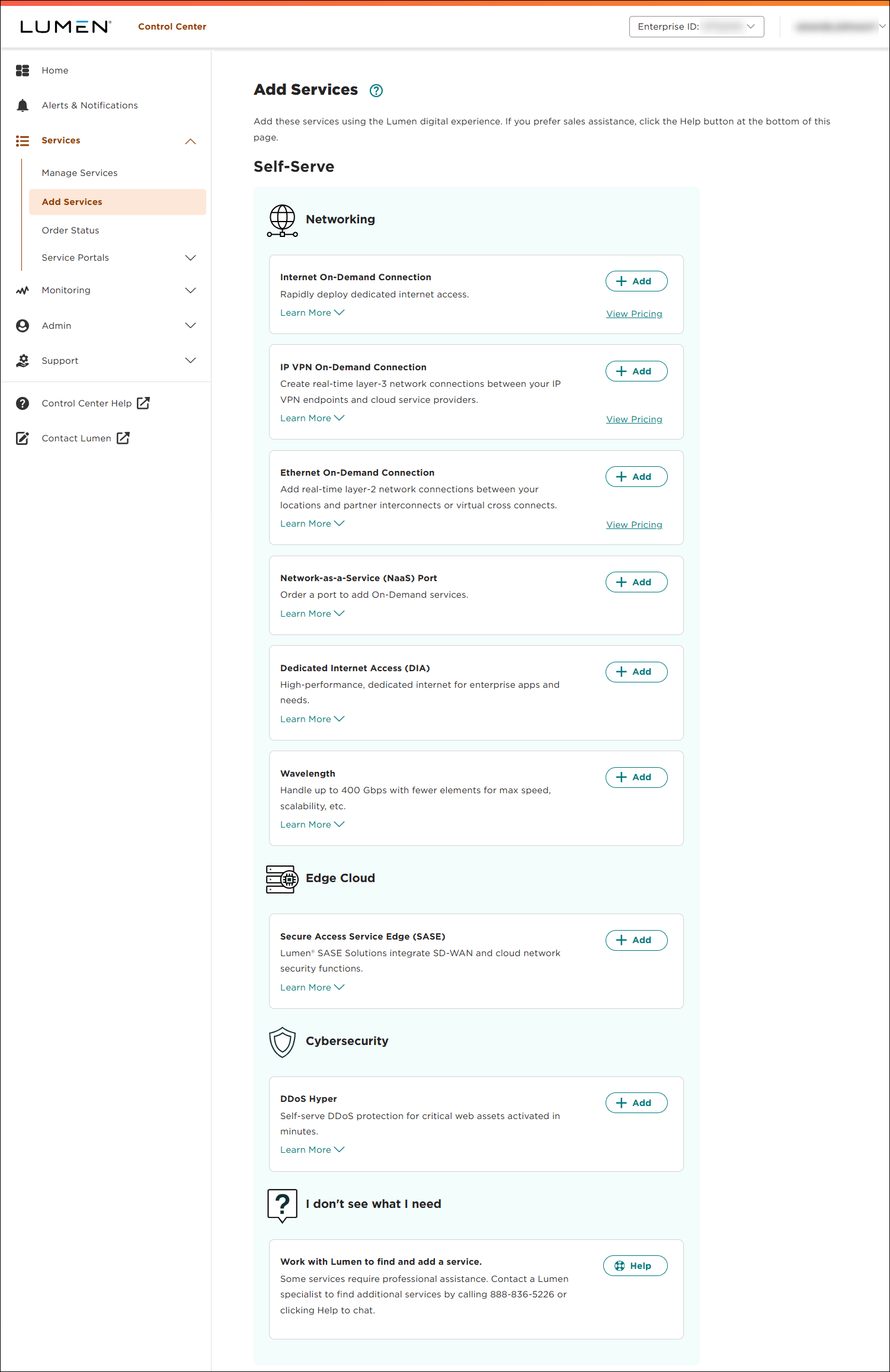
- Click + Add for Internet On-Demand.
Lumen Connect shows location options.
Note: If you can’t click on anything, you’ll need to contact your Lumen Connect system administrator to get NaaS permissions.
- Select where you need to add the new internet connection: Customer Port or Data Center Virtual Port.
Start typing the location in the search field, select it from the list, then click Continue.
- Select the connection bandwidth, then click Continue.
- Select the IP Address Family and Routing Option.
Note: DDoS Essentials and Lumen Defender are not available for IPv6 and dual stack connections.
- Select IPv4 for the IP Address Family.
- Select an IPv4 WAN IP Block.
- Select BGP routing.
- Select the BGP creation method you want to use.
- Click Create New if you want to customize the BGP configuration, then select the ASN Type to use.
- The Lumen shared ASN is available if you do not have a publicly registered ASN.
This ASN cannot be used to multi‑home with any other ASN.
- If you select Use My Own, type in your ASN.
Your 2‑ or 4‑byte ASN must be publicly registered and a valid WHOIS record must be returned upon inspection.
- The Lumen shared ASN is available if you do not have a publicly registered ASN.
- Click Clone Existing if you want to use the same BGP configurations you are using on an existing Lumen BGP routed service. Select the existing service from the list.
- Click Create New if you want to customize the BGP configuration, then select the ASN Type to use.
- Fill in IPv4 Configuration.
- Select whether you need an IPv4 LAN IP Block. If you select Yes, choose an IPv4 LAN IP Block size.
- If you have a Lumen route set and request a new LAN block, Lumen updates your IRR.
- If you request a new LAN block and bring your own existing IP space, you will need to update your route set using the information in your order confirmation.
- If you have a Lumen route set and request a new LAN block, Lumen updates your IRR.
- Indicate if you are bringing existing IP space.
If you select Yes, click +Add String and type in your route registry string using standard syntax (e.g., RS-NNNNNNN where N is the ASN, RS-ASNNNNNN where AS precedes the ASN, RS-XXXXXXX where X represents characters for a name or code). Click Validate, review the prefix list, confirm you verified the list, then click Accept.
- Type a number between 24 and 32 for the Max prefix length to advertise. This number must be at least the LAN IP Block size you selected if you are getting a new block from Lumen.
- Select whether you want the ability to blackhole traffic to an IP host for security purposes. If you choose Yes, you can attach the Lumen Blackhole BGP Community 3356:9999 to IP addresses to drop all traffic to them. Traffic to other hosts on the same network continues to pass.
- Select Route announcements.
- Choose whether you want to Enable MD5 password. If you select Yes, type in the MD5 password.
- Choose whether to use Bidirectional Forwarding Detection (BFD). If you select Yes, type in a minimum interval between 300 and 1000 and select a multiplier.
- Select whether you need an IPv4 LAN IP Block. If you select Yes, choose an IPv4 LAN IP Block size.
- Enter the IPv4 WAN BGP Peer.
- Click Continue.
- Select IPv6 for the IP Address Family.
- Select an IPv6 WAN IP Block.
- Select BGP routing.
- Select the BGP creation method you want to use.
- Click Create New if you want to customize the BGP configuration, then select the ASN Type to use.
- The Lumen shared ASN is available if you do not have a publicly registered ASN.
This ASN cannot be used to multi‑home with any other ASN.
- If you select Use My Own, type in your ASN.
Your 2‑ or 4‑byte ASN must be publicly registered and a valid WHOIS record must be returned upon inspection.
- The Lumen shared ASN is available if you do not have a publicly registered ASN.
- Click Clone Existing if you want to use the same BGP configurations you are using on an existing Lumen BGP routed service. Select the existing service from the list.
- Click Create New if you want to customize the BGP configuration, then select the ASN Type to use.
- Fill in IPv6 Configuration.
- Select whether you need an IPv6 LAN IP Block. If you select Yes, choose an IPv6 LAN IP Block size.
- If you have a Lumen route set and request a new LAN block, Lumen updates your IRR.
- If you request a new LAN block and bring your own existing IP space, you will need to update your route set using the information in your order confirmation.
- If you have a Lumen route set and request a new LAN block, Lumen updates your IRR.
- Indicate if you are bringing existing IP space.
If you select Yes, click +Add String and type in your route registry string using standard syntax (e.g., RS-NNNNNNN where N is the ASN, RS-ASNNNNNN where AS precedes the ASN, RS-XXXXXXX where X represents characters for a name or code). Click Validate, review the prefix list, confirm you verified the list, then click Accept.
- Type a number between 24 and 32 for the Max prefix length to advertise. This number must be at least the LAN IP Block size you selected if you are getting a new block from Lumen.
- Select whether you want the ability to blackhole traffic to an IP host for security purposes. If you choose Yes, you can attach the Lumen Blackhole BGP Community 3356:9999 to IP addresses to drop all traffic to them. Traffic to other hosts on the same network continues to pass.
- Select Route announcements.
- Choose whether you want to Enable MD5 password. If you select Yes, type in the MD5 password.
- Choose whether to use Bidirectional Forwarding Detection (BFD). If you select Yes, type in a minimum interval between 300 and 1000 and select a multiplier.
- Select whether you need an IPv6 LAN IP Block. If you select Yes, choose an IPv6 LAN IP Block size.
- Enter the IPv6 WAN BGP Peer.
- Click Continue.
- Select Dual Stack IPv4 & IPv6 for the IP Address Family.
- Select an IPv4 WAN IP Block.
- Select an IPv6 WAN IP Block.
- Select BGP routing.
- Select the BGP creation method you want to use.
- Click Create New if you want to customize the BGP configuration, then select the ASN Type to use.
- The Lumen shared ASN is available if you do not have a publicly registered ASN.
This ASN cannot be used to multi‑home with any other ASN.
- If you select Use My Own, type in your ASN.
Your 2‑ or 4‑byte ASN must be publicly registered and a valid WHOIS record must be returned upon inspection.
- The Lumen shared ASN is available if you do not have a publicly registered ASN.
- Click Clone Existing if you want to use the same BGP configurations you are using on an existing Lumen BGP routed service. Select the existing service from the list.
- Click Create New if you want to customize the BGP configuration, then select the ASN Type to use.
- Fill in IPv4 Configuration.
- Select whether you need an IPv4 LAN IP Block. If you select Yes, choose an IPv4 LAN IP Block size.
- If you have a Lumen route set and request a new LAN block, Lumen updates your IRR.
- If you request a new LAN block and bring your own existing IP space, you will need to update your route set using the information in your order confirmation.
- If you have a Lumen route set and request a new LAN block, Lumen updates your IRR.
- Enter an IPv4 WAN BGP Peer.
- Indicate if you are bringing existing IP space.
If you select Yes, click +Add String and type in your route registry string using standard syntax (e.g., RS-NNNNNNN where N is the ASN, RS-ASNNNNNN where AS precedes the ASN, RS-XXXXXXX where X represents characters for a name or code). Click Validate, review the prefix list, confirm you verified the list, then click Accept.
- Type a number between 24 and 32 for the Max prefix length to advertise. This number must be at least the LAN IP Block size you selected if you are getting a new block from Lumen.
- Select whether you want the ability to blackhole traffic to an IP host for security purposes. If you choose Yes, you can attach the Lumen Blackhole BGP Community 3356:9999 to IP addresses to drop all traffic to them. Traffic to other hosts on the same network continues to pass.
- Select Route announcements.
- Choose whether you want to Enable MD5 password. If you select Yes, type in the MD5 password.
- Choose whether to use Bidirectional Forwarding Detection (BFD). If you select Yes, type in a minimum interval between 300 and 1000 and select a multiplier.
- Select whether you need an IPv4 LAN IP Block. If you select Yes, choose an IPv4 LAN IP Block size.
- Fill in IPv6 Configuration.
- Select whether you need an IPv6 LAN IP Block. If you select Yes, choose an IPv6 LAN IP Block size.
- If you have a Lumen route set and request a new LAN block, Lumen updates your IRR.
- If you request a new LAN block and bring your own existing IP space, you will need to update your route set using the information in your order confirmation.
- If you have a Lumen route set and request a new LAN block, Lumen updates your IRR.
- Enter an IPv6 WAN BGP Peer.
- Indicate if you are bringing existing IP space.
If you select Yes, click +Add String and type in your route registry string using standard syntax (e.g., RS-NNNNNNN where N is the ASN, RS-ASNNNNNN where AS precedes the ASN, RS-XXXXXXX where X represents characters for a name or code). Click Validate, review the prefix list, confirm you verified the list, then click Accept.
- Type a number between 24 and 32 for the Max prefix length to advertise. This number must be at least the LAN IP Block size you selected if you are getting a new block from Lumen.
- Select whether you want the ability to blackhole traffic to an IP host for security purposes. If you choose Yes, you can attach the Lumen Blackhole BGP Community 3356:9999 to IP addresses to drop all traffic to them. Traffic to other hosts on the same network continues to pass.
- Select Route announcements.
- Choose whether you want to Enable MD5 password. If you select Yes, type in the MD5 password.
- Choose whether to use Bidirectional Forwarding Detection (BFD). If you select Yes, type in a minimum interval between 300 and 1000 and select a multiplier.
- Select whether you need an IPv6 LAN IP Block. If you select Yes, choose an IPv6 LAN IP Block size.
- Click Continue.
- Select whether to add DDoS Essentials, then click Continue.
- If Lumen Defender℠ powered by Black Lotus Labs® is available at your location, select whether to add it, then click Continue.
- In the Service Nickname field, type a name for the connection you're creating, then click Continue. (Be sure to use something memorable. This name will appear on your invoice.)
- Select a customer and billing account, then click Continue.
Not sure which billing account number to select? Consult your accounting department for help selecting a billing account number.
- Review the order information closely and check it against your BGP configuration requirements, then click Submit Order.
- Once the order is complete, your order information shows the VLAN and WAN IP addresses.
You'll need to update your IRR if you received a new LAN IP Block and brought your own IP space that is not Lumen.
Use the VLAN provided for tagging, which is required for On‑Demand services. Use the On‑Demand service configuration guidelines to ensure your equipment is ready.