

Viewing backbone performance metrics
Using Network Visibility in Lumen Connect, you can view backbone performance metrics for your network such as latency, packet delivery, or average jitter. By default, Lumen Connect shows current latency metrics between each of your locations. You can customize the table to view other metrics as well as historic data. Network Visibility also offers summary network performance reports.
To view backbone performance metrics:
- Using the left menu, click Monitoring, then click Network Visibility.
Lumen Connect opens Network Visibility. On the map, Lumen Connect shows locations with services needing your attention. Tiles show services with high utilization or critical issues, services that are down or have threshold warnings, as well as open tickets and scheduled maintenance for your services. Use the Map View, List View, Backbone Performance, and Summary Reports tabs above the tiles to toggle between views.
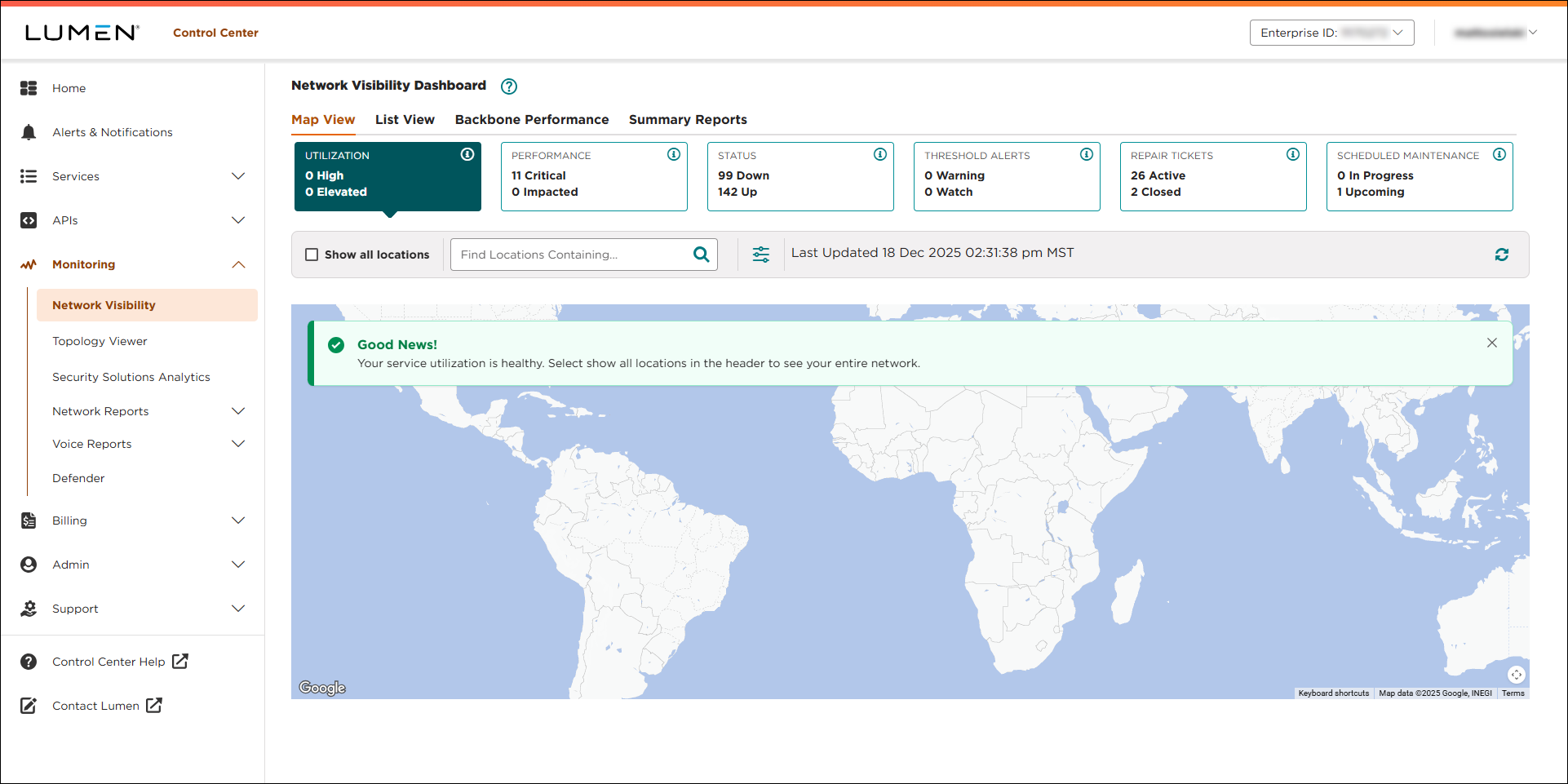
- Click Backbone Performance.
Lumen Connect shows backbone performance metrics for your network locations.
- Do any of the following to customize the backbone performance table:
- To adjust the region(s) shown in the table, select or clear the checkboxes for the regions. (For example, to remove locations in Europe from the table, clear the Europe checkbox.)
- To change the backbone performance metrics shown in the table, select an option from the list. By default, Lumen Connect shows latency metrics, but you can also view packet delivery % or average jitter metrics as well.
- To adjust the time period for the table, select an option from the list. By default, Lumen Connect shows current metrics, but you can also view metrics for the past hour, past day, or past 30 days.
- To filter the table to focus on metrics between two locations, click Filter, search for or select the radio button for the cities, then click Save. (To remove the filter, click Clear.)
- To adjust the region(s) shown in the table, select or clear the checkboxes for the regions. (For example, to remove locations in Europe from the table, clear the Europe checkbox.)



