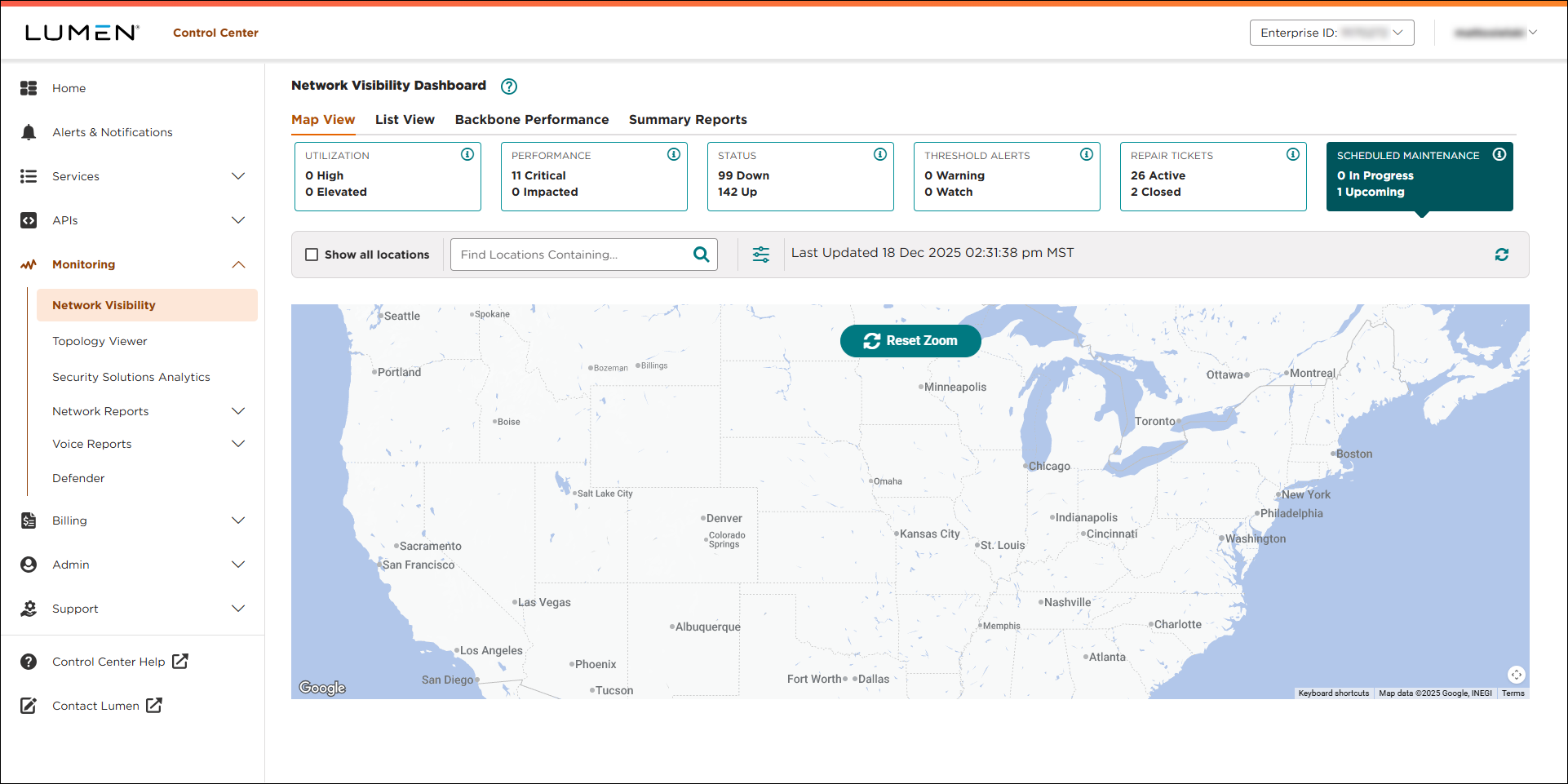
Exploring Network Visibility
Use Network Visibility (within Lumen Connect) to monitor or review performance of Lumen network services such as VPN, Internet, DIA, Ethernet, Wavelength, and more. To quickly find a location or service, start typing it in the search field.
- View service utilization or performance data at a glance using Map View or List View.
- Manage threshold alerts for utilization and performance metrics to be notified if your services exceed the threshold (create alerts, edit alerts, delete alerts).
- View open repair tickets and scheduled maintenance information by location and by service.
- View trend analysis of utilization patterns to plan for circuit upgrades, configuration changes, and scaling.
- View topology information for wavelength services.
- View details, metrics, and interfaces (including associated metrics) for managed routers.
Network Visibility tiles
Use the Network Visibility tiles to monitor performance, utilization, and issues related to your services. Then click through to get additional details for specific locations and services.
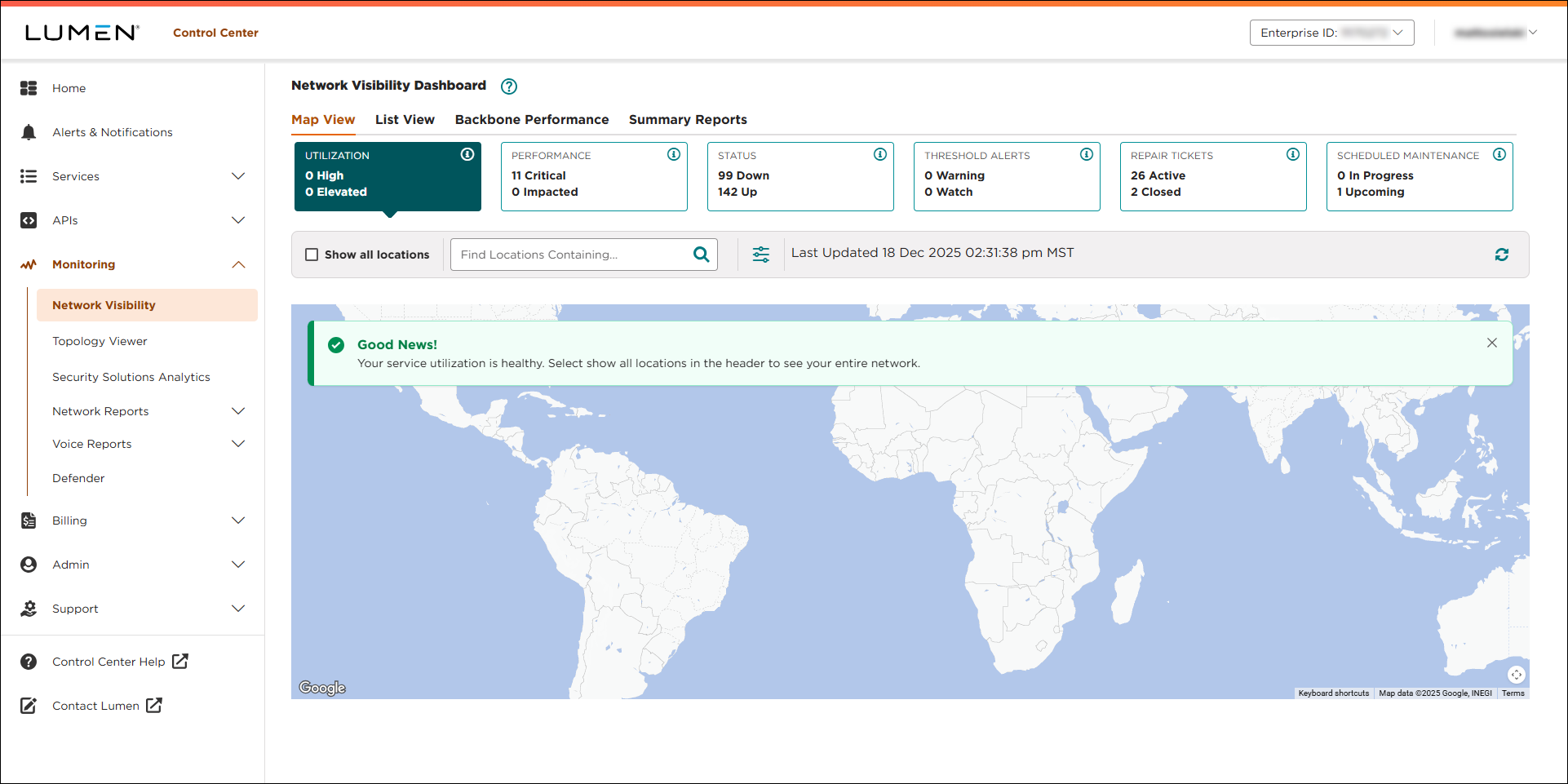
To view locations with high or elevated utilization, click the Utilization tile:
- High: average utilization percentage above 85% during the latest 5-minute sample.
- Elevated: average utilization above 65% during the latest 5-minute sample.
Utilization data is calculated as follows:
- bits = bytes * 8
- bits per second = Bits / time delta (usually 300 for a 5-minute interval)
- utilization average = bits per second / committed bandwidth
Transmitted data is from you to the Lumen core; received data is from the Lumen core to you.
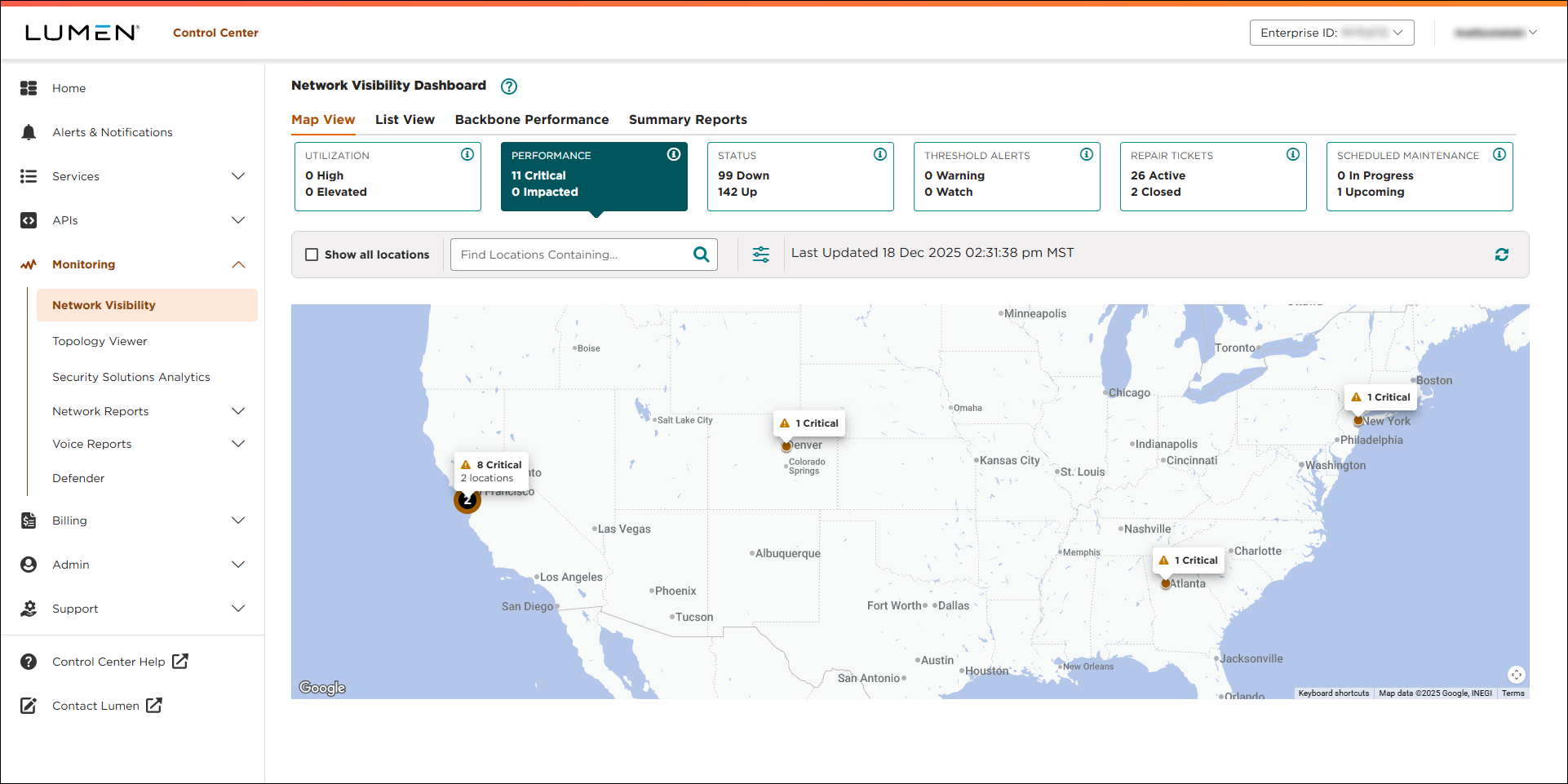
To view locations with impacted or critical performance, click the Performance tile:
- Critical: packet‑data delivery less than 95% during the latest 5‑minute sample.
- Impacted: packet‑data delivery less than 99% during the latest 5‑minute sample.
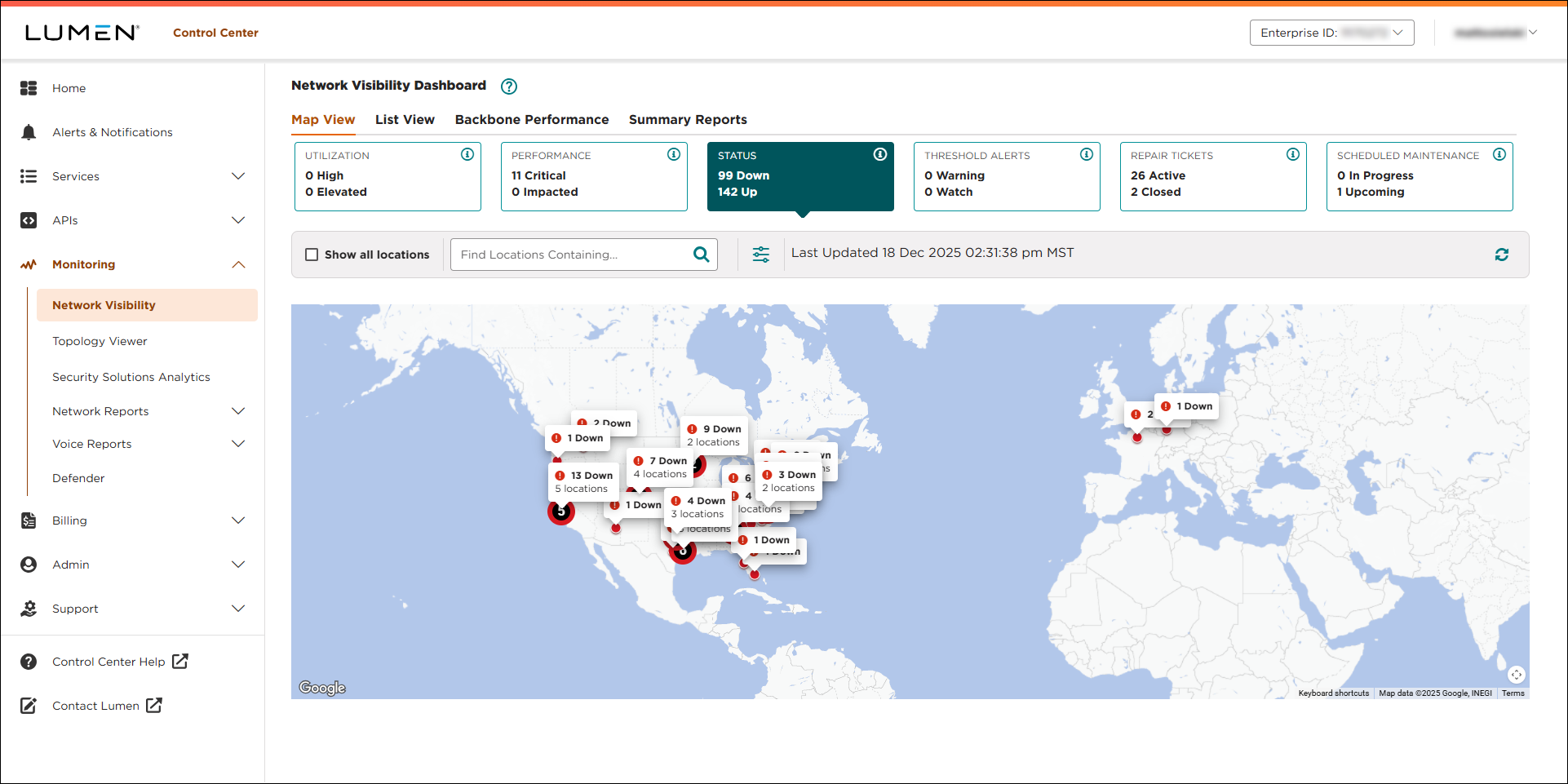
To view maps locations that are identified as Down, click the Status tile:
- Down: Interface Oper status is down during the latest 5‑minute sample.
- Up: Interface Oper status is up during the latest 5‑minute sample.
To view locations with threshold alerts (watches and warning), click the Threshold Alerts tile:
- Warning alerts
- Aggregate utilization
- Active metrics (if you have services with active metrics)
- latency by class of service*
- jitter by class of service*
- packet data delivery by class of service*
- Watch alerts
- Aggregate utilization
- Active metrics (if you have services with active metrics)
- latency by class of service*
- jitter by class of service*
- packet data delivery by class of service*
*Metrics by class of service are only available for select services.
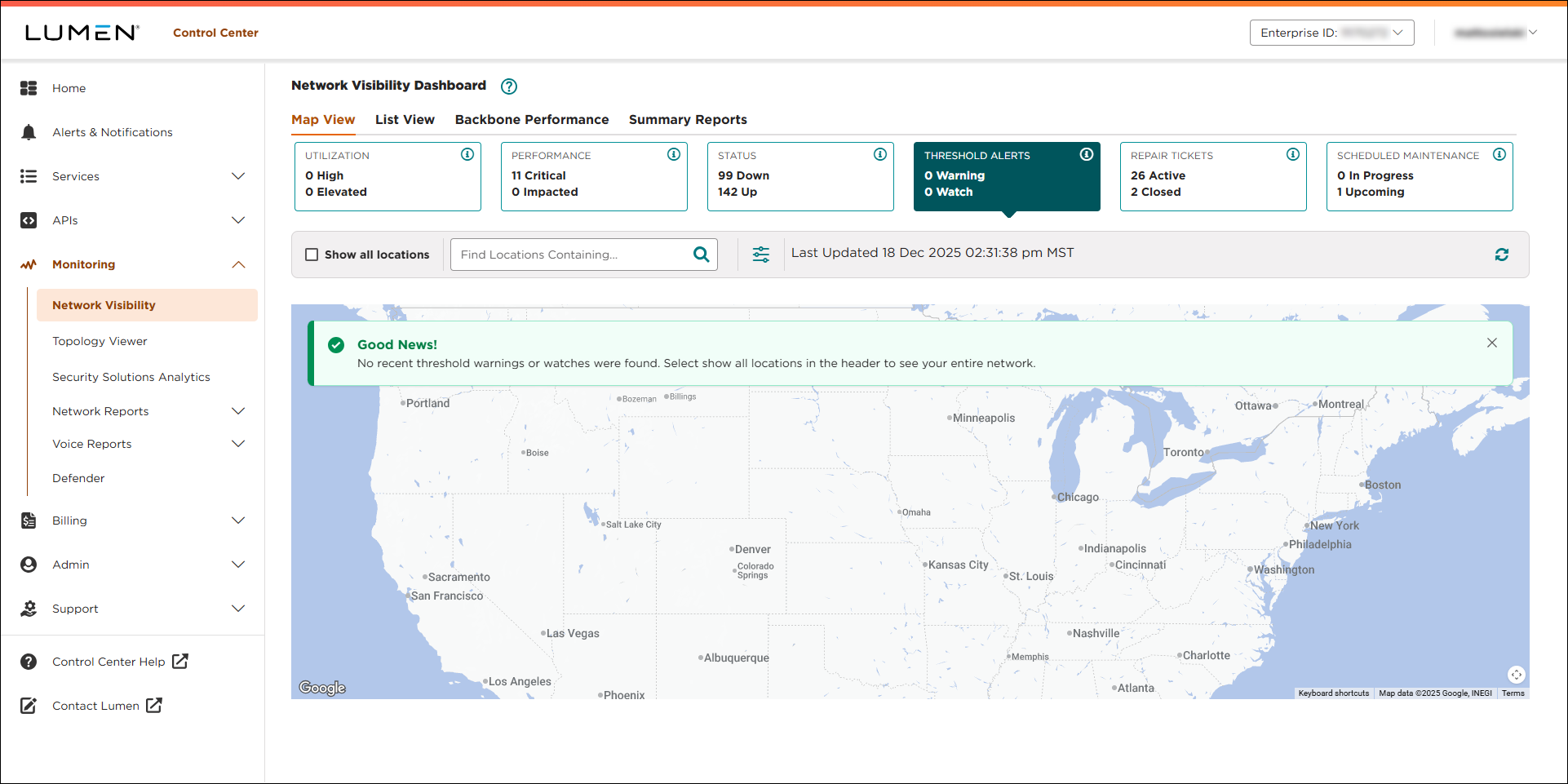
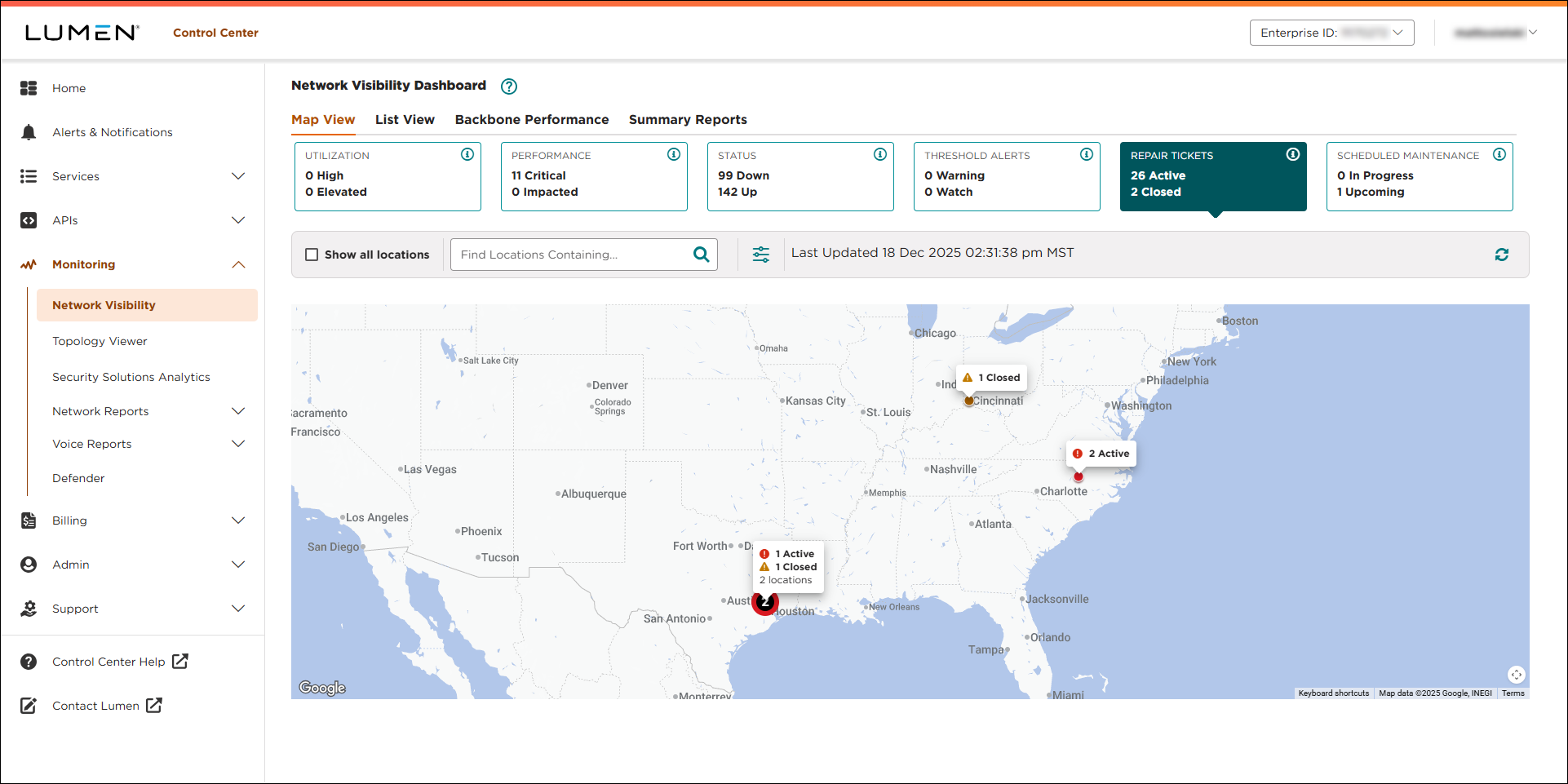
To view locations with open or recently closed tickets, click the Repair Tickets tile.
- Active: tickets currently open and being worked
- Closed: tickets recently closed in the past 7 days
To view locations with scheduled maintenance currently in progress or upcoming, click the Scheduled Maintenance tile.
- In Progress: events running now or within the next 24 hours.
- Upcoming: events scheduled between 24 hours and 30 days from now.