

Dismissing a potential repair ticket
For select services, Lumen opens potential repairs ticket proactively on your behalf when we detect a potential problem with a service. Lumen Connect designates a potential repair ticket with a yellow flag next to the ticket ID. It's important to review potential tickets to help avoid problems with your service. If you're not having an issue with the service, you can dismiss a potential repair ticket; Lumen Connect automatically closes it after 72 hours. If you are having an issue with the service, you can convert the potential repair ticket into a repair ticket to have Lumen troubleshoot the problem.
To dismiss a potential repair ticket:
- Using the left menu, click Support, then Ticketing.
Lumen Connect lists all tickets—repair, potential repair, activation, configuration, billable field tech, maintenance inquiry, portal support, and reason for outage (RFO)—including tickets Lumen created on your behalf. By default, Lumen Connect shows tickets created in the past 90 days and tickets are organized by the date the ticket was created (starting with the newest). The Status column shows the status for each ticket: Active, Canceled, Closed, etc. Potential tickets are marked with a yellow flag (). Tickets needing a reply from you are marked with a green flag ().
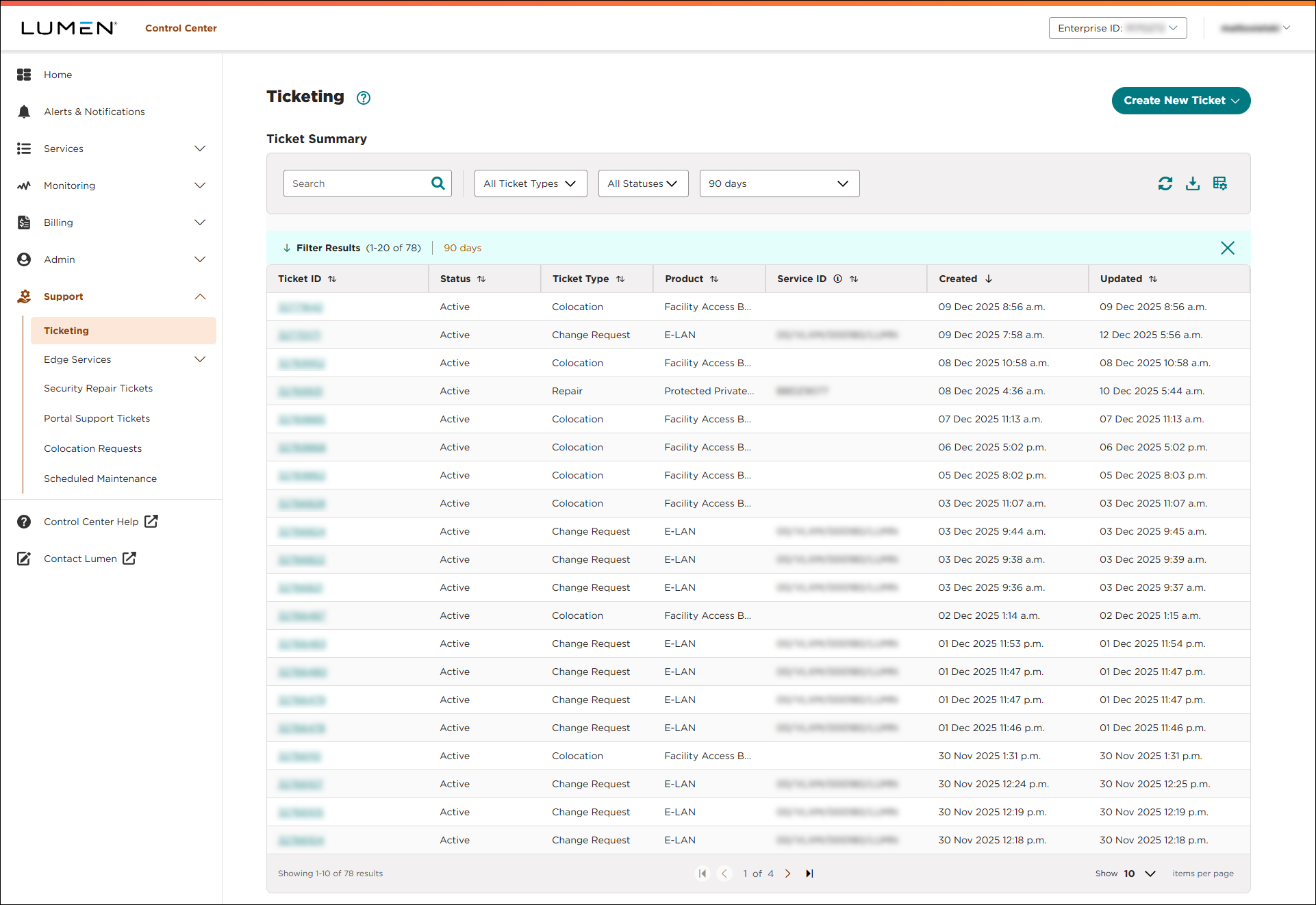
- Click the row for the potential repair ticket.
Lumen Connect shows the details for the potential repair ticket.
- Click Dismiss.
Lumen Connect dismisses the potential repair ticket. If you do discover a problem with the service, you can create a repair ticket.



