

Making calls using the Contact Center Client
There are several ways to make calls using the Call Console panel in the Contact Center Client. You can enter a phone number manually (or copy and paste a phone number), redial the last phone number you called, or click-to-dial a contact from one of the directories. You can also place calls on hold as needed.
The client merges with your desk phone, but it isn’t a soft phone (a phone that runs on your computer), so you’ll need to use your physical phone to speak with a contact.
Call manually
To make a call manually:
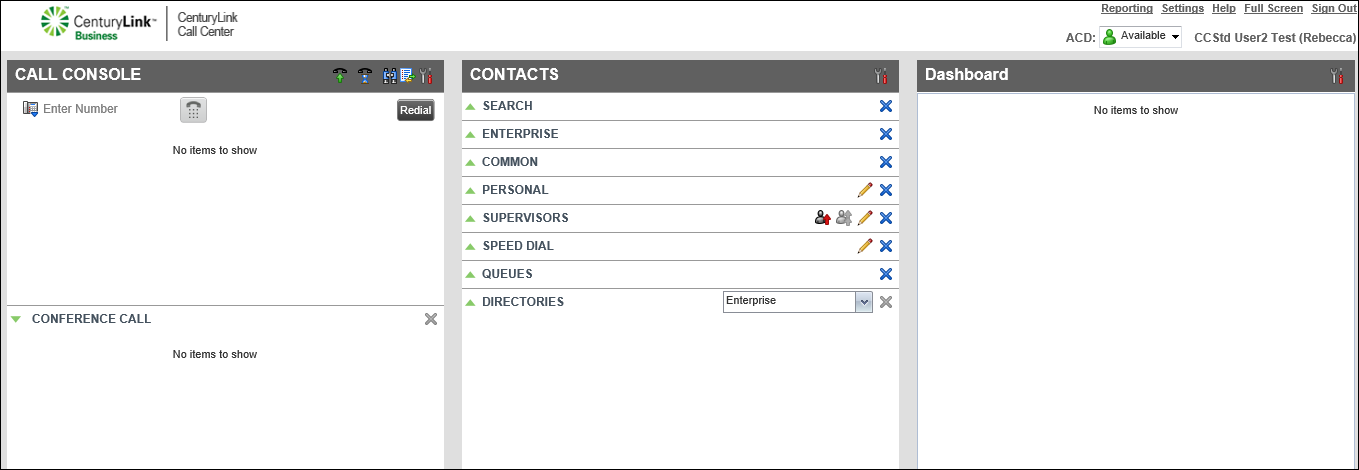
- In the Call Console pane, type the phone number (or copy and paste a phone number from a web page or document) into the Enter number field, then click the Phone icon.
- When your desk phone rings, pick up the handset (or press the speaker or headset button on your phone).
Your call initiates.
- To end your call, click END.
Redial
To redial the last phone number you called:
- Click Redial.
- When your desk phone rings, pick up the handset (or press the speaker or headset button on your phone).
Your call initiates.
- To end your call, click END.
Click-to-dial
To click-to-dial from the Contacts pane:
- In the Contacts pane, find the contact in one of your directories or use the search feature to find the contact.
- Click on the contact’s name.
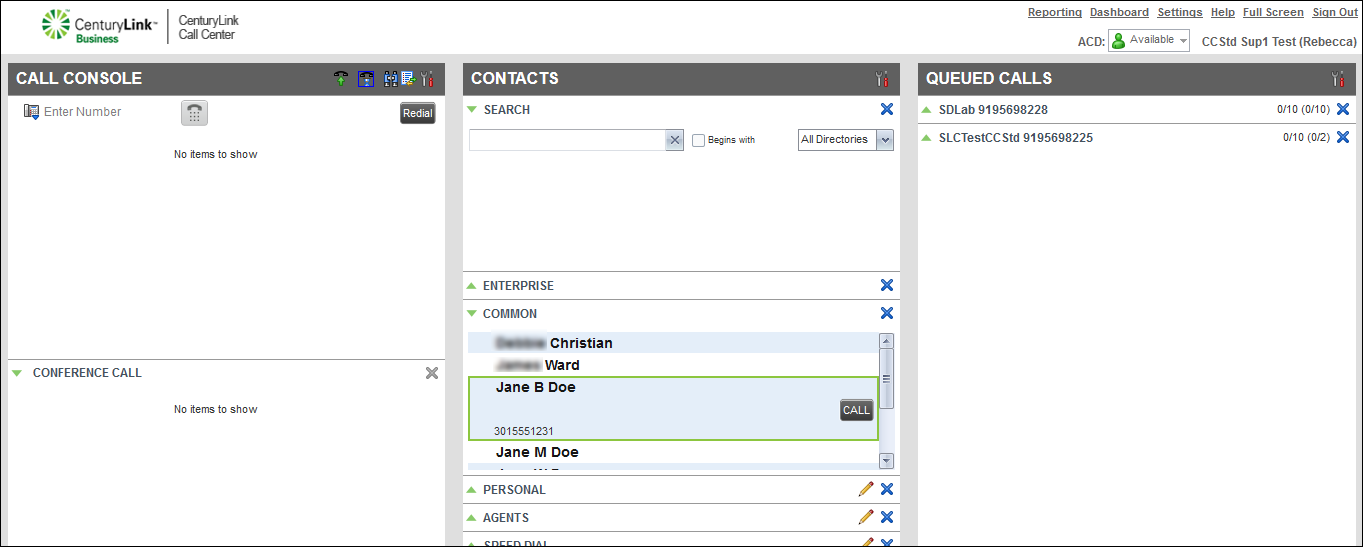
- Click CALL.
When your desk phone rings, pick up the handset (or press the speaker or headset button on your phone).
- Your call initiates.
The Call Console page shows the active call details.
- To end your call, click END.



