

Creating an order for a simple toll-free route plan
Using Control Center, you can place an order for a simple toll‑free route plan on a Lumen® 1+ Switched and Toll Free service. If you want to order multiple simple route plans, you can also create a bulk order using a spreadsheet.
Need more than just a simple route plan? Learn how to order a complex toll‑free route plan
To create an order for a simple toll-free route plan:
- Using the left menu, click Services, click Service Tools, then click 1+ Switched & Toll Free.
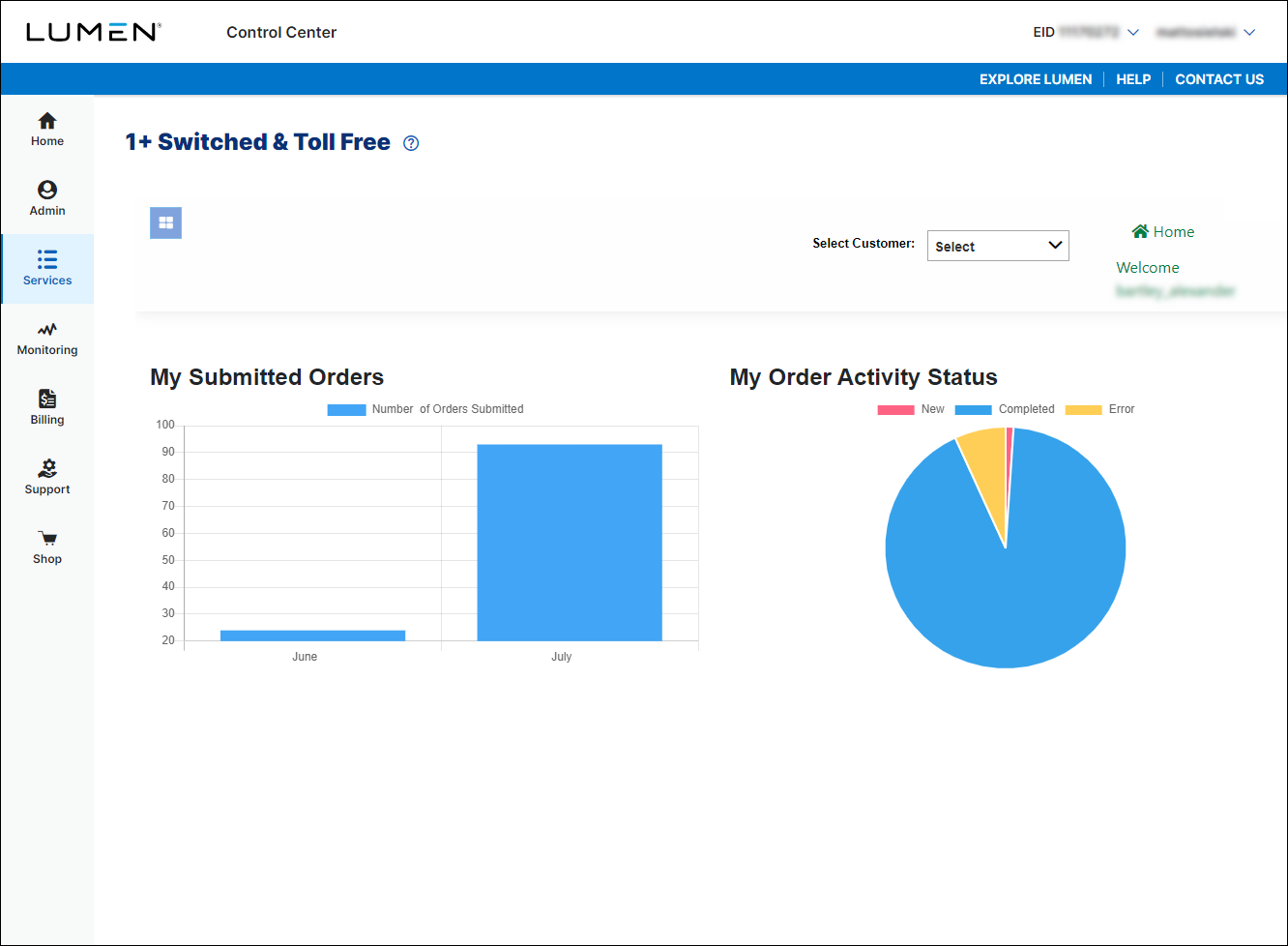
- If you have more than one customer number, use the Select Customer list to select the customer ID you want to work with.
- In the Route Type field, select the Simple radio button.
- Do the following to build the route plan:
- In the Route Name column, type a name for the route plan.
- If you want to add a description to help you identify the route plan, type it in the Description column.
- In the Activation Date column, either leave the date and time to activate as soon as possible or select a new date and time to schedule when you want to route plan to become active.
- In the Terminations column, do either of the following to select where you want to route calls to:
- To route calls to a trunk group, type the trunk group in the Primary TG field. (You can also add up to two alternate trunk groups to route to.)
- To route calls to a ring-to number, type the number in the Primary RTN field. (You can also add an alternate ring-to number to route to.)
- To route calls to a trunk group, type the trunk group in the Primary TG field. (You can also add up to two alternate trunk groups to route to.)
- In the Route Name column, type a name for the route plan.
- To add another route plan to the order, click + Add Row, then repeat the previous step to fill in the details for the route plan.
- When you're done, click Submit.
Control Center submits the order for the route plan. You can now track the status of your order online.



