Adding a Cloud Interconnect to AWS Interconnect - last mile
Lumen® Cloud Interconnect powered by Lumen® Multi-Cloud Gateway simplifies establishing secure, reliable private connections with AWS Interconnect - last mile. Lumen provides IP addresses and a private ASN for the BGP session between Lumen and your network.
After adding Cloud Interconnect using Lumen Connect®, you can update BGP sessions and create or update prefix lists for BGP sessions. You can also add static routes that apply to the Cloud Interconnect Multi-Cloud Gateway.
Update Cloud Interconnect bandwidth to accommodate changing requirements. Delete Cloud Interconnect if it's no longer needed.
There are four steps to add and configure Cloud Interconnect to AWS Interconnect - last mile:
Step 1: Get a Lumen port
To get a Lumen port:
- Add a Fabric Port
- Click chat in the lower-right corner of Lumen Connect to contact a specialist
Step 2: Prepare AWS Interconnect - last mile
To prepare AWS Interconnect - last mile:
- Go to the AWS page and sign in.
- Create a Last Mile Interconnect under Direct Connect using your Lumen billing account number in the Partner Account ID field.
- Copy the activation key to paste when creating the Cloud Interconnect, then click the Lumen Activate Page button to go directly to adding the Cloud Interconnect in Lumen Connect.
Step 3: Add Cloud Interconnect
To add Cloud Interconnect:
Note: Skip steps 1 through 3 if you use the Lumen activation page button in the AWS portal.
- Using the left menu, click Services, then click Add Services.
Lumen Connect shows services you can add with the Lumen digital experience.
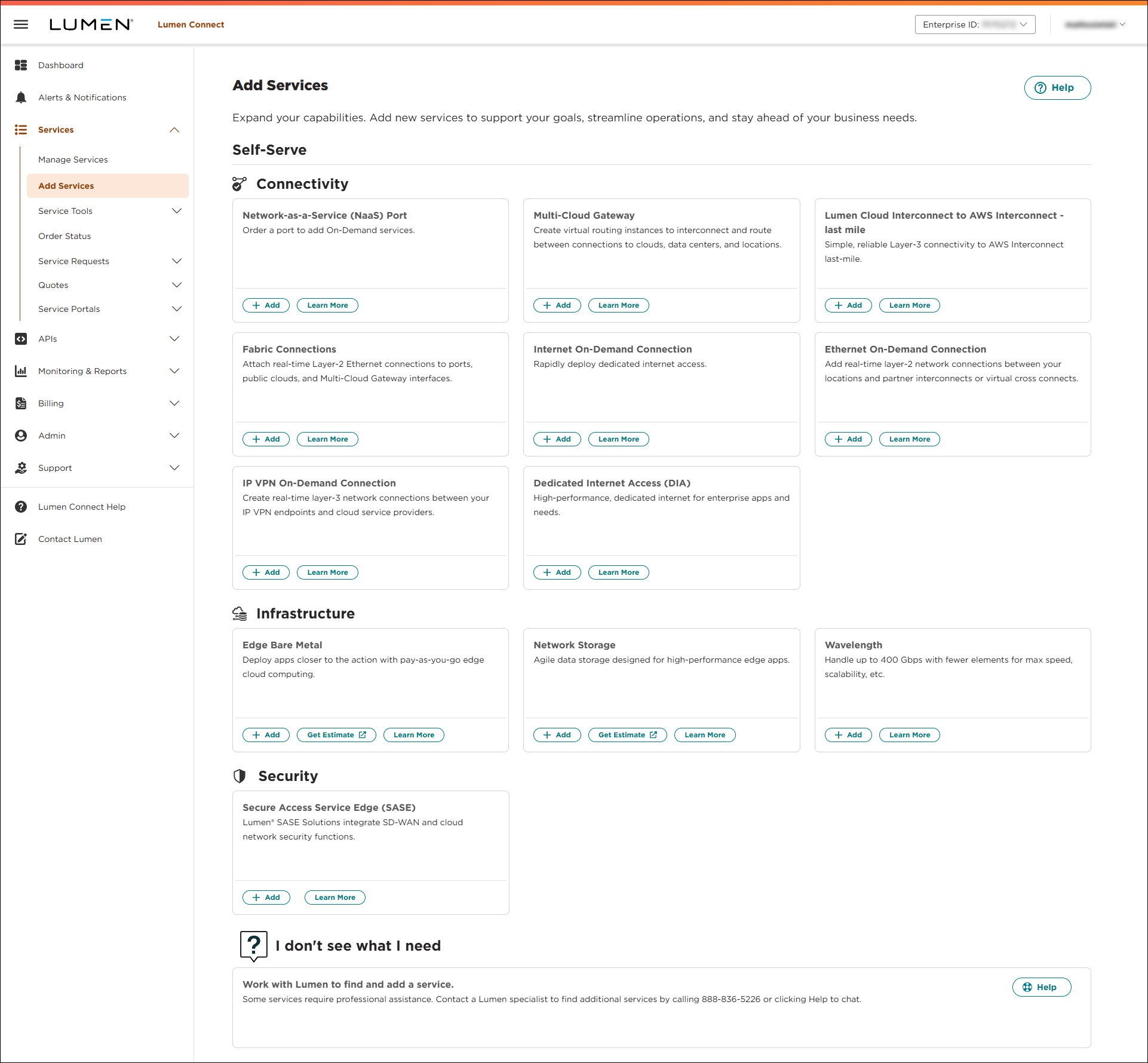
- Click + Add for Cloud Interconnect.
- Select a customer and billing account, then click Continue.
Not sure which billing account number to select? Consult your accounting department for help selecting a billing account number.
Note: If you can’t click on anything, contact your Lumen Connect system administrator to get Fabric & On-Demand Services permissions.
- In the Service Nickname field, type a name for the Cloud Interconnect you're creating. (Be sure to use something memorable. This name will appear on your invoice and in your list of services.)
- Use the Description field to record additional information about the Cloud Interconnect.
- Select a connection type.
- Port to Partner Provider connects the partner provider and the Lumen port.
- Paste the Partner Provider Key provided when you set up the peering connection.
- Select the Lumen port and type a VLAN available on your network that you configure on your equipment.
- Select inbound and outbound IPv4 prefix lists.
- Enable MD5 authentication for additional security, then type the password.
- Paste the Partner Provider Key provided when you set up the peering connection.
- Multi-Cloud Gateway to Partner Provider connects the partner provider to a Multi-Cloud Gateway.
- Paste the Partner Provider Key provided when you set up the peering connection.
- Select an existing Multi-Cloud Gateway or select Add a Gateway to create Multi-Cloud Gateway.
- Select inbound and outbound IPv4 prefix lists.
- Paste the Partner Provider Key provided when you set up the peering connection.
- Port to Partner Provider connects the partner provider and the Lumen port.
- Click Continue.
- Review the billing information, then click Continue.
- Review the order information, then click Submit.
Lumen Connect provisions the Cloud Interconnect, then allows you to manage it using Multi-Cloud Gateway.
Step 4: Complete AWS Interconnect - last mile
To complete AWS Interconnect - last mile:
- Go to the AWS page and sign in.
- Locate Last Mile Interconnects under Direct Connect and accept the last mile interconnect.



