

Setting the card passwords for Encrypted Wavelength
Before you can do other tasks with a Lumen® Encrypted Wavelength Service, such as setting the authentication key, updating card firmware, or viewing change history for the service, you need to replace the initial passwords for your cards (set by Lumen) using Lumen Connect. You do this to secure the cards so that only designated people in your organization have access to the information—helping ensure your connection is secure. You can use the same password for both cards or different passwords for each card.
Once you set the passwords for the cards, you can manage the passwords according to your organization's security policies. At any time, you can change the passwords for the cards.
Important: Remember to keep track of your card passwords. Lumen cannot retrieve or reset passwords for you. If you forget your passwords, we must send a technician to both locations to physically remove and reseat both cards—and you will be charged for this service.
To set the card passwords for Encrypted Wavelength:
- In the Services widget on the homepage, select Wavelength—Encrypted or PROTECTED WAVELENGTH—ENCRYPTED from the Find by Product or Service Tool list.
Lumen Connect shows all Encrypted Wavelength (or Protected Encrypted Wavelength) services on the enterprise ID.
- Search for the service you want to work with. When you find the service you want to work with, click the hyperlinked service ID or click the icon (in the Actions column), then click View Details.
Lumen Connect shows details for the service you selected.
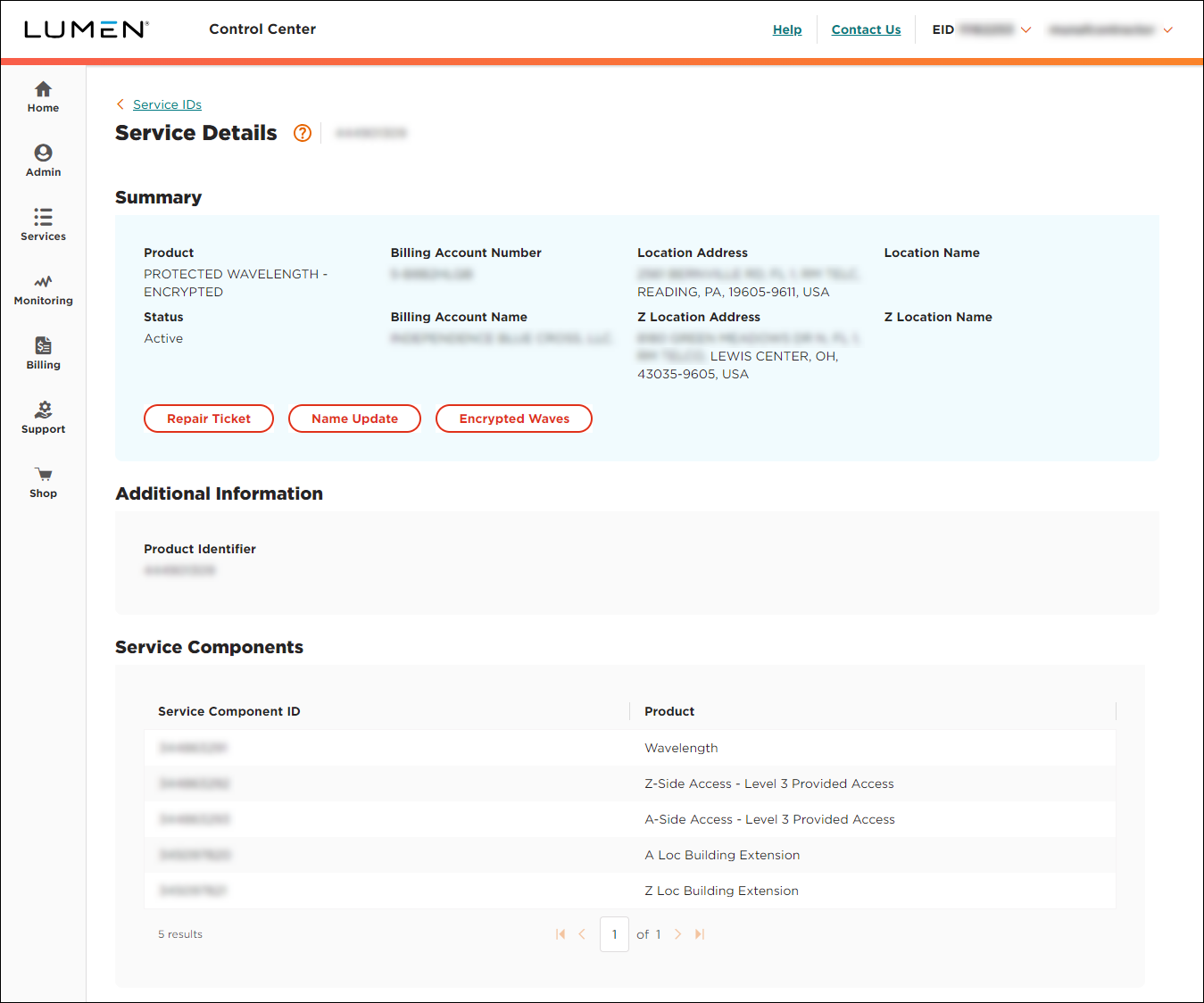
- Click Encrypted Waves.
Lumen Connect shows information for the Encrypted Wavelength service such as the location of the two cards, bandwidth for the service, and whether the service is protected or unprotected.
- If the service is unprotected, you see one path: Work.
- If the service is protected, you'll see two paths: Work and Protect.
- If the service is unprotected, you see one path: Work.
- On the Manage Passwords tab, type (and retype) the password for the first card, then click Submit.
Lumen Connect secures the card with the password you entered and adds a green icon after the card location at the top of the window.
- In the pop‑up window that appears, click Close.
- Type (and retype) the password for the second card, then click Submit.
Lumen Connect secures the second card with the password you entered and adds a green icon after the location for the second card.
- In the pop‑up window that appears, click Close.
Both cards for your Encrypted Wavelength service are now secure. Remember to keep track of the passwords you used. Lumen cannot retrieve or reset them for you without removing and reseating the cards at each location. You can now manage the card passwords, set the authentication key, and update card firmware, and view a log of changes to your service using Lumen Connect.



