Adding accounts to an enterprise ID
If you manage multiple accounts, instead of signing in under multiple enterprise IDs, you can add all the accounts you manage to your Lumen Connect enterprise ID. You'll be able to manage all your services in one place rather than having to manage services in different places.
You can add one account at a time or multiple accounts, up to 100 accounts, at one time. Your Lumen representative can also help you move accounts from one enterprise ID to another.
Adding multiple accounts? Save time and download the bulk account upload template to fill in before you sign in to Lumen Connect.
Add one account to an enterprise ID
To add one account to an enterprise ID:
- Using the left menu, click Admin, then click Enterprises.
Lumen Connect lists the enterprise IDs your user profile is assigned to. For each enterprise, Lumen Connect shows the enterprise ID, name, custom name (if any), customer number(s), and whether self registration is turned on or off, whether the enterprise ID is active, and when the enterprise ID was created.
- Click Add Accounts.
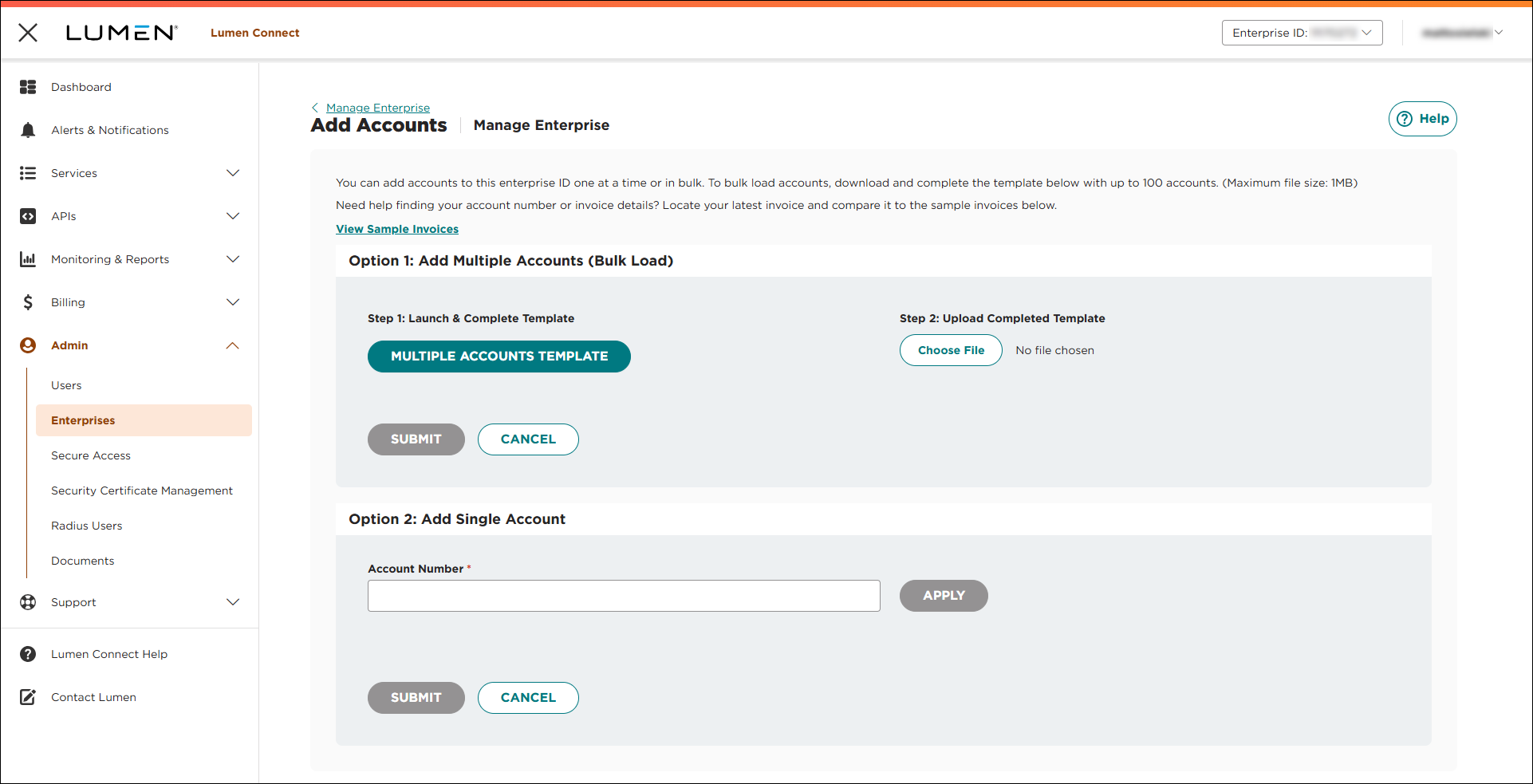
- Scroll down to the Option 2: Add Single Account box.
- In the Account Number field, type the account number you want to add, then click Apply. (If you need to add more accounts, repeat this step for each additional account.)
- When you're done, click Submit.
Add multiple accounts to an enterprise ID
To add multiple accounts to an enterprise ID:
- Using the left menu, click Admin, then click Enterprises.
Lumen Connect lists the enterprise IDs your user profile is assigned to. For each enterprise, Lumen Connect shows the enterprise ID, name, custom name (if any), customer number(s), and whether self registration is turned on or off, whether the enterprise ID is active, and when the enterprise ID was created.
- Click Add Accounts.
- In the Option 1: Add Multiple Accounts (Bulk Load) box, click Multiple Accounts Template, then download and open the Excel template.
- Starting on row 6, type the account numbers you want to add into the spreadsheet, then click Save.
- Under Step 2: Upload Completed Template, click Choose File (the max file size is 1MB), locate the file, then click Open.
- Click Submit.
Note: If you see this message: Account has already been assigned to the enterprise, it's likely that the account you're trying to add already exists in Lumen Connect. Contact your system administrator for access to the account. If needed, you can also work with your Lumen representative to move the account from one enterprise ID to another.



