

Editing a filter in Bill Analyst
You can easily change the existing filters you applied to a recurring billing report in Bill Analyst. Keep in mind, you can only edit a standard filter or a filter you create. You will not be able to edit or delete filters created and shared by others.
To edit a filter:
- Using the left menu, click Billing, then click Bill Analyst.
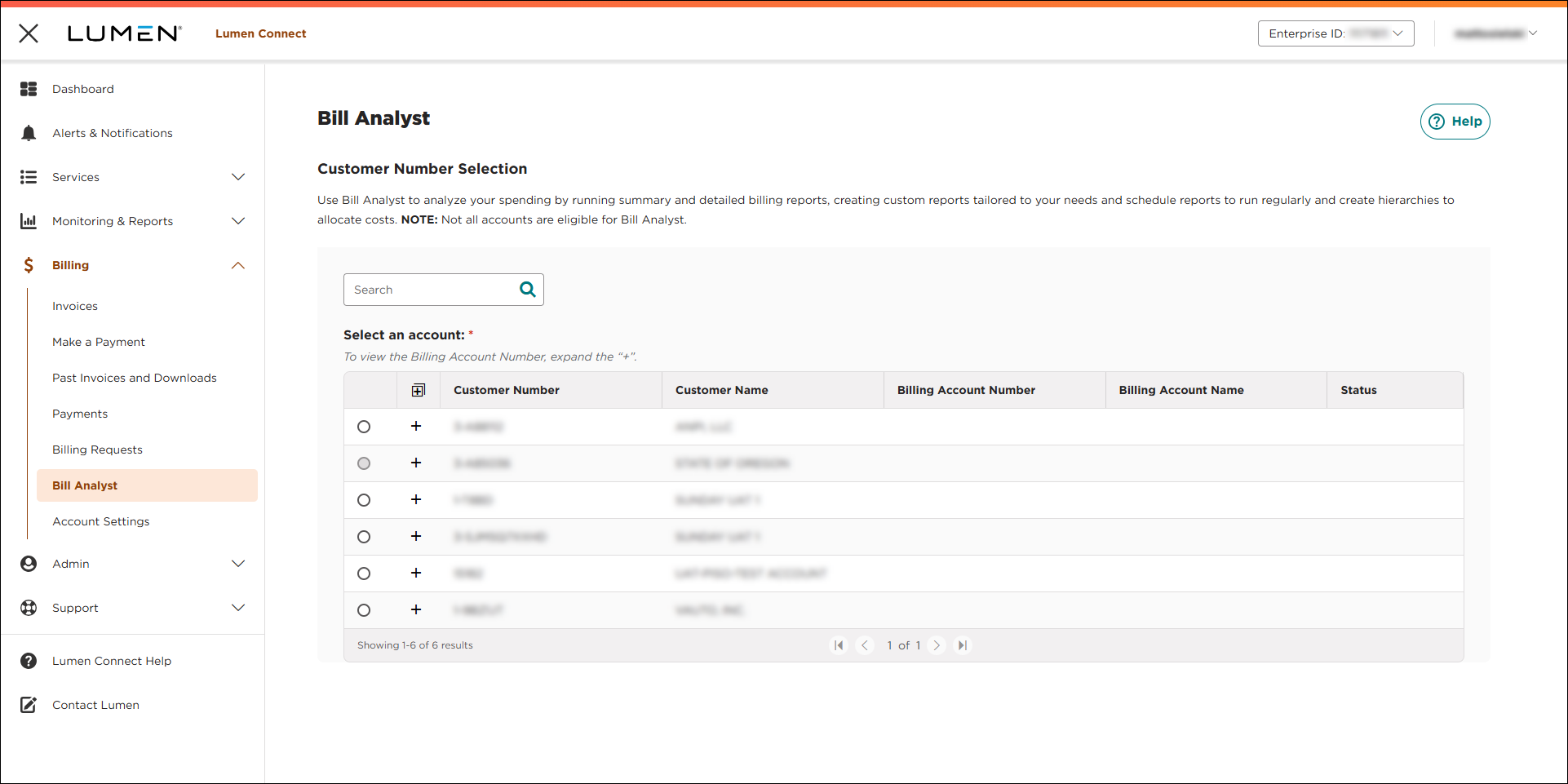
- Select the radio button next to the account you want to view, then click LAUNCH BILL ANALYST.
Lumen Connect opens Bill Analyst on a new tab.
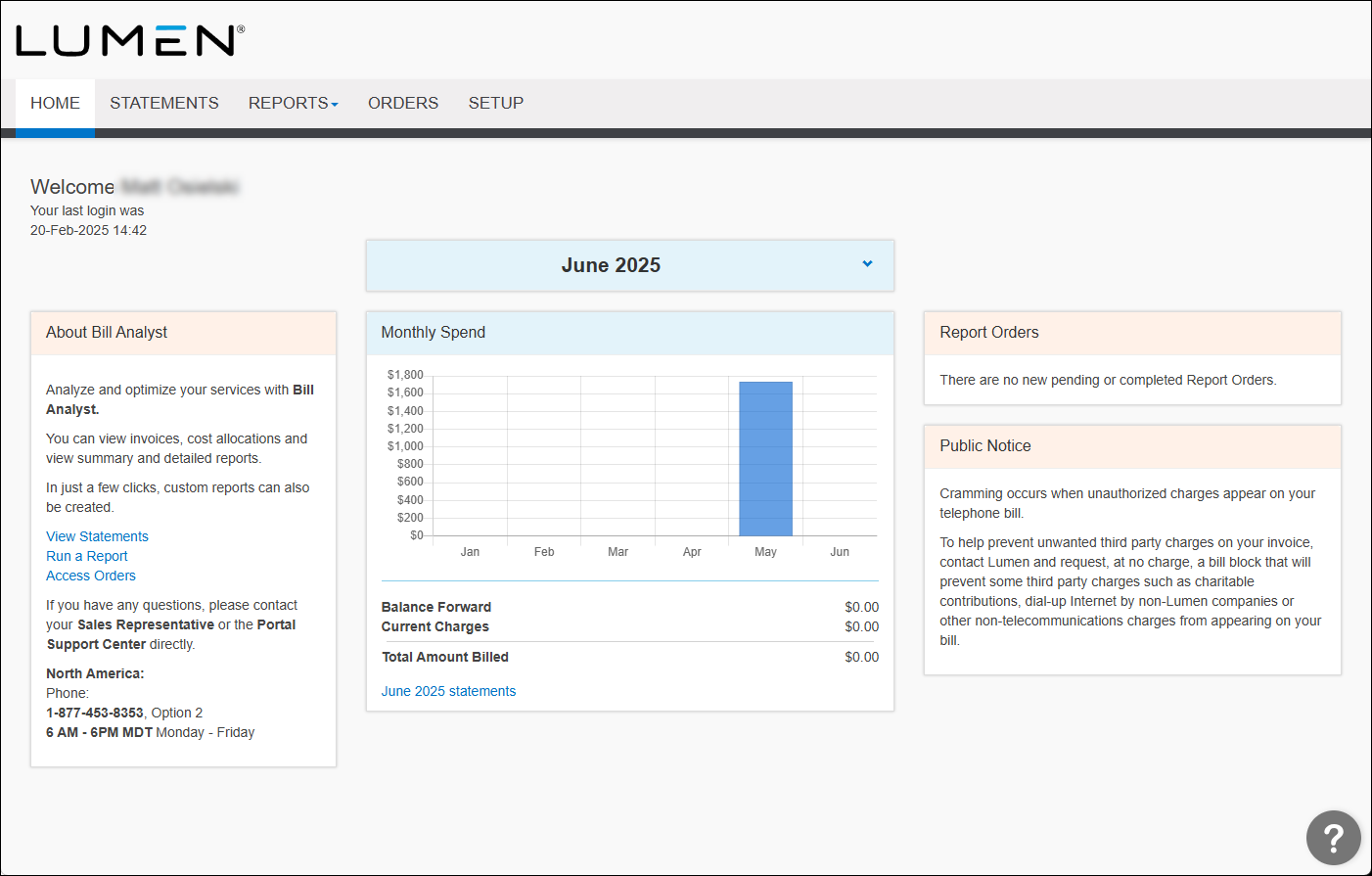
- Click the Setup tab.
- In the Tools section, click Filters.
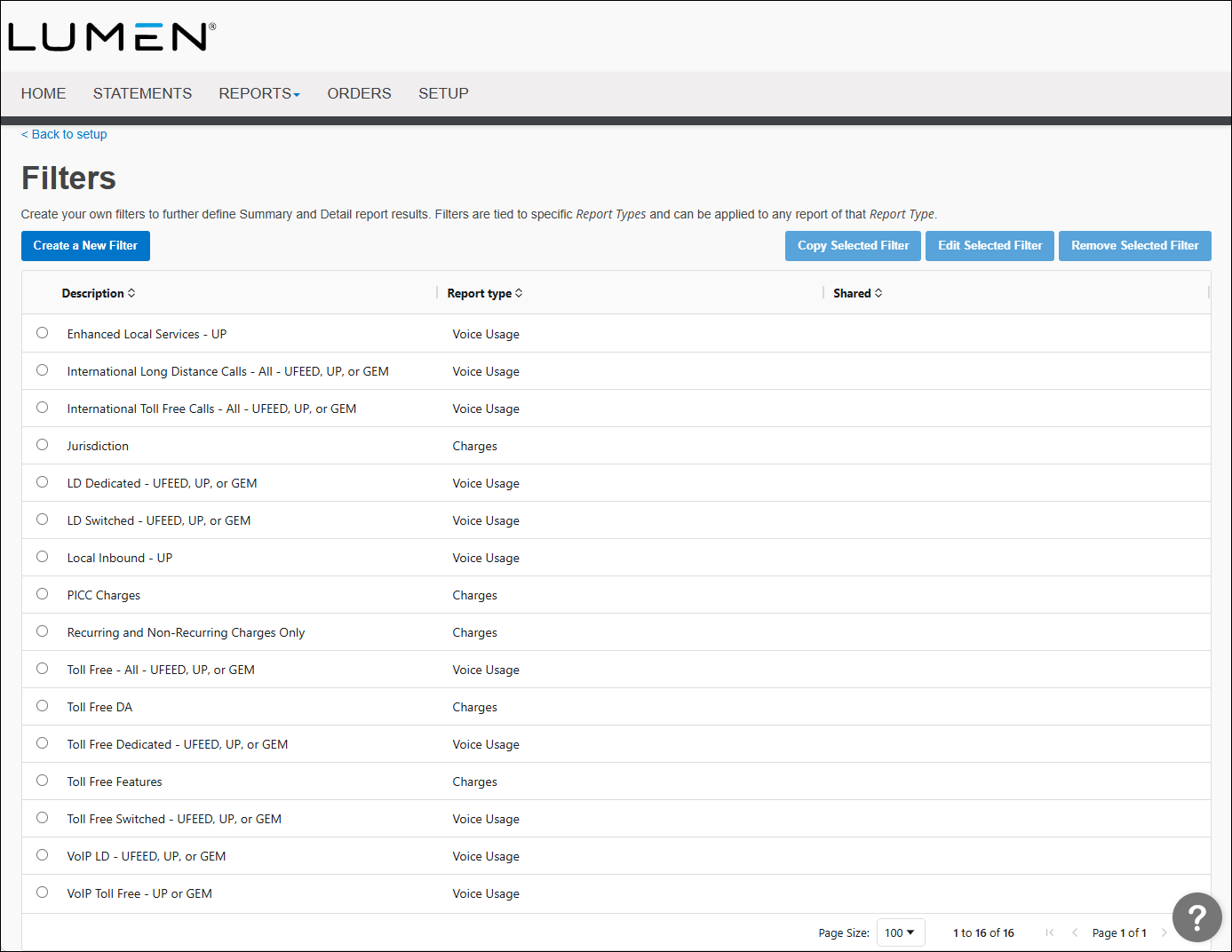
- Select the radio button of the report you want to edit a filter for, then click Edit Filter.
- From any of the two lists and one field, edit your filtering parameters.
You can have up to 20 rows for each filter. The last row cannot be a group. Each group needs a condition. A filter cannot be saved if a group ends without a condition row. If a group contains no condition and ends, you'll get an error message.
- Click Save.



