Searching for a reservation
Using Media portal, you can search through all the reservations for your organization for Lumen® Vyvx® service. From the list of results, you can export a PDF or CSV file, email the results, or take action with a reservation (such as editing, canceling, extending, or duplicating a reservation).
To search for a reservation:
- Sign in to Media portal. (Get help resetting your password)
- From the main menu, select Orders > Reservation Search.
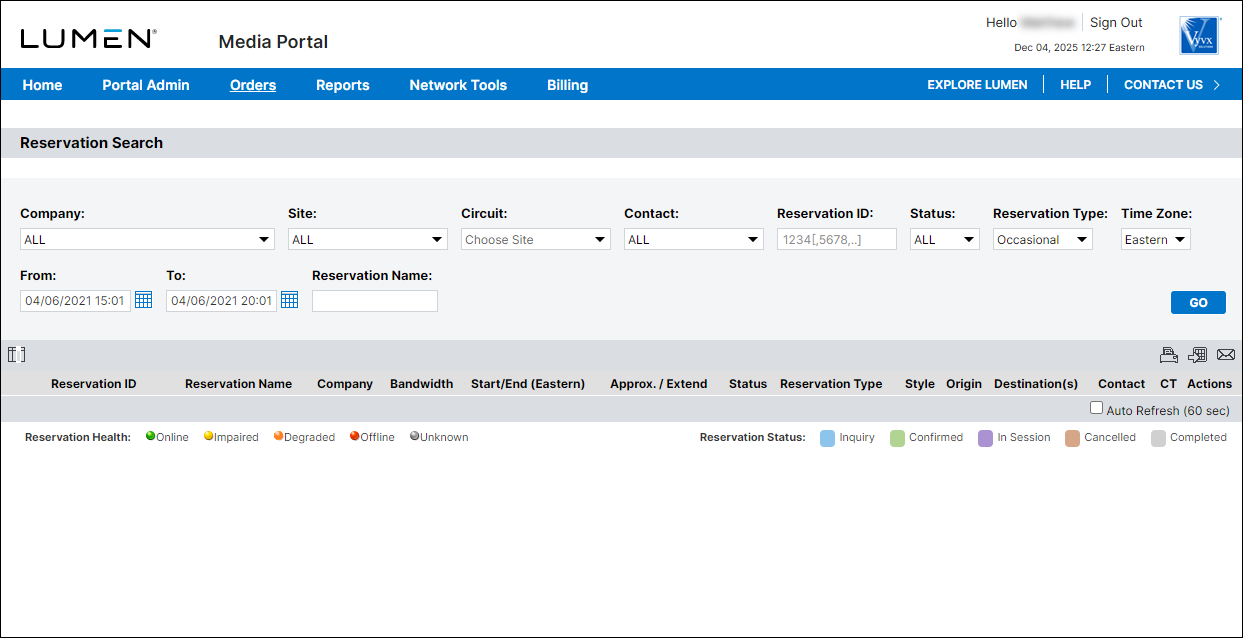
- Use the fields at the top of the page to select your search/filter criteria:
- To view all reservations (past, current, and upcoming) for your organization, skip to step 4.
- To view a specific reservation ID(s), type the reservation ID(s) in the Reservation ID field. (To search for multiple reservation IDs, separate the IDs with a comma. For example, 123456, 234567, 345678.)
- To view reservations with specific name (or portion of a name), type the name in the Reservation Name field. (For example, to search for all reservations containing "news," type news.)
- To view reservations for a specific company, select an option from the Company list. (To view reservations for all companies in your organization, select ALL.)
- To view reservations for a specific site (origin or destination), select an option from the Site list. (To view reservations for all sites, select ALL.)
- To view reservations for a specific circuit (origin or destination), first select a site from the Site list, then select a circuit from the Circuit list. (To view reservations for all circuits at a location, select a site, then select ALL from the Circuit list.)
- To view reservations with a specific contact specified, select that contact from the Contact list. (To view reservations with any contact, select ALL from the Contact list.)
- To view reservations in a specific status (e.g., completed reservations), select a status(es) from the Status list. (To view reservations in all statuses, select ALL from the Status list.)
- To view reservations of a specific type (Dedicated or Occasional), select an option from the Reservation Type list. (To view all reservation types, select ALL from the Reservation Type list.)
- To view all reservations (past, current, and upcoming) for your organization, skip to step 4.
- Select the date range (or time period) for the reservations you want to view using the Time Zone, From and To fields. (By default, Media portal selects the next five hours as the time period for your search.)
- When you're done, click GO.
Media portal shows reservations matching your search criteria with details and a status for each reservation.
- Do any of the following to work with a reservation or to export the results of your search:
- To edit a reservation, click the hyperlink in the Reservation ID column.
- To view the confirmation letter for a reservation, click the Confirmation Letter icon () in the Actions column.
- To duplicate a reservation (for a new reservation), click the Duplicate icon in the Actions column.
- To cancel an upcoming reservation, click the Cancel icon () in the Actions column.
- To extend an in‑progress reservation, click the Extend icon () in the Actions column.
- To stop an in‑progress broadcast before the end time, click the Goodnight icon in the Actions column.
- To customize the columns shown, click the Select Visible Columns icon (in the upper‑right corner of the table), select the checkbox for columns you want to view, clear the checkbox for columns you want to hide, then click SAVE.
- To create a PDF of the results, click the Select Columns to Export to PDF icon, select the checkbox for columns you want to include in the PDF, clear the checkbox for columns you want to exclude from the PDF, then click SAVE.
- To create a CSV file of the results, click the Select Columns to Export to CSV icon, select the checkbox for columns you want to include in the CSV, clear the checkbox for columns you want to exclude from the CSV, then click SAVE.
- To email the results, click the Email Results icon (), type the address(es) you want to send the email to (separating addresses with a comma), type a subject for the email (optional), type a brief message to the recipient, then click Send Email.
- To edit a reservation, click the hyperlink in the Reservation ID column.
Note: The options in the Actions column vary based on the status of the reservation.



