Viewing a list of your excluded channels
As a content publisher, you can view a list of channels you've excluded from the published list of channels that Lumen® Vyvx® Linear Channel Distribution subscribers can access, but that are still streaming content for your company's use. From the list, you can view subscribers (with a status of their reservation), health of the channel, and more.
To view a list of your excluded channels:
- Sign in to Media portal. (Get help resetting your password)
- From the main menu, select Orders > Linear Channel Distribution.
Media portal lists the available channels you can subscribe to. If you're a content subscriber, you can hover over the blue arrow(s) to the left of the Provider column to view your existing subscription reservations for that channel.
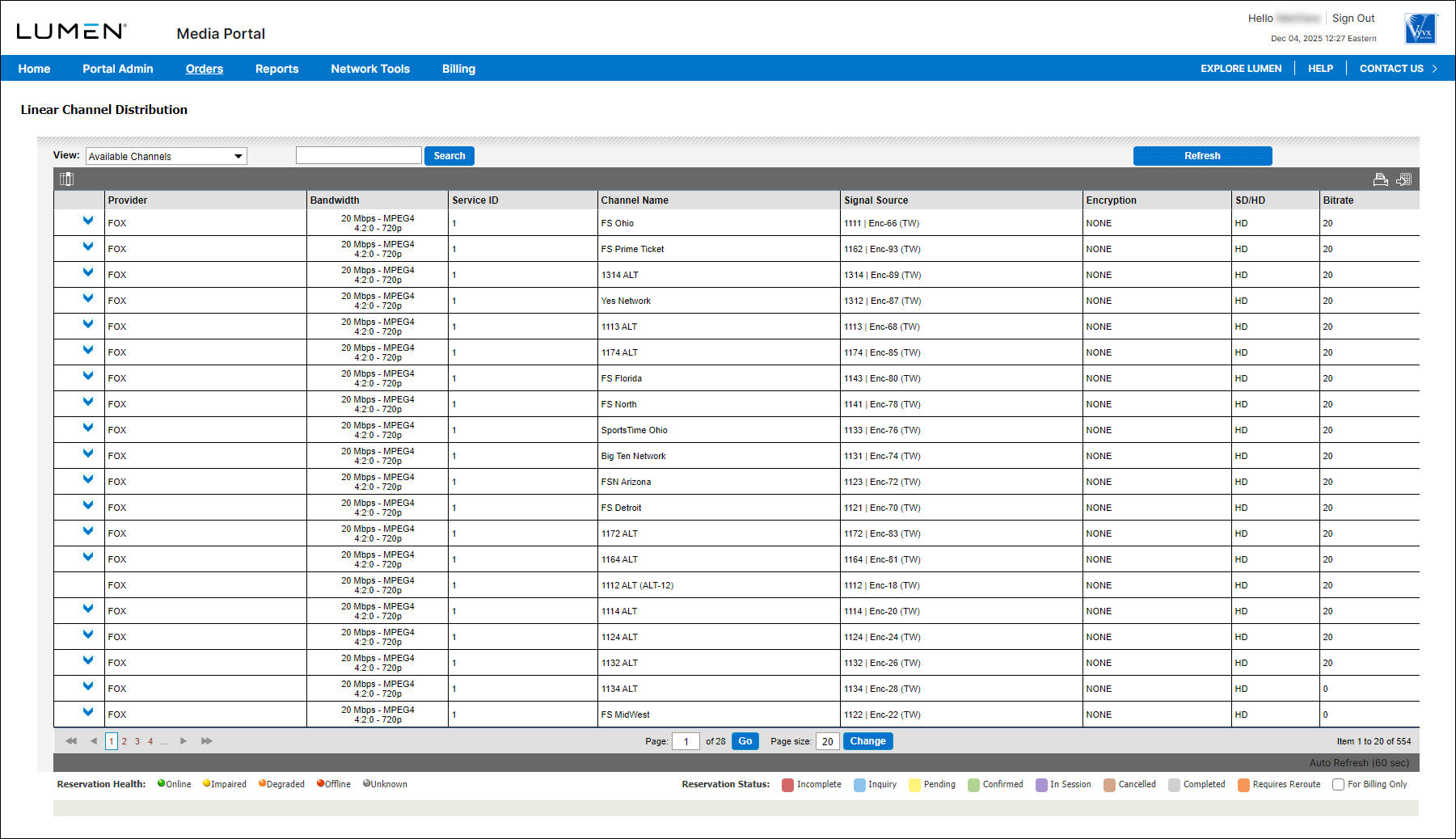
- From the View list, select Excluded Channels.
Media portal lists the channels you've published, but excluded from the list of channels. In the column to the left of the Reservation Id column, Media portal shows the health of your channel: online (green dot), impaired (yellow dot), degraded (orange dot), offline (red dot), or unknown (gray dot). Channels with a blue arrow in the Reservation Id column have subscribers. Hover over the blue arrow to view a list of subscribers as well as a status for the reservation.
- Do any of the following:
- To view the subscribers for a channel, hover over the blue arrow in the Reservation Id column. (Media portal lists the subscriber and details for the reservation.)
- To view the reservation confirmation letter for the channel, click the Confirmation Letter icon (page icon) in the Actions column on the far right of the row for the channel. (Media portal shows the confirmation letter for your reservation.)
- To include a channel in the list of available channels, select the checkbox in the Service ID column for the channel, then click the Include/Exclude Channel icon (+/‑) in the Actions column on the far right of the row for the channel. (Media portal adds the channel back to the list of available channels for subscribers to select.)
- To edit the customer label for a channel, click the Add/Update Customer Label icon (page icon with a plus sign), type the new label in the Customer Label field, then click Save. (Media portal updates the label for the channel.)
- To view the subscribers for a channel, hover over the blue arrow in the Reservation Id column. (Media portal lists the subscriber and details for the reservation.)



