Creating a Vyvx® estimated charges report
You can view a report of your estimated charges (per reservation, excluding taxes) for your Lumen® Vyvx® services: Fiber, Teleport, or Satellite. You can also get details for each reservation.
To create a Vyvx® estimated charges report:
- Sign in to Media portal. (Get help resetting your password)
- From the main menu, select Reports > Vyvx Estimated Charges.
Media portal lists your Vyvx® reservations and the estimated charges (excluding taxes) for each.
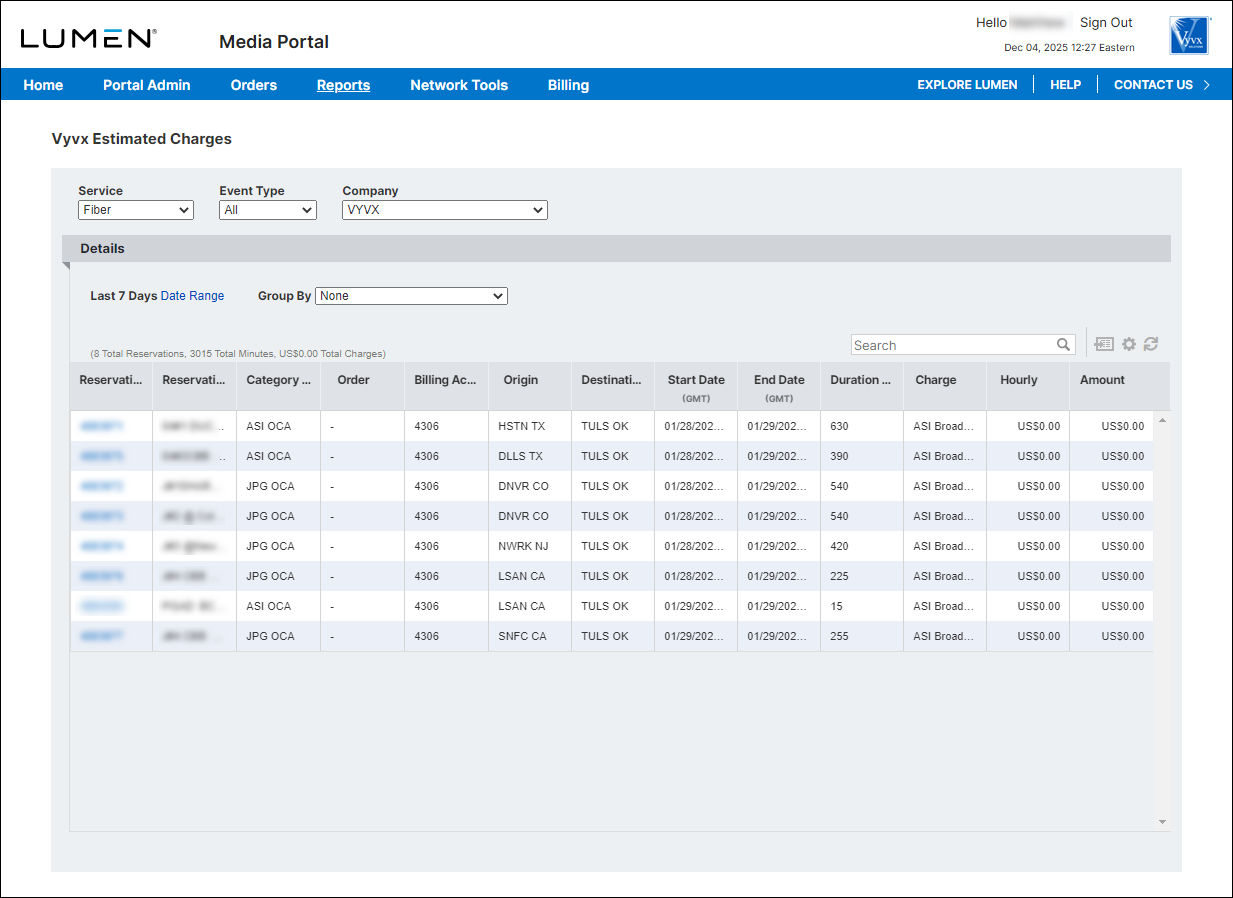
- Doing any of the following to customize the report, view more information, or export the data:
- To filter the reservations you see in the report, use the Service (Fiber, Teleport, or Satellite), Event Type, and Company lists (above the Details section).
- To change the date range for the report, click the Date Range link, then select an option from the list. (To use a custom date range, select Custom Date range, then select the beginning and ending dates for the range.)
- To group the reservations (by invoice category, reservation, or by both), select an option from the Group By list.
- To export the data as a .csv file, click the Export Results icon.
- To view details for a reservation, click the reservation ID hyperlink.
- To filter the reservations you see in the report, use the Service (Fiber, Teleport, or Satellite), Event Type, and Company lists (above the Details section).



