Creating a Vyvx® usage report
You can view a report of booked Lumen® Vyvx® reservations (including reservation details) for Fiber, Satellite, and Teleport services. The Vyvx® usage report helps you answer questions about the status of reservations or usage totals per circuit and lets you review the confirmation letter for each reservation.
To create a Vyvx usage report:
- Sign in to Media portal. (Get help resetting your password)
- From the main menu, select Reports > Vyvx Usage Reports.
Media portal lists the reservations for your organization.
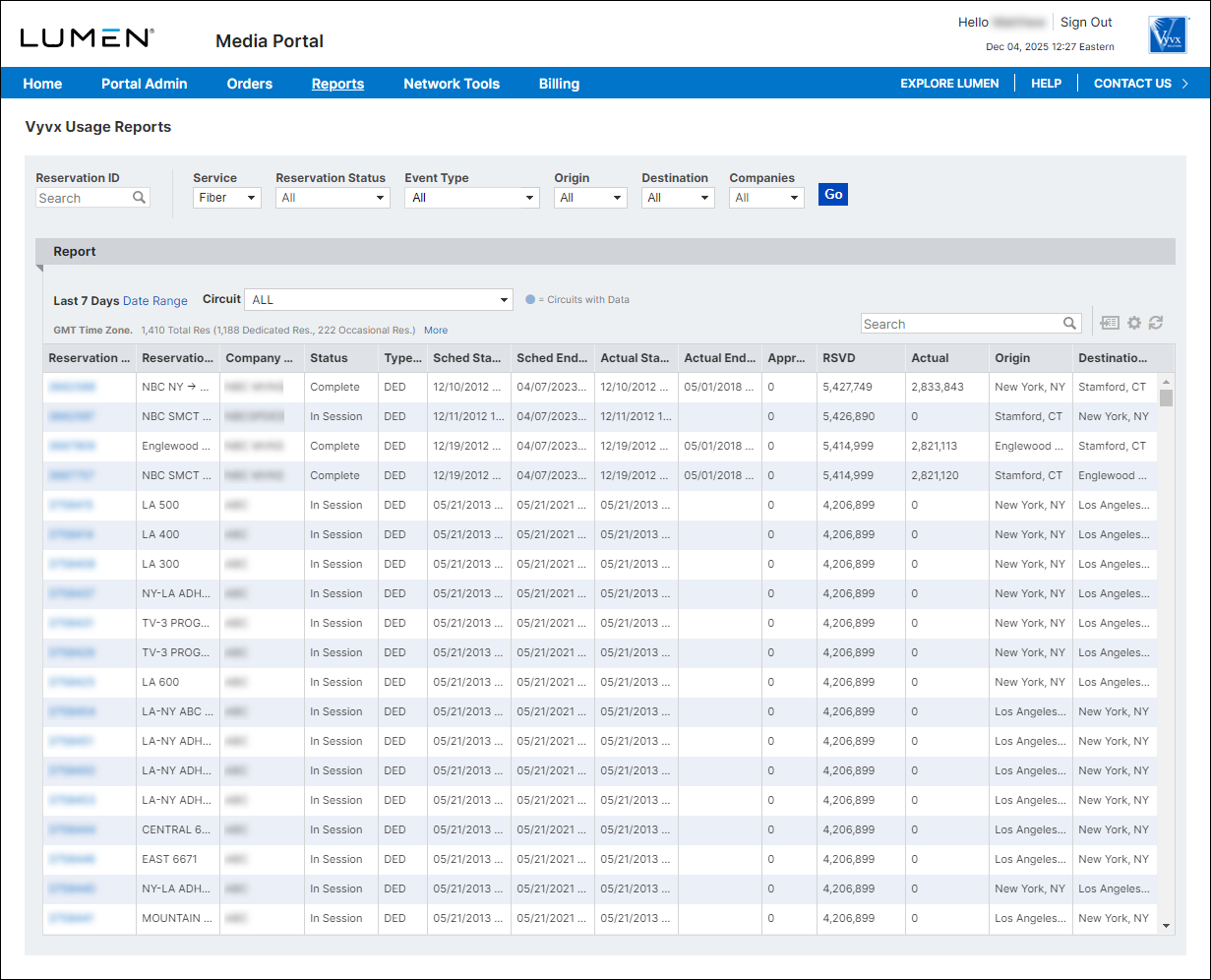
- To filter the list of reservations, do any of the following:
- To search for a specific reservation, type the reservation ID in the Reservation ID search field.
- To filter by the type of service, select a product from the Service list (Fiber, Teleport, Satellite).
- To filter by the status of the reservation, select a status from the Reservation Status list.
- To filter Teleport reservations by the teleport used for the reservation, select a teleport from Teleport list.
- To filter Fiber reservations by how the feed is built and billed, select an option from the Event Type list.
- To filter Fiber reservations by the source of the broadcast, select a city from the Origin list.
- To filter Fiber reservations by the destination of the broadcast, select a city from the Destination list.
- To filter by the company that booked the reservation or that owns the circuit, select the company from the Companies list. (To only view Fiber reservations booked by the company you selected, select the Only Booked by Selected checkbox.)
- To view reservations within a specific date range, click the Date Range link, then select an option from the list. (To use a custom date range, select Custom Date range, then select the beginning and ending dates for the range.)
- To view reservations for a specific circuit, select a circuit from the Circuit list.
- To search for a specific reservation, type the reservation ID in the Reservation ID search field.
- Do any of the following:
- To export the list of reservations to a .csv file, click the Export Results icon (to the right of the search box).
- To view details for a reservation, click the reservation ID hyperlink in the Reservation column.
- To export the list of reservations to a .csv file, click the Export Results icon (to the right of the search box).



