Viewing details for an order provisioning request
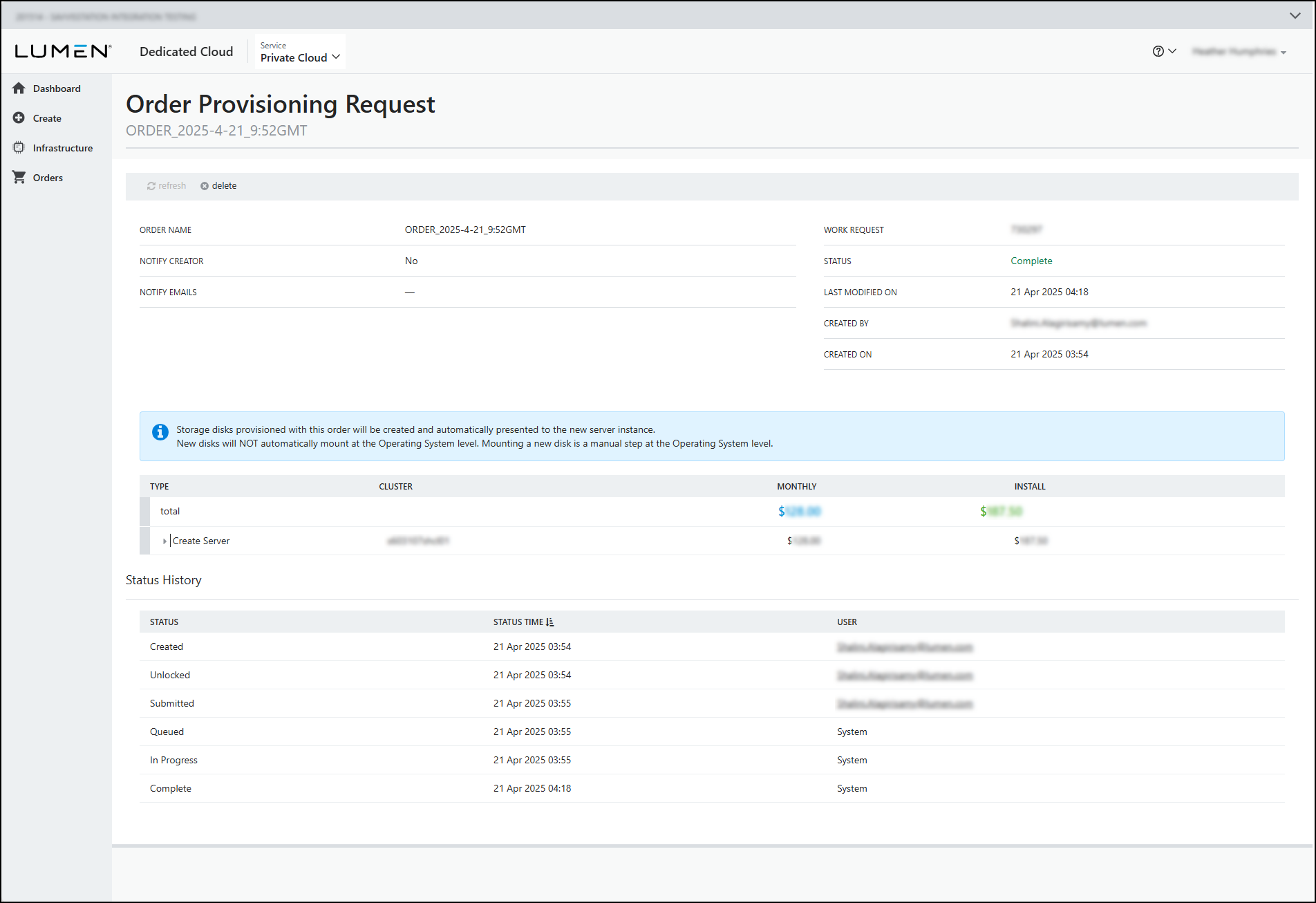
Use the Dedicated Cloud Compute portal to view details for your order provisioning requests for Lumen® Dedicated Cloud Compute. The details page shows information such as the order name, status of the request (e.g., Complete), work request number, and creator. You can also view the type of request (such as Create Server) and a detailed status history for the request. You can also view a list of your order provisioning requests.
Note: To access the Dedicated Cloud Compute portal, you must have a username and password for Managed Services portal.
To view details for an order provisioning request:
- Sign in to the Managed Services portal.
- Using the left navigation, click Orders, then click Order Provisioning.
The Dedicated Cloud Compute portal shows a list of server- and storage-deployment requests for your organization.
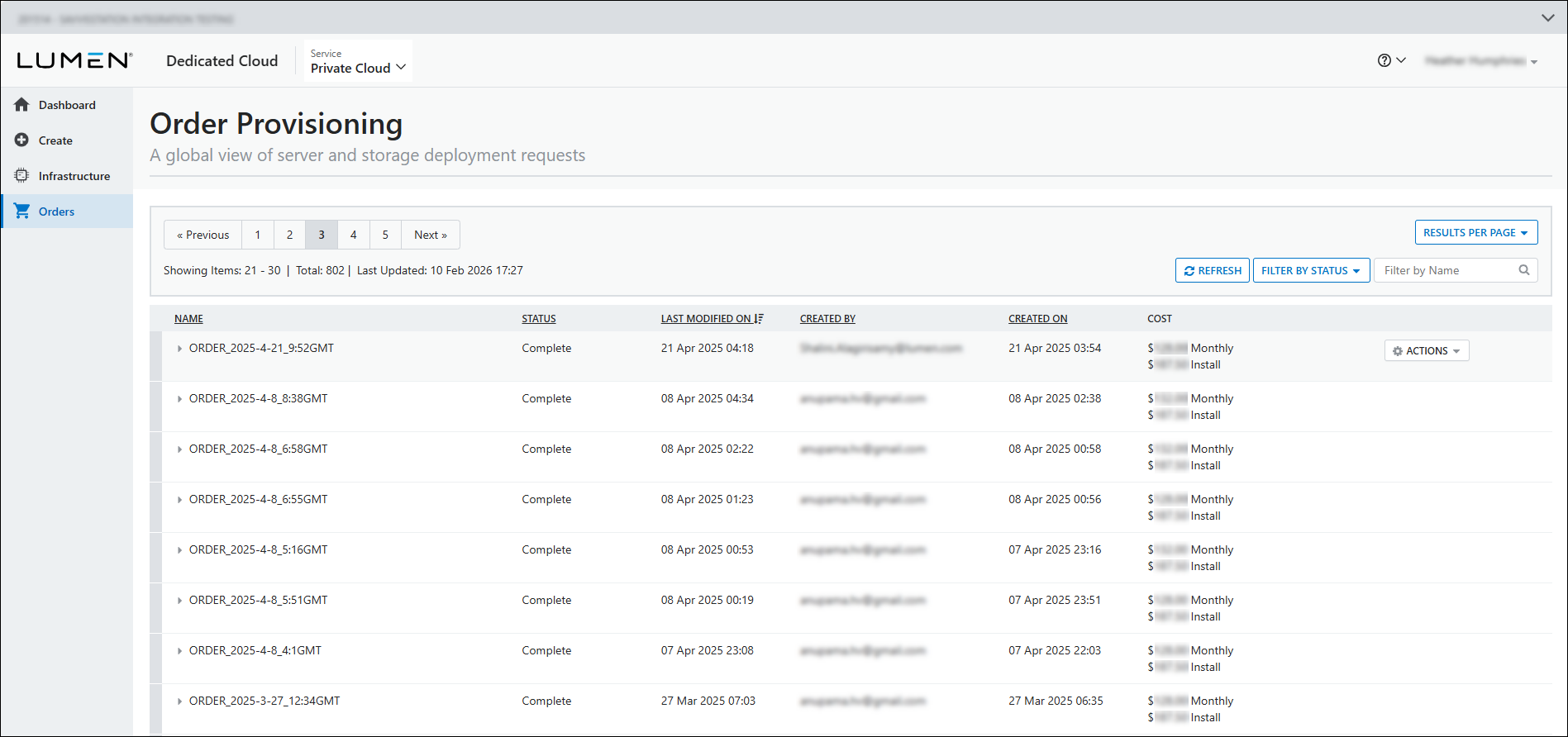
- On the row for the request you want to view details for, hover over the row, click
settings ACTIONS (on the right side of the row), then click View Details.
The Dedicated Cloud Compute portal shows details for the request you selected.
- To refresh the order provisioning request page, click
cached refresh.
- To delete the order provisioning request, click
cancel delete, verify you are deleting the correct request, then click Yes.
- To view information about the requests, review the following sections:
- The name of the order, whether the creator chose to be notified, the contact for that notification, the work request number associated with the order, and creation and modification details.
- The type of order provisioning request chosen, the cluster associated with the server, and the montly and install costs. Click the expansion type to view more details about the type of order provisioning request chosen:
- The Server Details section provides details on the billing account number, operating system, burn-in period, number of instances, and the name of the server.
- The Resources section shows the vCPU processors and the amount of vRAM on the server.
- The Networks section shows the interface IP address and the IP addresses assigned to the instances.
- The Storage section shows the available disks, disk size, and the data store location of each disk.
- The Server Details section provides details on the billing account number, operating system, burn-in period, number of instances, and the name of the server.
- The Status History section shows the status name, time of change, and user during each status change for the request.
- The name of the order, whether the creator chose to be notified, the contact for that notification, the work request number associated with the order, and creation and modification details.



