Creating a disconnect report for ELS and LI
Using Lumen Connect, you can create a report to view phone numbers disconnected from Lumen® VoIP Enhanced Local (ELS) or Lumen® Local Inbound (LI). You can view reports for the past 30, 60, or 90 days. You can also select a custom date range for the report.
To create a disconnect report for ELS and LI:
- Using the left menu, click Services, click Service Tools, then click ELS & LI Management.
- If you have more than one customer number on your enterprise ID, select the customer number you want to work with, then click PROCEED.
- Click the Reports tab.
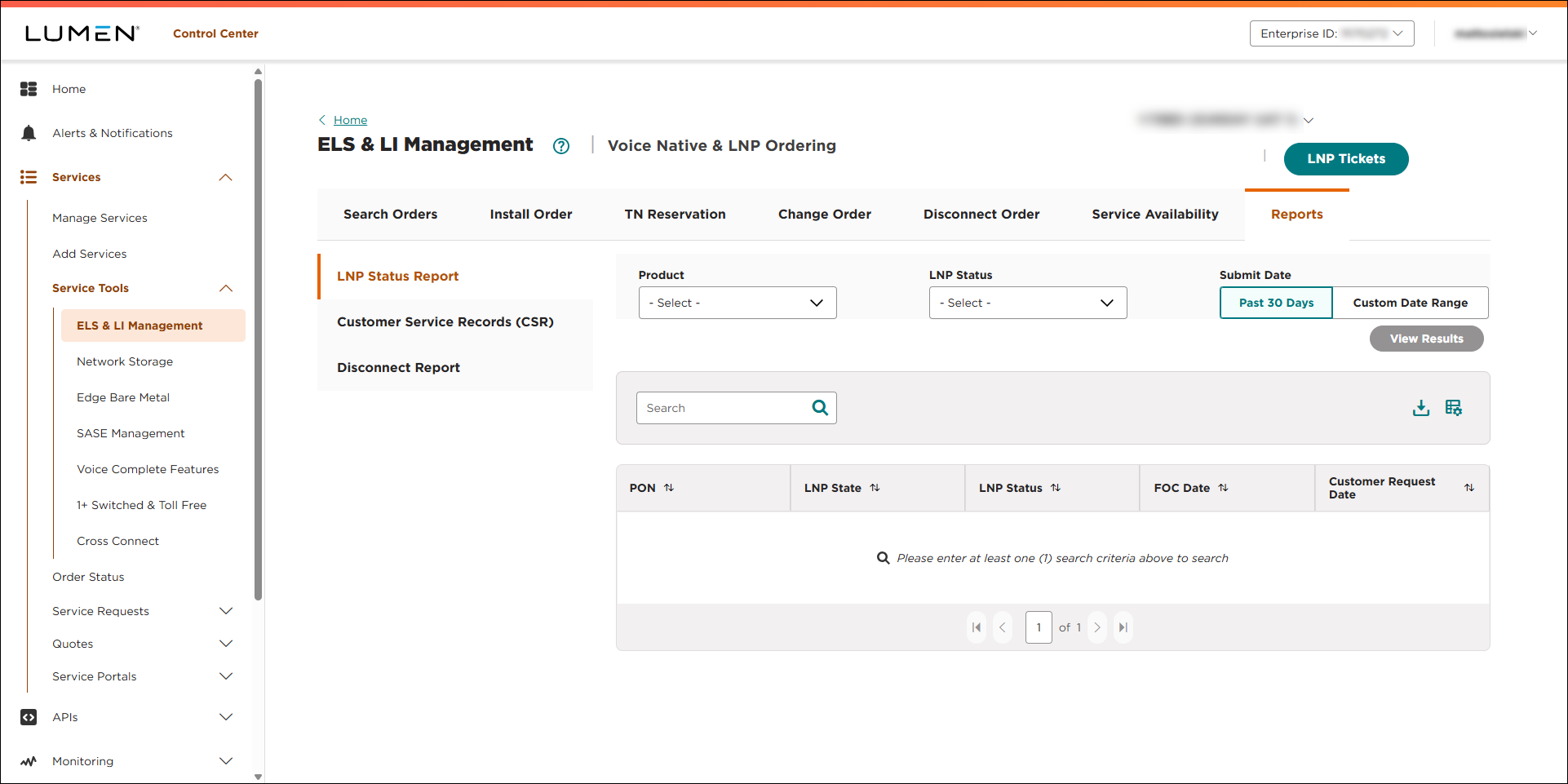
- On the Reports tab, click Disconnect Report.
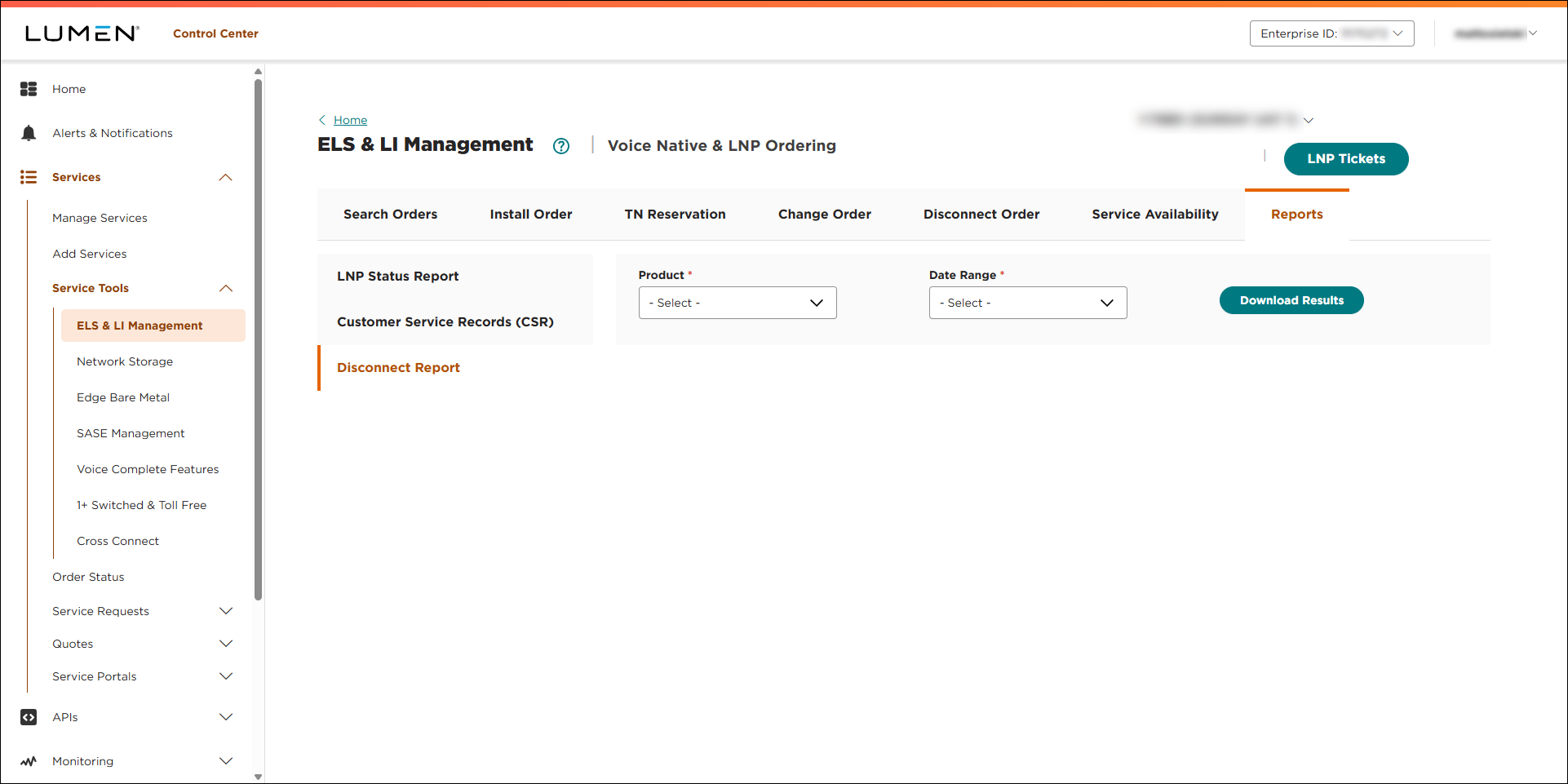
- From the Product list, select whether you want to view a report for ELS or LI.
- From the Date Range list, do one of the following:
- To create a report for the past 30, 60, or 90 days, select one of the options from the list.
- To create a report for a specific time period, select Custom Date Range, then use the Start Date and End Date fields to set the time for your report. You can type in a date (using YYYY‑MM‑DD format) or use the icon to select the date using a calendar.
- To create a report for the past 30, 60, or 90 days, select one of the options from the list.
- Click Download Results.
Lumen Connect creates a report of the phone numbers disconnected for the product and date range you selected and triggers your browser to download the report.
- Use the window that appears to download the report to your computer.



