Triggering a port for VoIP Enhanced Local or Local Inbound
Once you place an order to port phone numbers to Lumen® VoIP Enhanced Local (ELS) or Lumen® Local Inbound (LI), you can trigger the port using Lumen Connect® on the day of the firm order commit (shown in the FOC Date field). You can also use Lumen Connect to check to see whether you can port a phone number to VoIP Enhanced Local or to Local Inbound.
To trigger a port for VoIP Enhanced Local or Local Inbound:
- Using the left menu, click Services, click Service Tools & Portals, then click ELS & LI Management.
- If you have more than one customer number on your enterprise ID, select the customer number you want to work with, then click PROCEED.
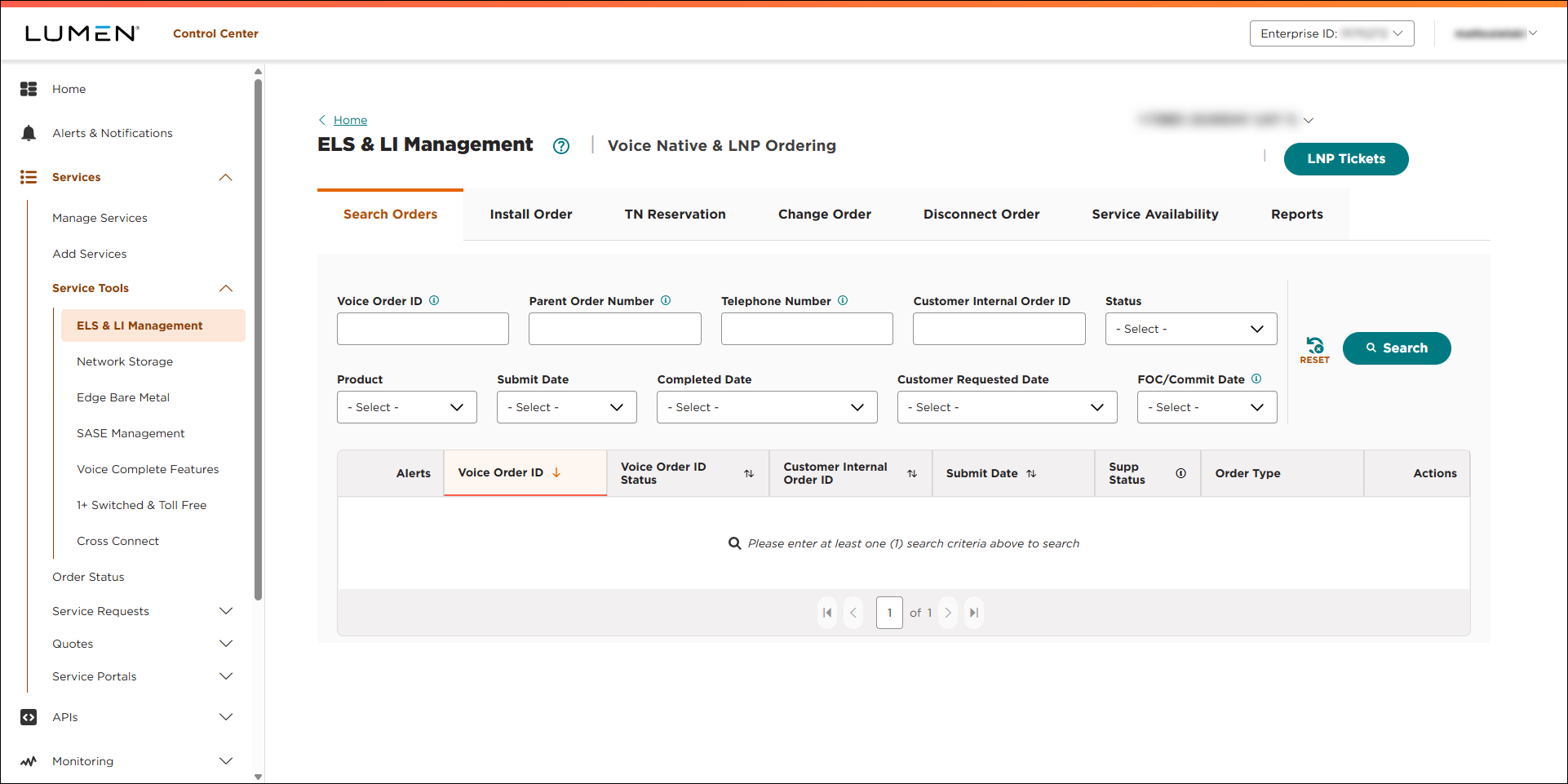
- Use the fields to search for the order:
- To search by order number, type the order number in the Voice Order ID field, then click Search.
- To search by the parent order number, type the parent order number in the Parent Order Number field, then click Search.
- To search by a phone number associated with the order, type the number in the Telephone Number field, then click Search.
- To search by your internal order ID associated with the order, type the number in the Customer Internal Order ID field, then click Search.
- To see all of your orders in a certain status, select an option from the Status list.
- To see all orders for VoIP Enhanced Local, select ELS from the Product list.
Lumen Connect filters to show all VoIP Enhanced Local orders.
- To see all orders for the Local Inbound, select LI from the Product list.
Lumen Connect filters to show all Local Inbound orders.
- To see all orders submitted within the past 30 days, select Past 30 Days from the Submit Date list. (To see orders submitted in a specifc date range, select Custom Date Range, select a start and end date, then click Apply.)
- To see all orders completed within the past 30 days, select Past 30 Days from the Completed Date list. (To see orders completed in a specifc date range, select Custom Date Range, select a start and end date, then click Apply.)
- To see all orders with requested due dates within the past 30 days, select Past 30 Days from the Customer Requested Date list. (To see orders with requested due dates in a specifc date range, select Custom Date Range, select a start and end date, then click Apply.)
- To see all orders with a commit (firm order confirmation) date within the past 30 days, select Past 30 Days from the Submit Date list. (To see orders with a commit (firm order confirmation) date in a specifc date range, select Custom Date Range, select a start and end date, then click Apply.)
Lumen Connect shows all orders matching your search criteria.
- To search by order number, type the order number in the Voice Order ID field, then click Search.
- When you find the order, click the
more_vert icon (in the Actions column), then click Order Details.
Lumen Connect shows details for the order you selected.
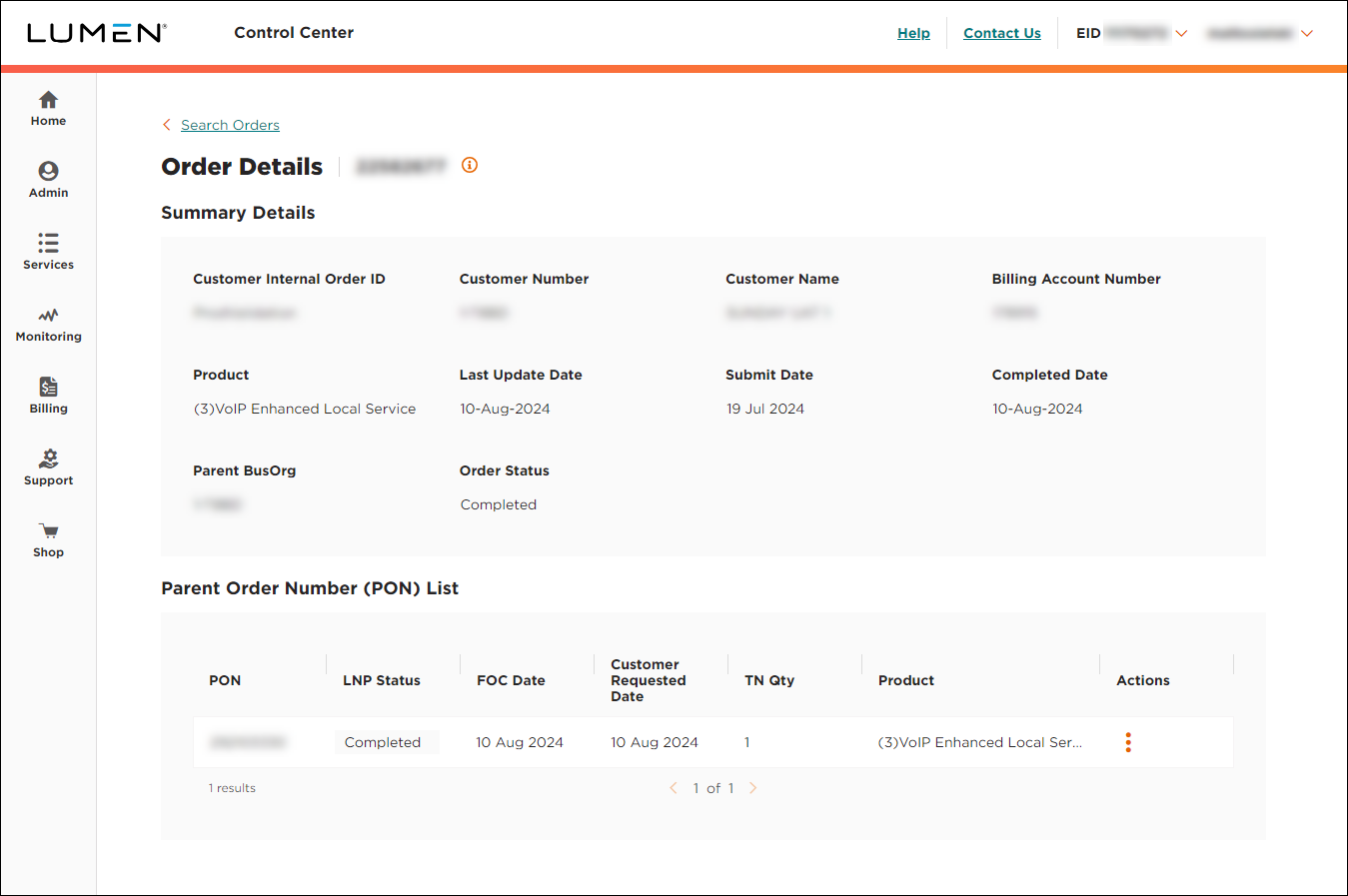
- On the row for the parent order number, click the
more_vert icon (in the Actions column), then click Trigger Port.



