Downloading a list of users on your enterprise ID
You download a list of users assigned to an enterprise ID in Lumen Connect to help you view, sort, and filter the information. You can use the downloaded file for record-keeping purposes or to help you plan permissions, profile information, or active/inactive status changes for users in your organization.
To download a list of users on your enterprise ID:
- Using the left menu, click Admin, then click Users.
Lumen Connect lists the users for your organization. For each user, Lumen Connect shows whether the user is a system administrator, what two-factor authentication (2FA) method is set for the user, when the user last signed in, and the user's status: Active, Pending, or Inactive.
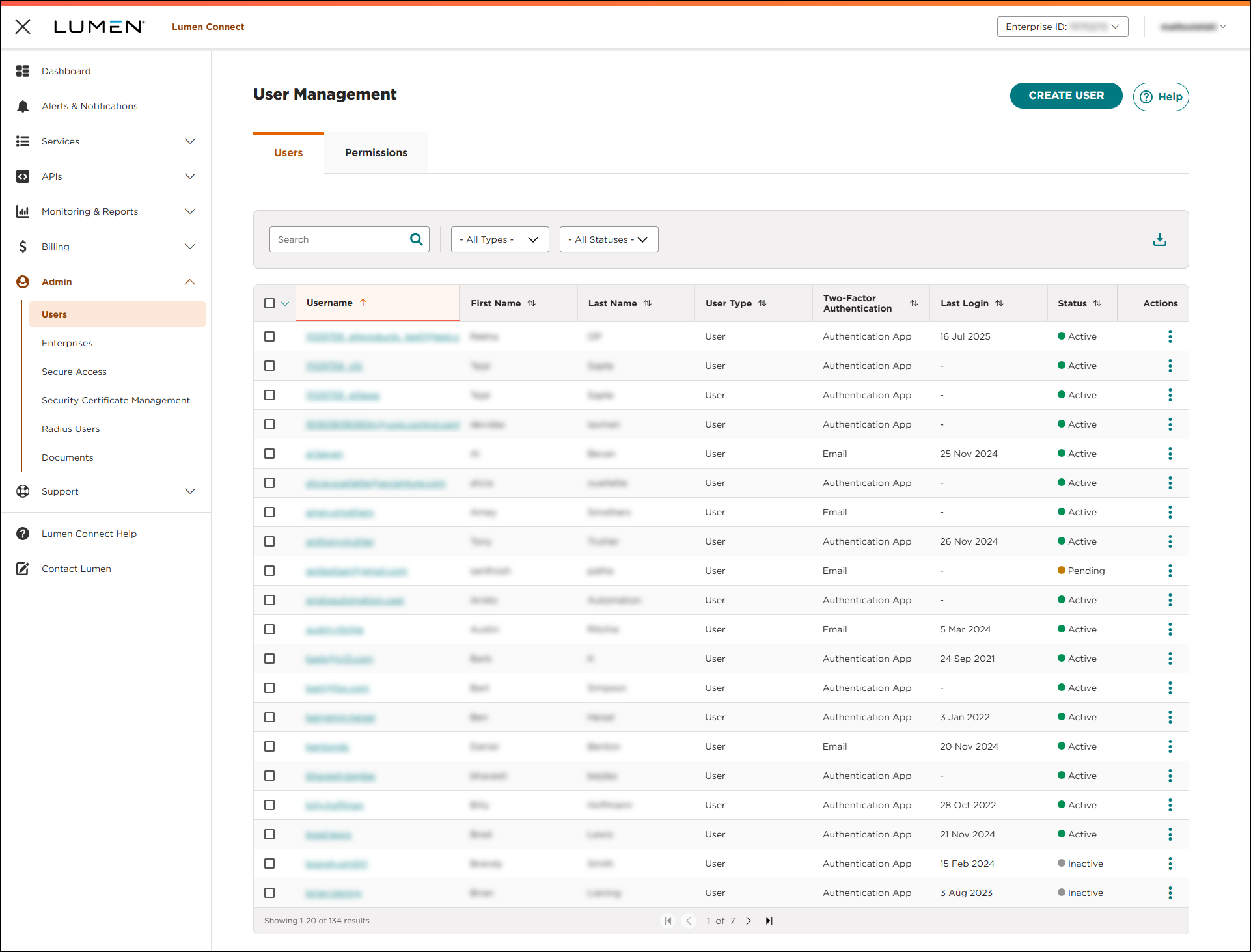
- To download the list, click the icon on the right (directly above the list).
Lumen Connect creates the user list and starts the download for the file.



