Deleting a hierarchy for billing reports
In Lumen Connect®, you can delete a billing report hierarchy you no longer need. You can also edit a hierarchy if you need to add or remove nodes, change the node a service is assigned to, etc.
You can use hierarchies to structure your data to track your voice usage or spend across different groups and functions of your organization for more informed reporting and analysis:
- Review monthly telecom spend by business unit, division, department, group, or other segment of your organization; assign costs among groups that share telecom services.
- Use a hierarchy like data filters for your reports.
- Create multiple hierarchies to test and compare different reporting scenarios.
A hierarchy mirrors the structure of your organization—business units, regional offices, retail outlets, cooperatives, departments, and other reporting groups. You can set a hierarchy you create as private (available only to you) or public (available for all users in your organization).
To delete a hierarchy for billing reports:
- Using the left menu, click Billing, then click Billing Reports.
Lumen Connect shows a list of billing reports for your organization.
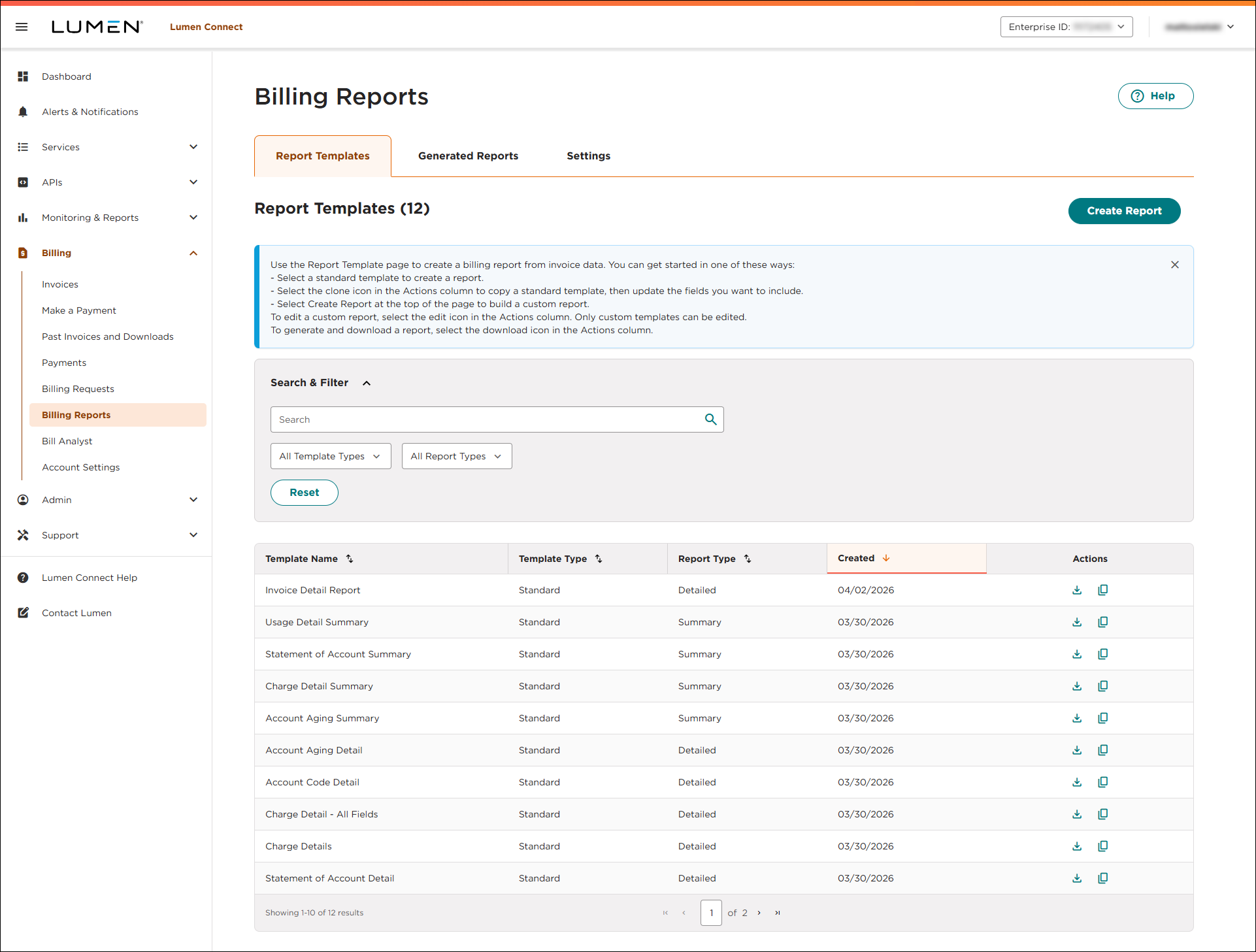
- Click the Settings tab.
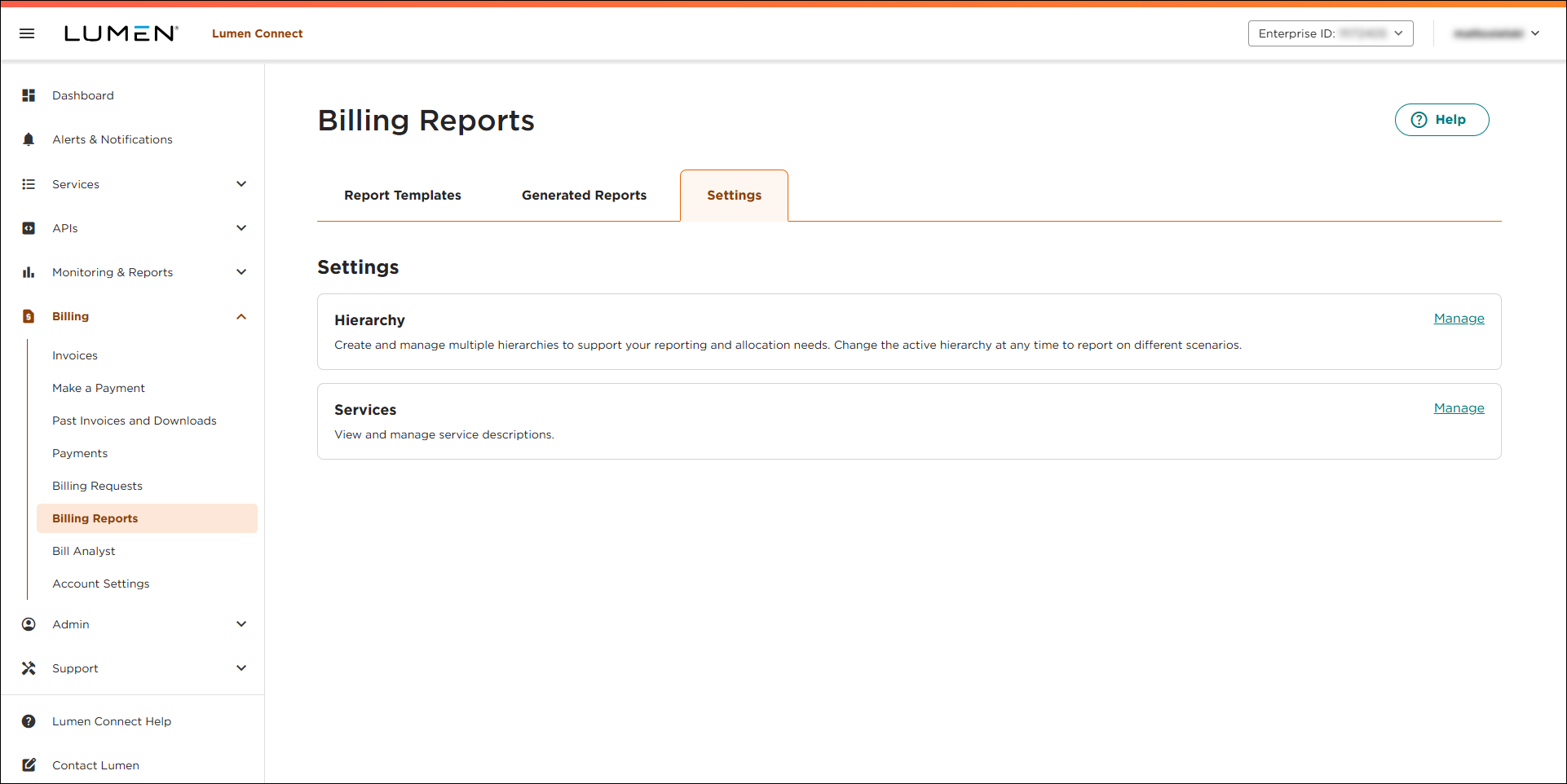
- In the Hierarchy box, click Manage.
Lumen Connect lists the hierarchies (if any) for your organization. (You can view all public hierarchies and any private hierarchies you created.)
- Do either of the following:
- On the row for the hierarchy you want to delete, click the
delete icon.
- To delete multiple hierarchies at once, select the checkbox on the row for each hierarchy, then click Delete.
- On the row for the hierarchy you want to delete, click the
- In the window that appears, click Confirm.
Lumen Connect deletes the hierarchy(s).



