Customizing your Lumen Connect dashboard
To help you prioritize the Lumen information you want to see when you sign in, you can customize your view of the Lumen Connect® dashboard to select which snapshots appear and in what order they appear.
To customize your Lumen Connect dashboard:
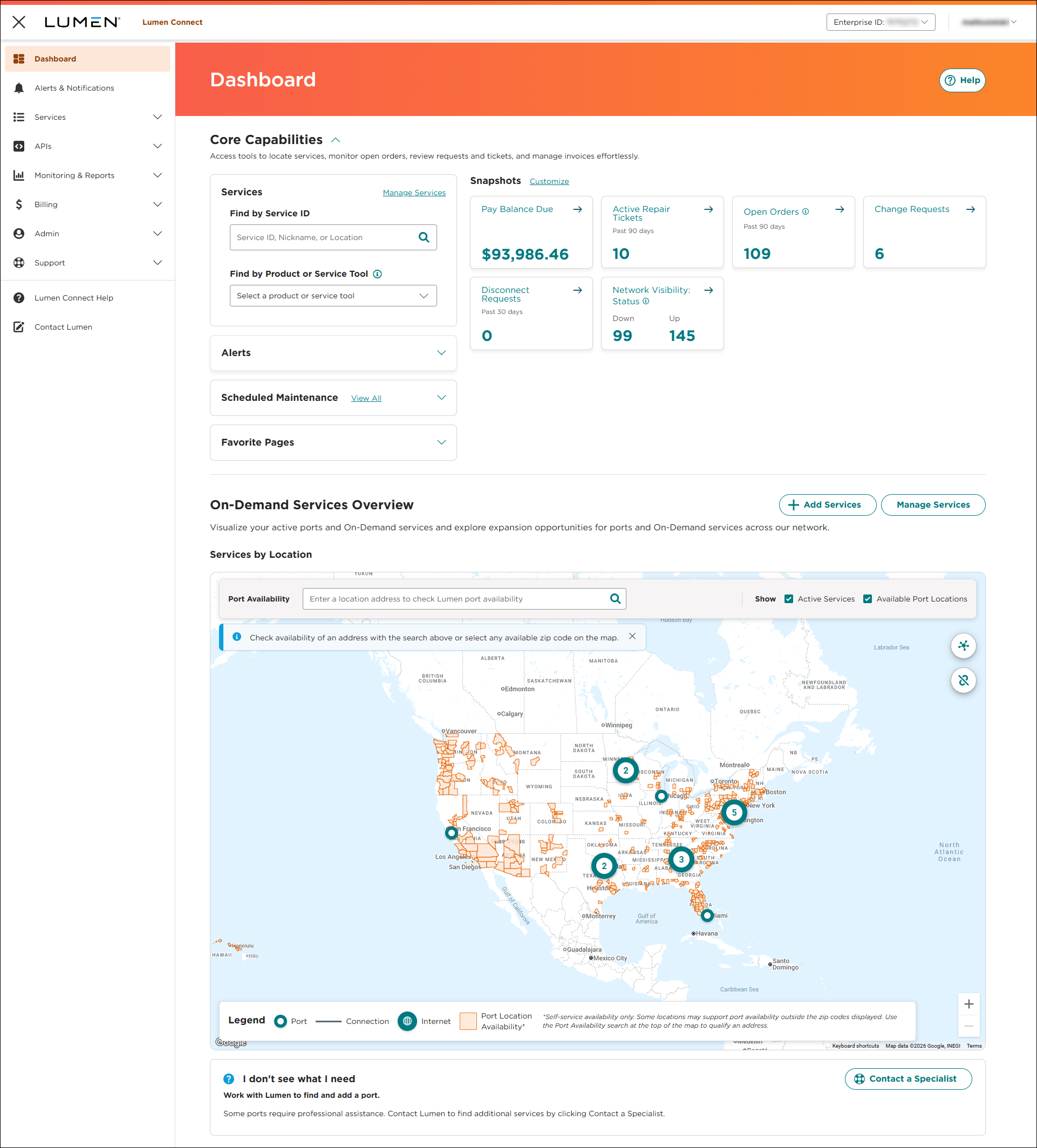
- At the top of the Snapshots section, click Customize.
- Do any of the following:
- To remove a snapshot from the dashboard, click the
close icon on the row for the snapshot.
- To add a snapshot to the dashboard, select the checkbox for the snapshot(s) you want to add, the click Add Snapshots.
- To move a snapshot to a new location on the dashboard, use the
drag_indicator icon to drag the snapshot to location you want, then release the icon.
- To reset your snapshots to the default view, click Reset to Default.
- To remove a snapshot from the dashboard, click the
- When you're finished making changes, click Save.
Lumen Connect saves your changes.



