Viewing the status of a ticket without signing in
Need to check the status of a repair ticket or configuration request while you're on the go, but don't want to sign in to Lumen Connect? You can get a quick status update using your ticket/request number and the associated billing account number.
To view the status of a ticket without signing in:
- Open a browser and go to connect.lumen.com.
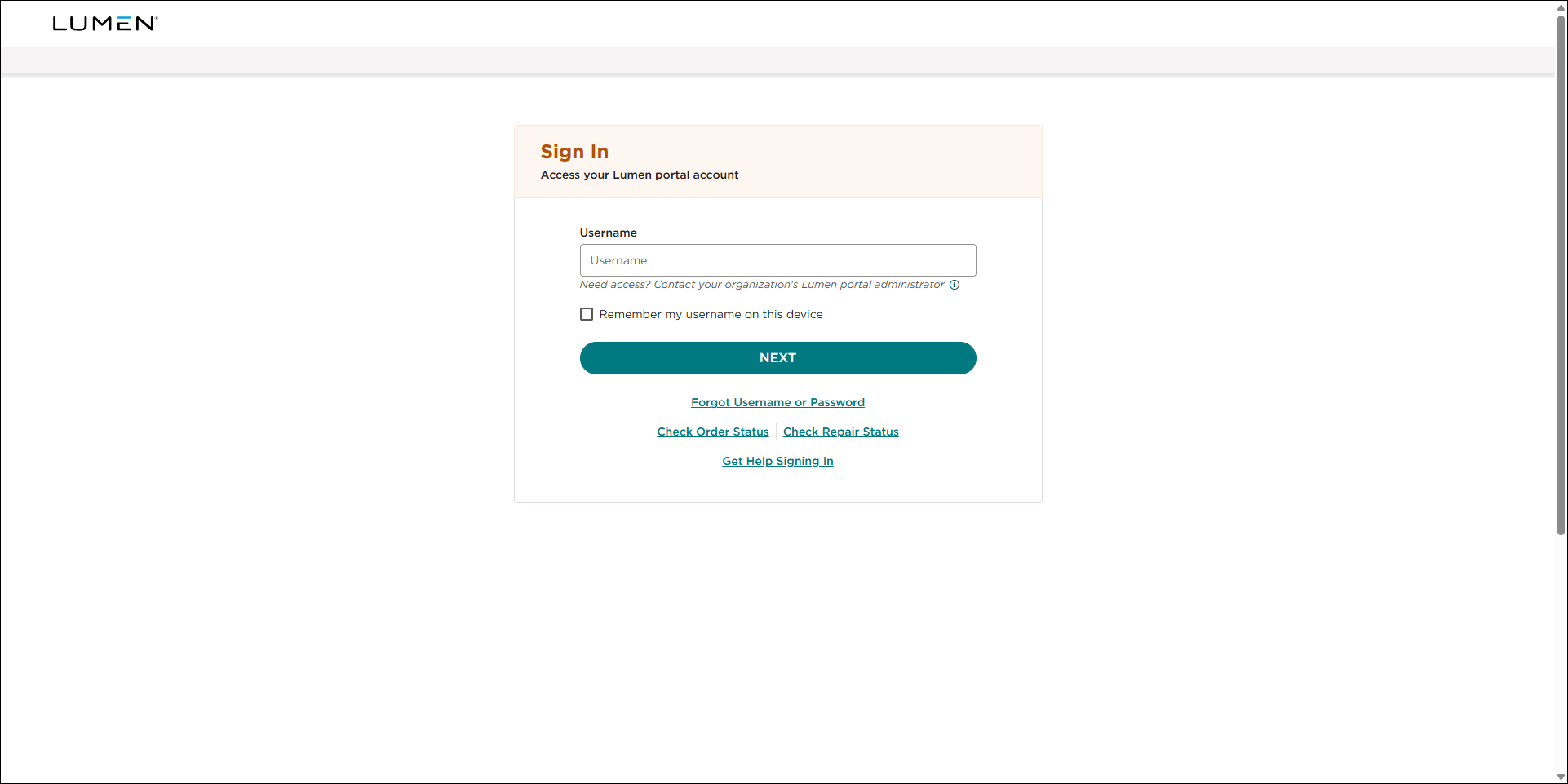
- In the Check your status without signing in box, click Repair Status.
- Type the ticket ID and billing account number, then click Submit.
Lumen Connect shows brief information for the repair ticket or configuration request you entered—including the status of the ticket.
- Do any of the following:
- To view details or work log notes for the ticket, click the to the right of the ticket status.
- To check the status of another ticket, click Reset and go back to step 3.
- To close the status window and return to the login page, click Cancel.
- To update the work log notes or change the status of the ticket, sign in to Lumen Connect and then make your updates to the ticket.
- To view details or work log notes for the ticket, click the to the right of the ticket status.



