Viewing your alerts and notifications
After you create notification settings to receive alerts in Lumen Connect®, you can view any alerts or notifications activated by your settings.
To view your alerts and notifications:
- Using the left menu, click Alerts & Notifications.
Lumen Connect lists all your notifications. If you're a Lumen Connect system administrator, you see your notifications by default, but you can use the list to select another user in your organization to view their notifications.
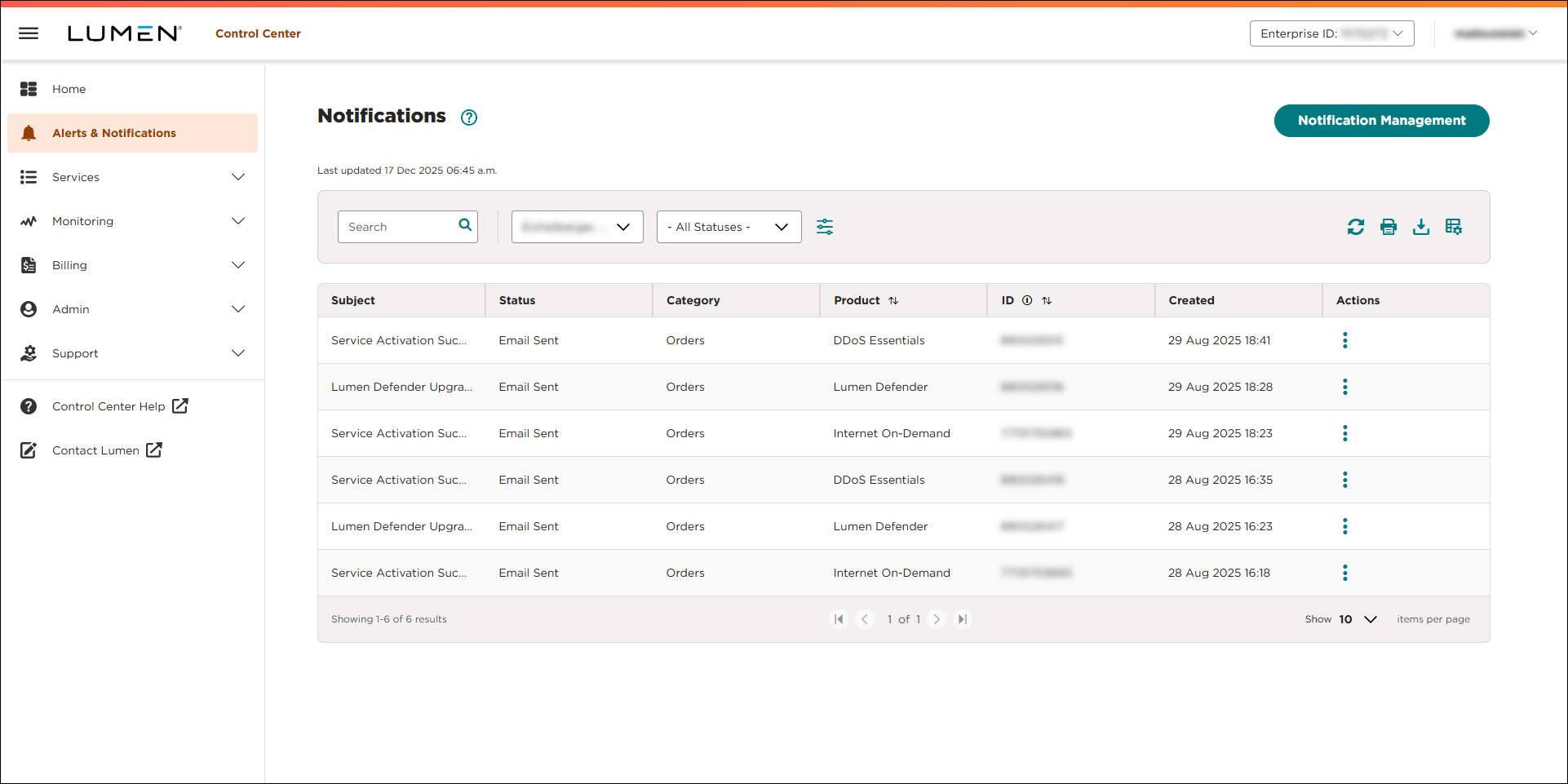
- Do any of the following:
- To view only alerts in a particular status (e.g., Overdue), select a status from the All Statuses list.
- To see more records (20 at a time), use the arrows at the bottom of the list. Lumen Connect stores notifications for one year and then deletes them.
- If you want to find a specific record, you can search for it. Use the Search field to type criteria for the alert.
- To view only alerts in a particular status (e.g., Overdue), select a status from the All Statuses list.



