Adding descriptions to phone numbers
You can add up to two descriptions to each phone number to give your reports more meaning in Usage Analyst. Add descriptions to one phone number at a time using the online form, or add descriptions to multiple numbers at once by uploading a spreadsheet (saved as a .csv file) to Usage Analyst. You can also add descriptions for phone numbers on billing reports.
Adding a description to one number at a time
To add a description to a phone number:
- Using the left menu, click Monitoring, click Voice Reports, then click Usage Analyst.
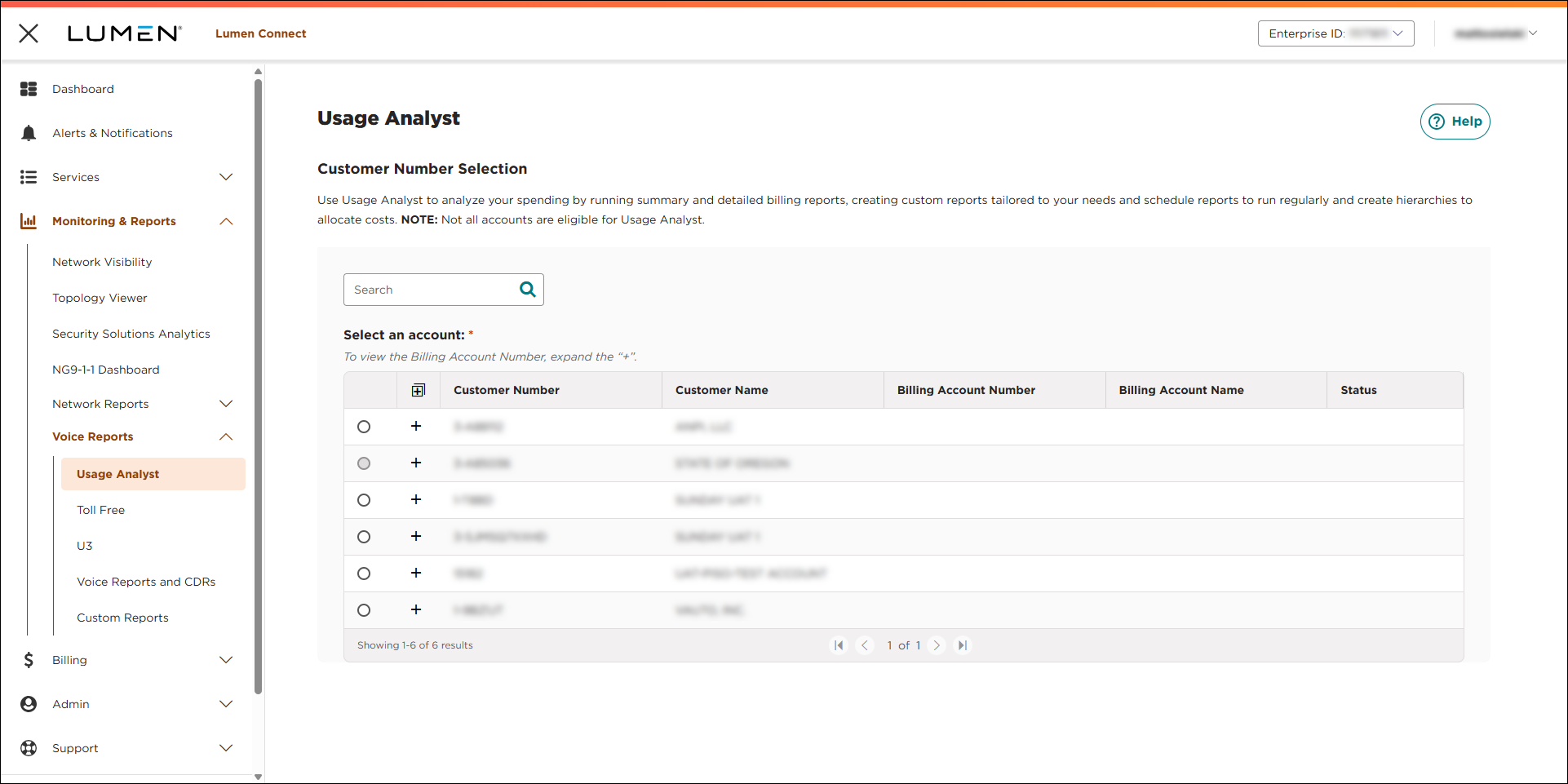
- Select the radio button next to the account you want to view, then click LAUNCH USAGE ANALYST.
Lumen Connect opens Usage Analyst in a new tab.
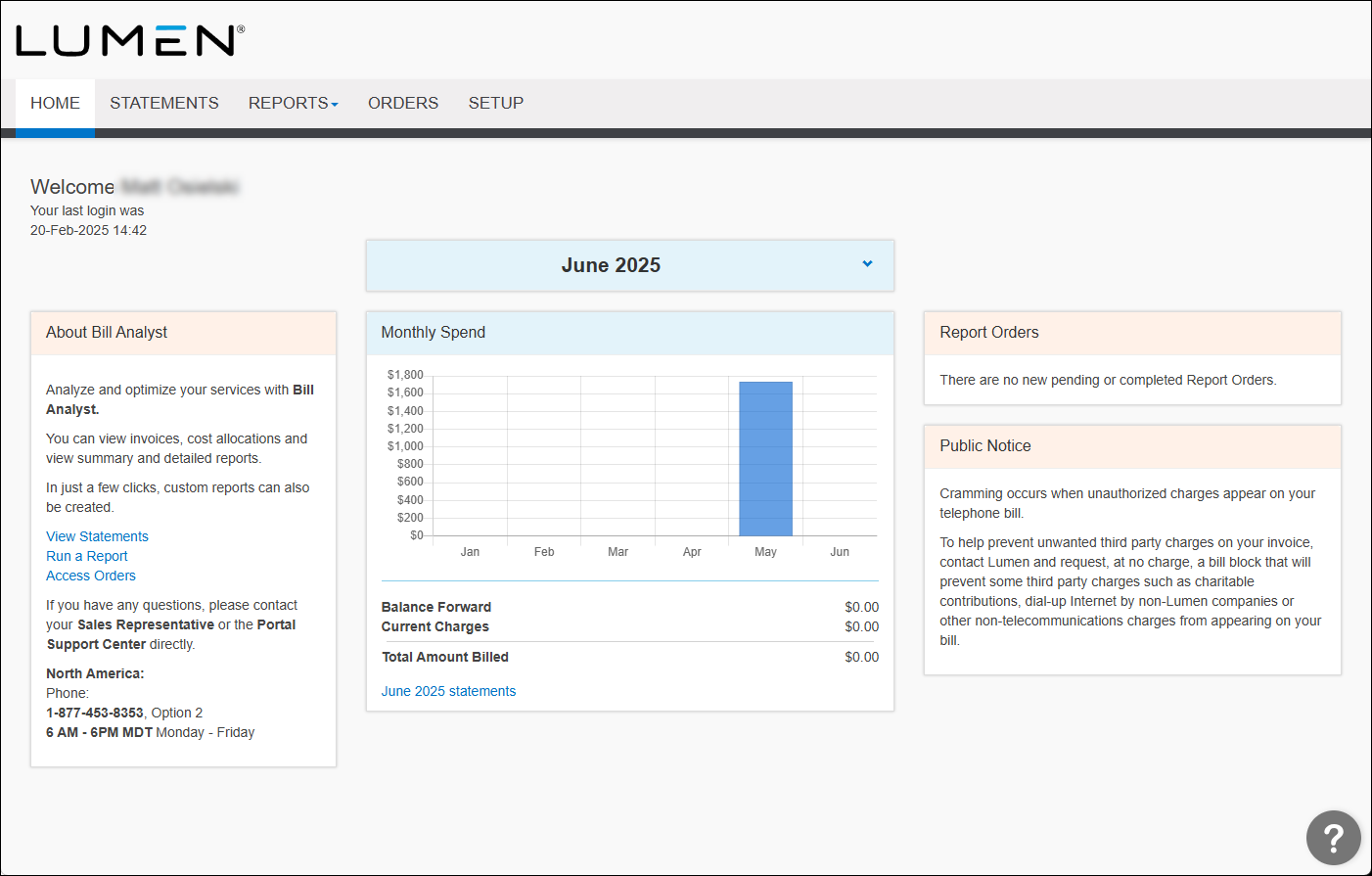
- Click the Setup tab.
- In the Descriptions section, click Phone Numbers.
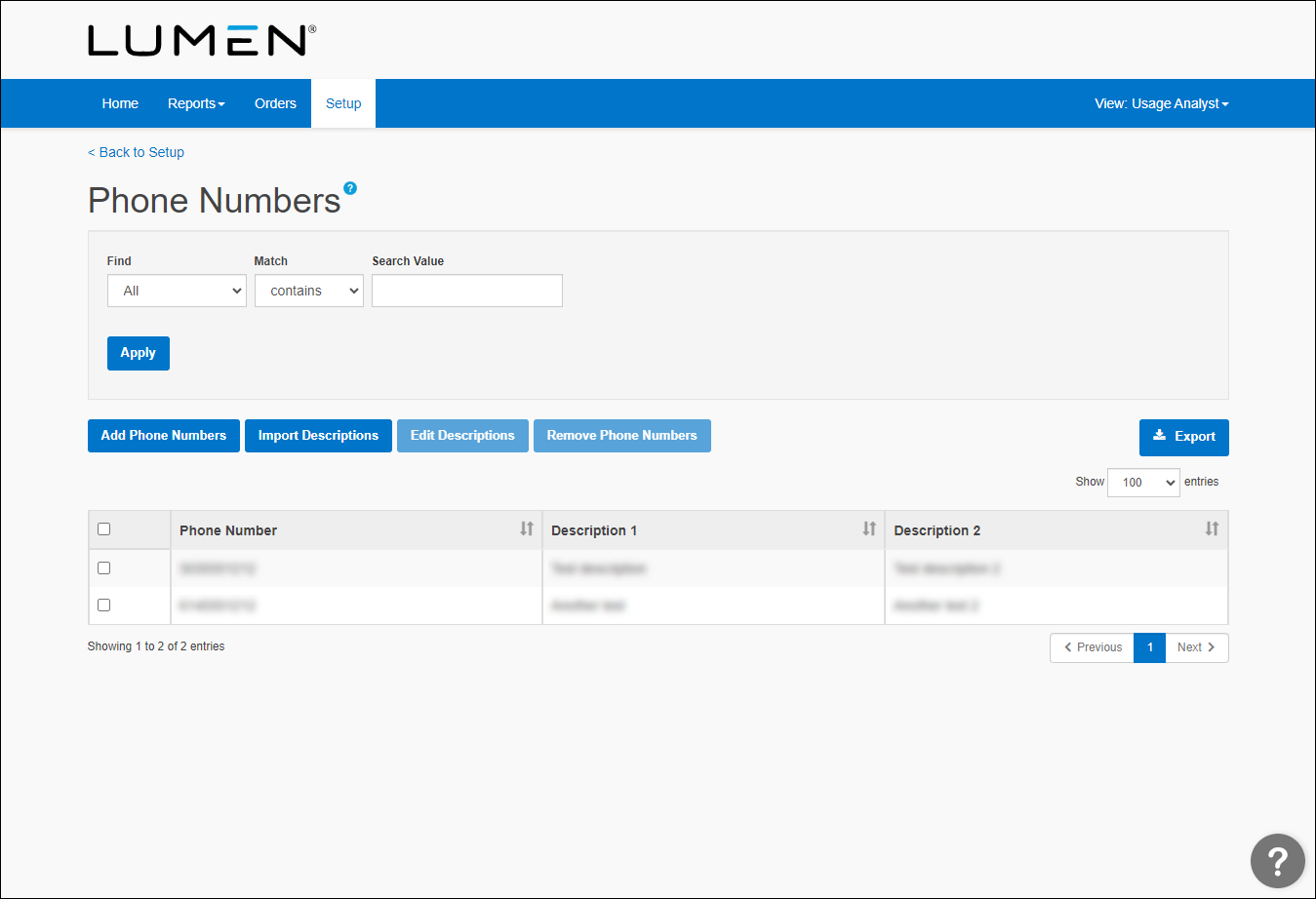
- Click Add Phone Numbers.
- In the form that appears, type the phone number(s) you want to add description(s) to and one or two descriptions for each phone number.
- Click Save.
Usage Analyst saves your description(s).
Adding descriptions to multiple numbers at once
To add descriptions for multiple phone numbers, you can import a list of phone numbers and their descriptions to Usage Analyst.
Before you begin, create an Excel spreadsheet with three columns:
- In column A, type the phone number (format: xxx‑yyy‑zzzz).
- In column B, type a description (shown in Usage Analyst as Description 1).
- In column C, type a secondary description (shown in Usage Analyst as Description 2).
- Save the spreadsheet as a .csv file.
To add descriptions to multiple phone numbers:
- Using the left menu, click Monitoring, click Voice Reports, then click Usage Analyst.
- Select the radio button next to the account you want to view, then click LAUNCH USAGE ANALYST.
Lumen Connect opens Usage Analyst in a new tab.
- Click the Setup tab.
- In the Descriptions section, click Phone Numbers.
- Click Import Descriptions.
- Do the following:
- Select the .csv file file you want to upload.
- If the phone numbers in your list already have descriptions, click one of the radio buttons to Replace existing descriptions or Keep existing descriptions.
- Select the .csv file file you want to upload.
- Click Save.
Usage Analyst imports the descriptions and shows a confirmation message.



