Viewing a traffic summary by IP-level protocol
The DDoS Mitigation and Reporting portal shows a summary of traffic for all monitored networks broken down by IP-level protocol. You can also view a TCP traffic summary, traffic by profile, or a traffic summary by application.
Negative values show traffic out of your network (in to Lumen). Positive values represent traffic into your network (out of Lumen). Each IP-level protocol has a unique color in the graph.
To view a traffic summary by IP-level protocol:
- Depending on your DDoS product, you can access the DDoS Mitigation and Reporting dashboard using one of the following methods:
- Using the left menu, click Services, click Service Portals, then click DDoS Mitigation and Reporting. Confirm that you are going to an external site, then click Log In with SSO.
- Using the left menu, click Monitoring & Reports, click Security Solutions Analytics, then click DDoS Mitigation and Reporting (in either the Reports or DDoS Mitigation Service sections).
- Using the left menu, click Services, click Service Portals, then click DDoS Mitigation and Reporting. Confirm that you are going to an external site, then click Log In with SSO.
The DDoS Mitigation and Reporting portal shows the dashboard.
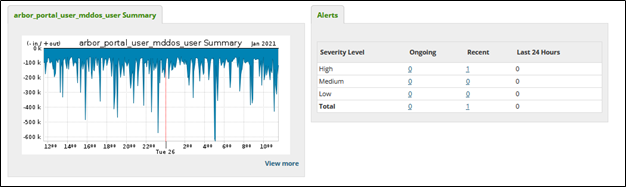
- Click the Traffic tab, click Summary, then click Protocols.
The DDoS Mitigation and Reporting portal shows a summary of the traffic for all monitored networks broken down by IP-level protocols.
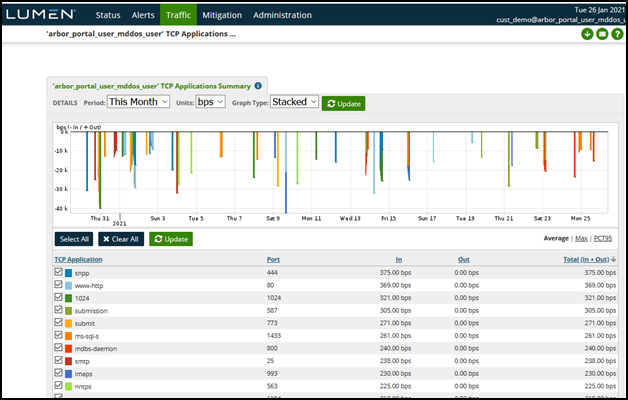
- Do any of the following to change the traffic summary:
- Click the Time menu to modify the summary to show different timeframes, then click Update.
- Select a date and time from Start and End to specify a timeframe, then click Update.
- Click the Units menu to switch between bits per second (bps) and packets per second (pps), then click Update.
- Click the Graph Type menu to change the graph from detail to pie or bar, then click Update.
- Uncheck a protocol to remove it from the graph.
- Click a column header to sort the table. Click the header again to reverse the order.
- Click the Time menu to modify the summary to show different timeframes, then click Update.



