Creating a system administrator
If you're a Lumen Connect system administrator for an enterprise ID, you can create additional system administrators on that enterprise ID. System administrators have access to use all Lumen Connect features to manage your organization's Lumen services. They can access all accounts, create new users, change user permissions, and change accounts assigned to users.
There's no limit to the number of system administrators your organization can have. Some organizations make everyone a system administrator; others limit access based on a user's job function. For example, people who work with billing only have access to billing tasks and can't order new services. A user can also be a system administrator for one enterprise ID and a regular user on another enterprise ID.
There are two ways to create a system administrator:
- Create a new user as a system administrator (if the person doesn't currently have access to Lumen Connect).
- Change an existing user into a system administrator (if the person already has access to Lumen Connect).
If there's no system adminstrator associated with your enterprise ID, contact your Lumen representative to request that they submit a form to create a new system administrator.
To change a Lumen Connect user into a system administrator:
- Using the left menu, click Admin, then click Users.
Lumen Connect lists the users for your organization. For each user, Lumen Connect shows whether the user is a system administrator, what two-factor authentication (2FA) method is set for the user, when the user last signed in, and the user's status: Active, Pending, or Inactive.
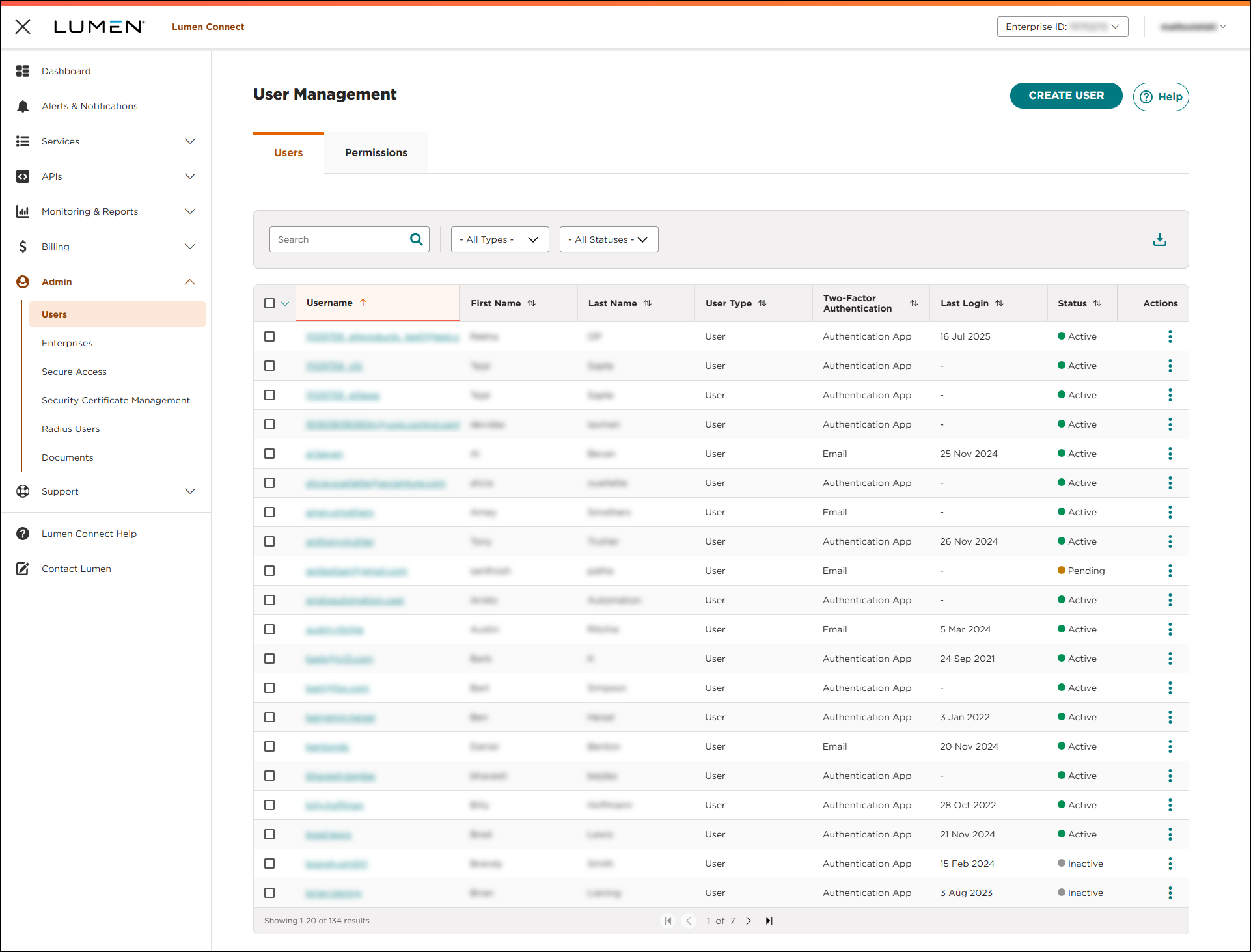
- Search for the user by doing one of the following:
- Scroll through the list of users. If you have more than 20 users, use the arrows at the bottom of the page to navigate between pages.
- Start typing part of the user's first name, last name, or username in the Search field. (Lumen Connect filters the user list as you type.)
- Scroll through the list of users. If you have more than 20 users, use the arrows at the bottom of the page to navigate between pages.
- When you find the user, click the link in the Username column on row for the user. (You can also click the icon (in the Actions column), then click View User Profile.)
Lumen Connect shows profile information for the user.
- Click the System Administrator toggle to turn it on, then click APPLY. (You can also clone permissions from an existing system administrator by clicking Clone User Permissions, then typing the user whose permissions you want to close.)
Lumen Connect makes the user a system administrator and changes the User Type field to show System Administrator in the list of users.



