Creating a hierarchy in Bill Analyst
You can use hierarchies in Bill Analyst to track your telecom use or spend across different groups and functions of your organization for more informed reporting and analysis.
After you create a hierarchy, you add nodes and sub nodes to it (representing different cost centers in your organization) and assign accounts and services to them. You can also add descriptions to phone numbers and services to help you read billing reports. If you no longer need a hierarchy, you can delete it. You can also export a hierarchy.
When you create a new hierarchy, it automatically becomes the active hierarchy until you sign out; when you sign in again, you can choose to make the hierarchy you want to work with the active hierarchy. (The master hierarchy is set as the active hierarchy by default.)
You can use hierarchies to structure your data to track your telecom use or spend across different groups and functions of your organization for more informed reporting and analysis:
- Review monthly telecom spend by business unit, division, department, group, or other segment of your organization; assign costs among groups that share telecom services.
- Use a hierarchy and its levels like data filters for your reports (in addition to standard and custom filters).
- Create multiple hierarchies to test and compare different reporting scenarios.
A hierarchy mirrors the structure of your organization—business units, regional offices, retail outlets, cooperatives, departments, and other reporting groups. The nodes and sub-nodes of a hierarchy form a tree structure, connected in parent-child relationships, representing your organization’s various groups. Split services between nodes to assign costs across multiple groups that share a service.
You can set a hierarchy you create as private (seen only by the person who created the hierarchy) or public (seen by all users in your organization).
Note: Some aspects of working with hierarchies are permission based. For example, you can only edit a node description, move a node to a different level, or remove a node if you are the owner or administrator.
To create a hierarchy:
- Using the left menu, click Billing, then click Bill Analyst.
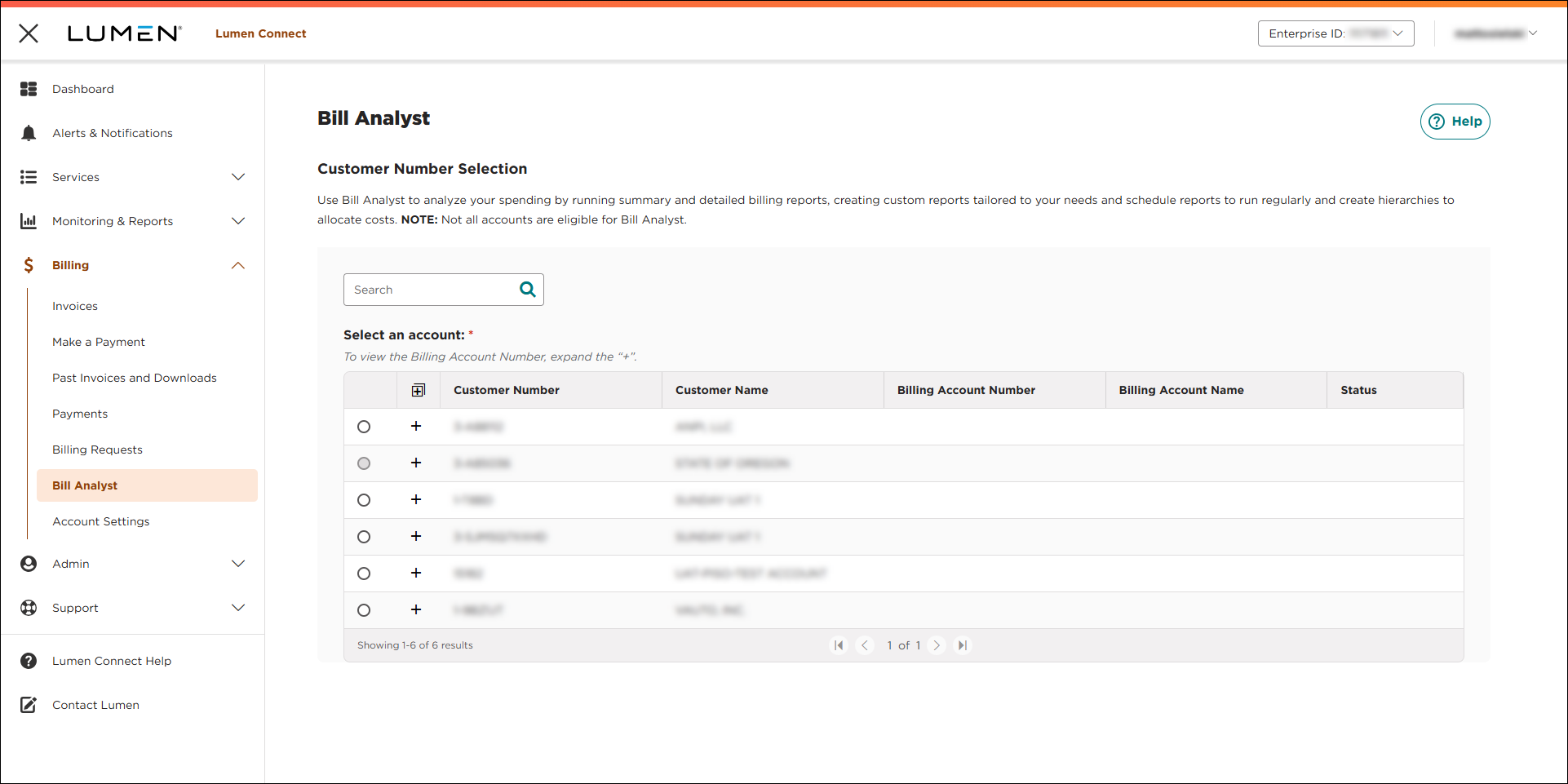
- Select the radio button next to the account you want to view, then click LAUNCH BILL ANALYST.
Lumen Connect opens Bill Analyst on a new tab.
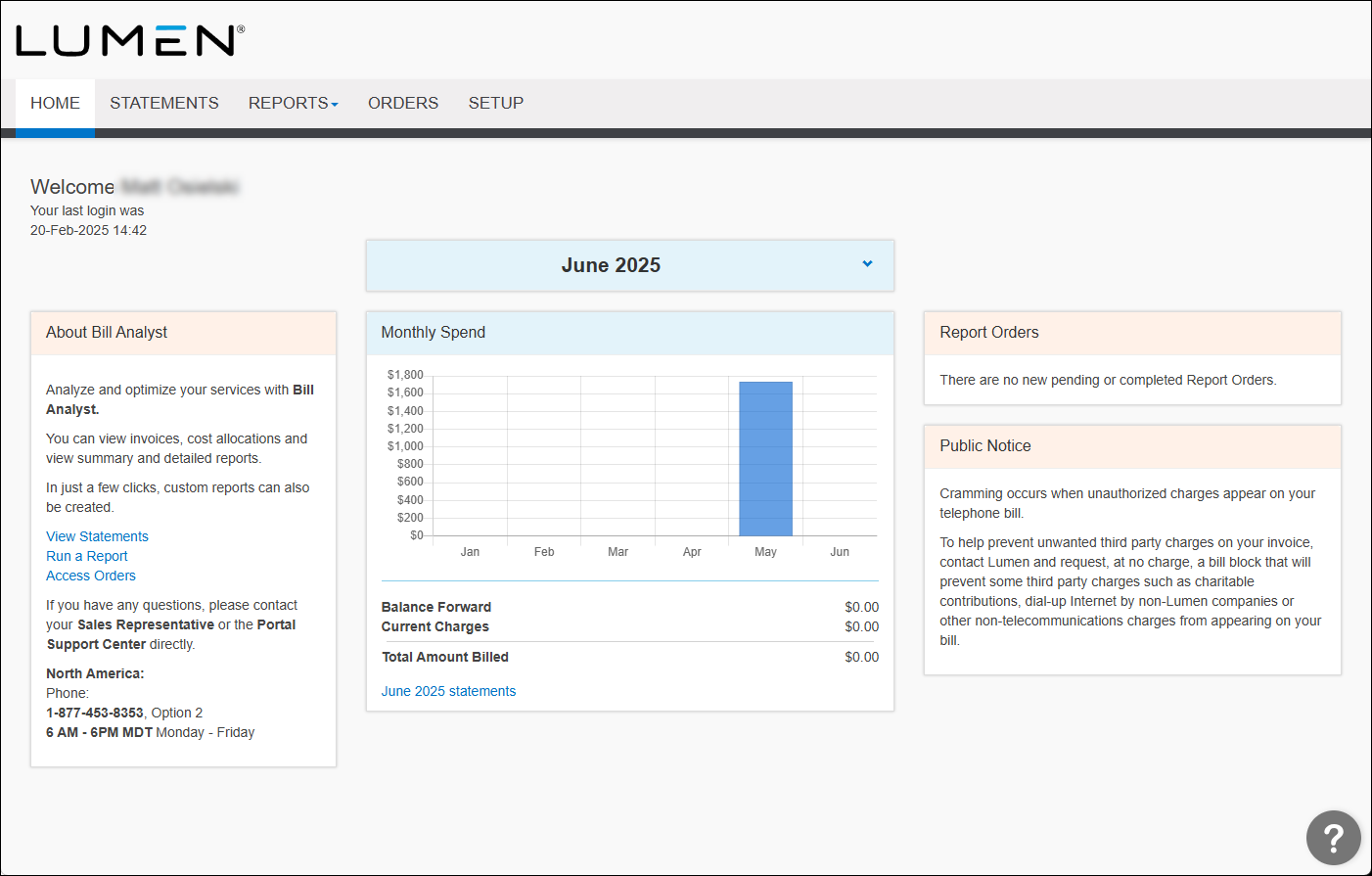
- Click the Setup tab.
- In the Hierarchies box, click Set Hierarchy.
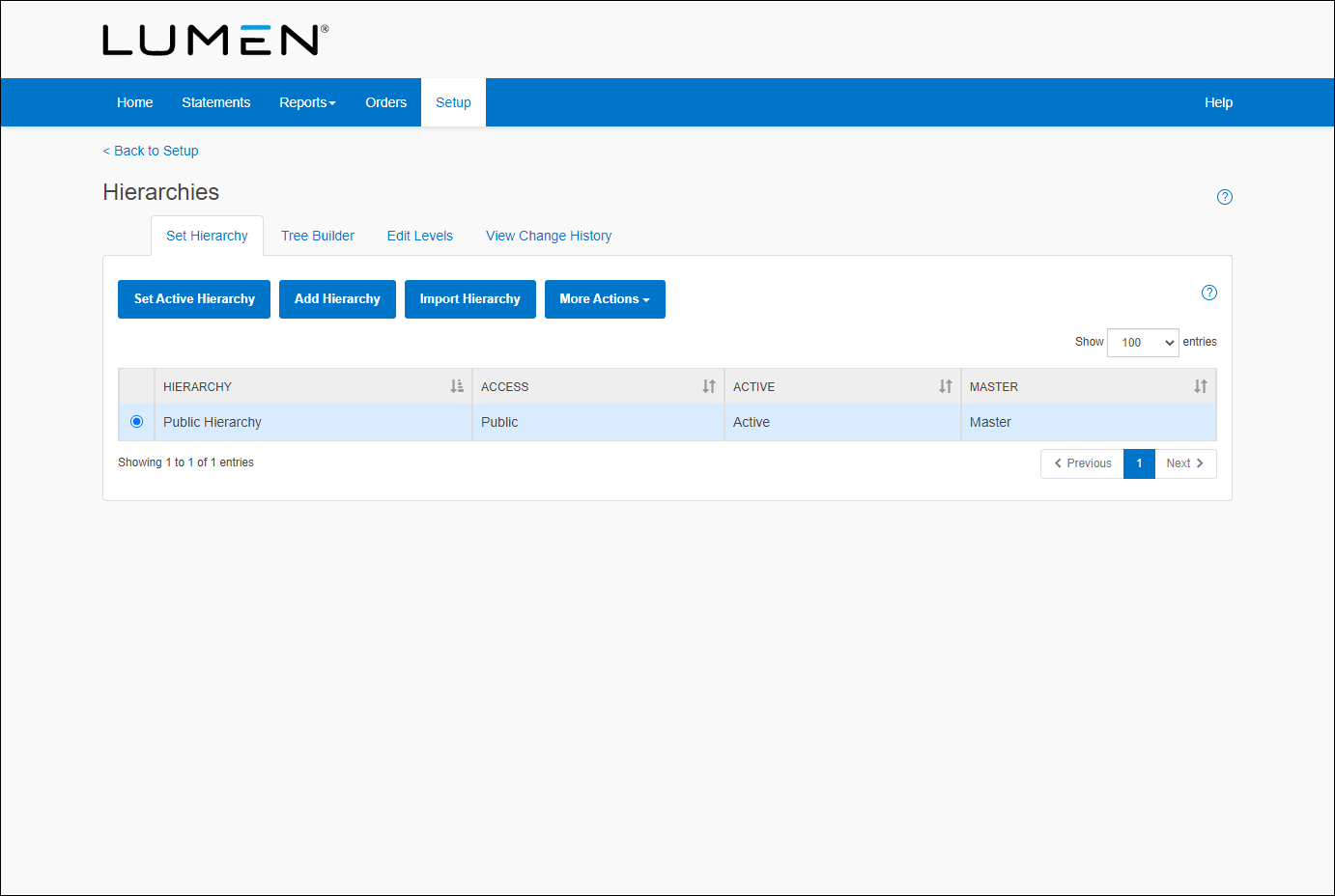
- Click Add Hierarchy.
- Type a name for your hierarchy.
- In the Access section, select who can see the hierarchy by doing one of the following:
- To allow everyone in the organization to see the hierarchy, select the Public radio button.
- For only you to see the hierarchy, select the Private radio button.
If you want to experiment with different reporting scenarios, you can create multiple hierarchies to test your results. Make a copy of an existing hierarchy to use as a starting point or you can create one from scratch. If you decide you want to start with a copy, any changes you make to the new hierarchy will not impact the original hierarchy.
- To allow everyone in the organization to see the hierarchy, select the Public radio button.
- Click Save.
Bill Analyst saves your changes. (As you start to edit the hierarchy, you can also view a history of changes to the hierarchy.)



