Creating a billing request
You can use Lumen Connect to request a billing or invoice-related change, such as changing your billing address or billing name, disputing a charge, clarifying a charge, or asking questions about your contract/service term. After you submit a billing request, you can view its status, update it, or close it as needed using Lumen Connect.
To create a billing request:
- Using the left menu, click Billing, then click Billing Requests.
Lumen Connect shows open billing requests for your organization, closed billing requests for the past 18 months, and a status for each request: Open, Active, or Closed.
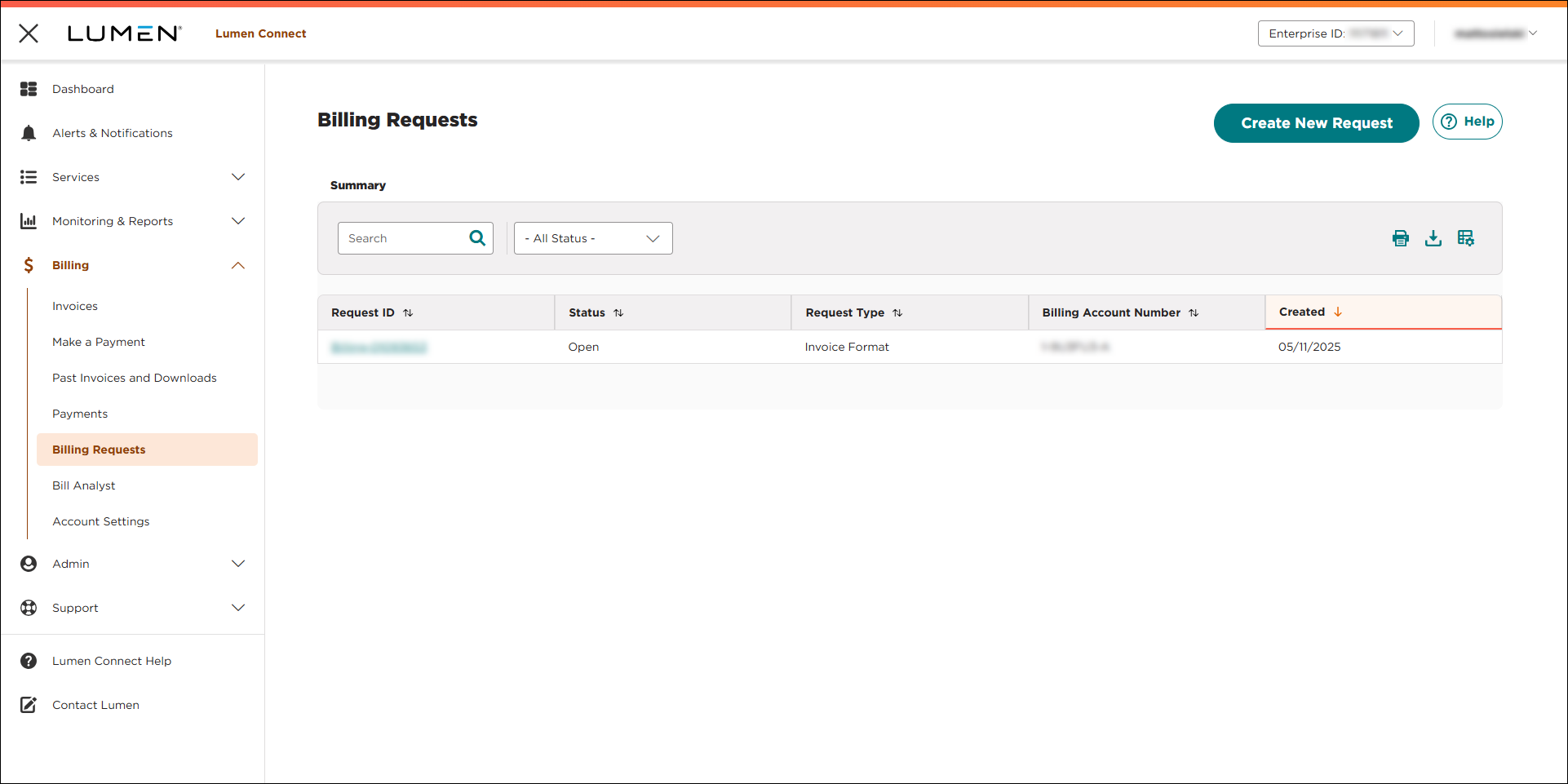
- Click CREATE NEW REQUEST.
- Use the radio buttons to select the billing account number you want to create a request for, then click CONTINUE.
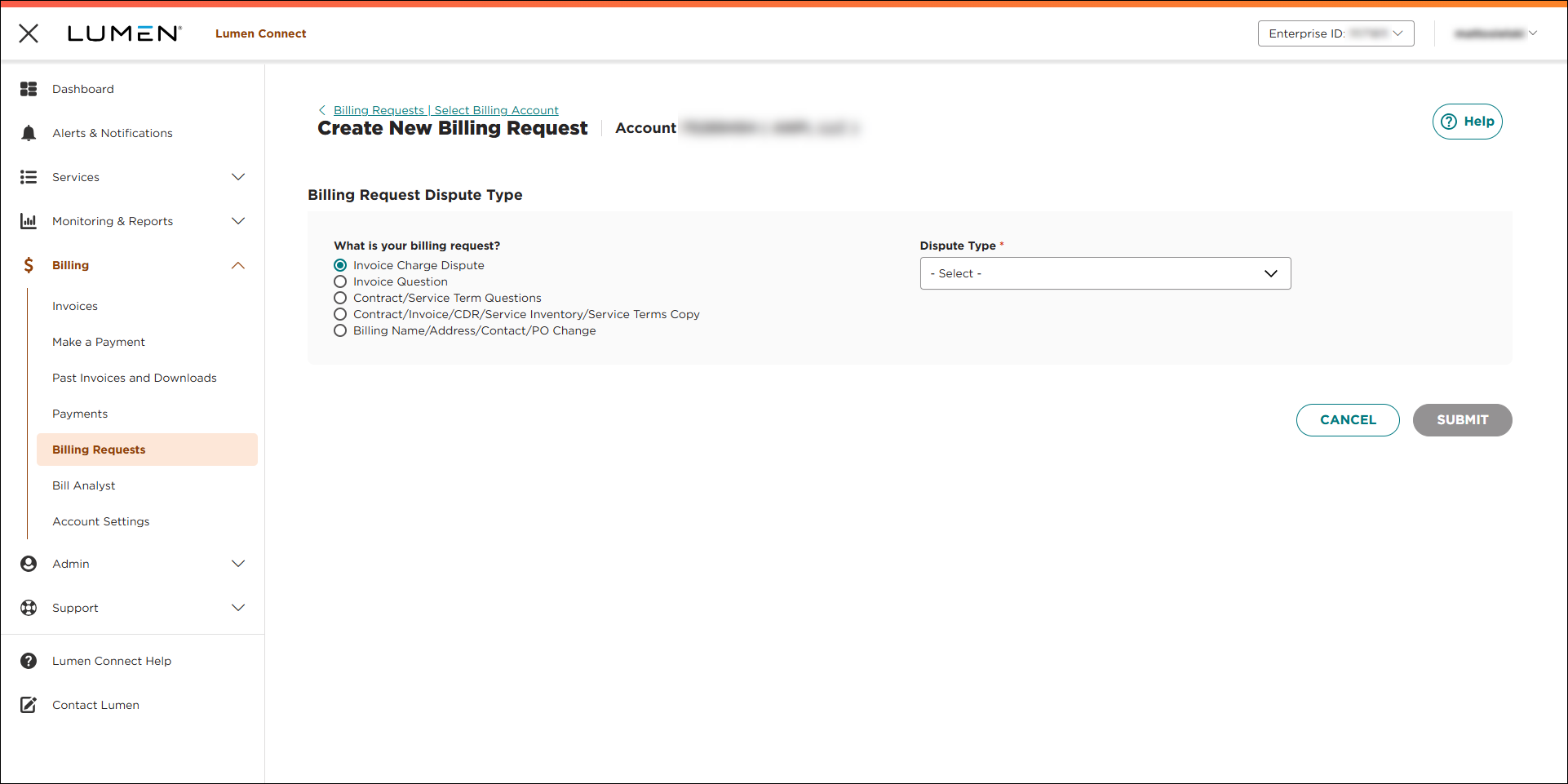
- Use the radio buttons and Dispute Type list to select the type of billing request you want to create, then click SUBMIT. (For example, if you selected Billing Name/Address/Contact/PO Change for the ticket type, you might select Billing Account Name or Address Change as the change type.)
- Fill in the form with the details for your request, add any attachments that will help Lumen process your request, and provide contacts for the billing request. (By default, Lumen Connect fills in your contact information as the primary contact for the request.) You can also add a tracking number for your organization to help you match this billing request with your systems.
- Click SUBMIT.
Lumen Connect submits your billing request and gives you a request ID; you can now track its status. A Lumen billing specialist will update your request within 72 hours; Lumen Connect changes the status from Open to Processing.



